Traefik Manager – UI Examples
Initial Setup
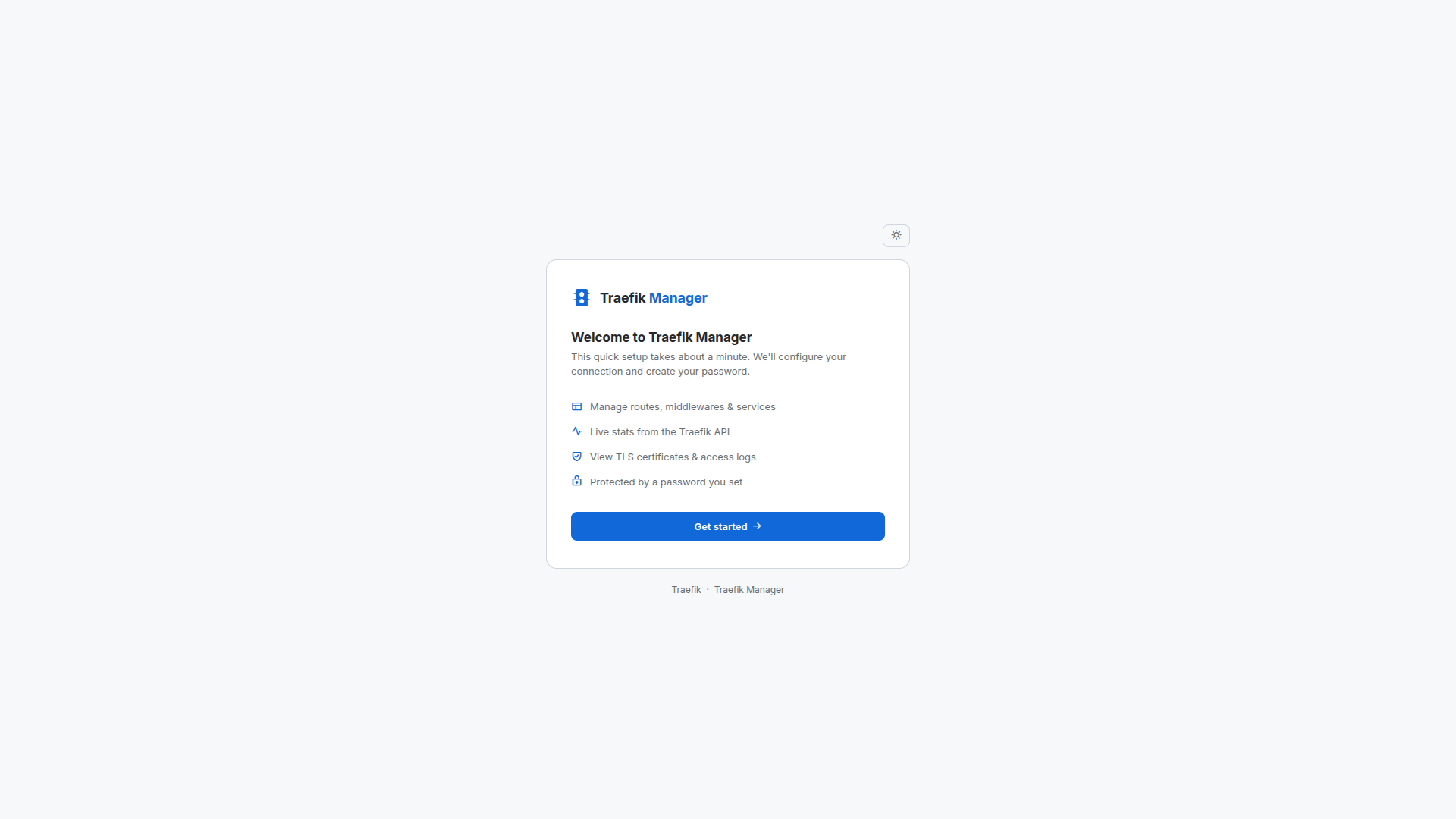
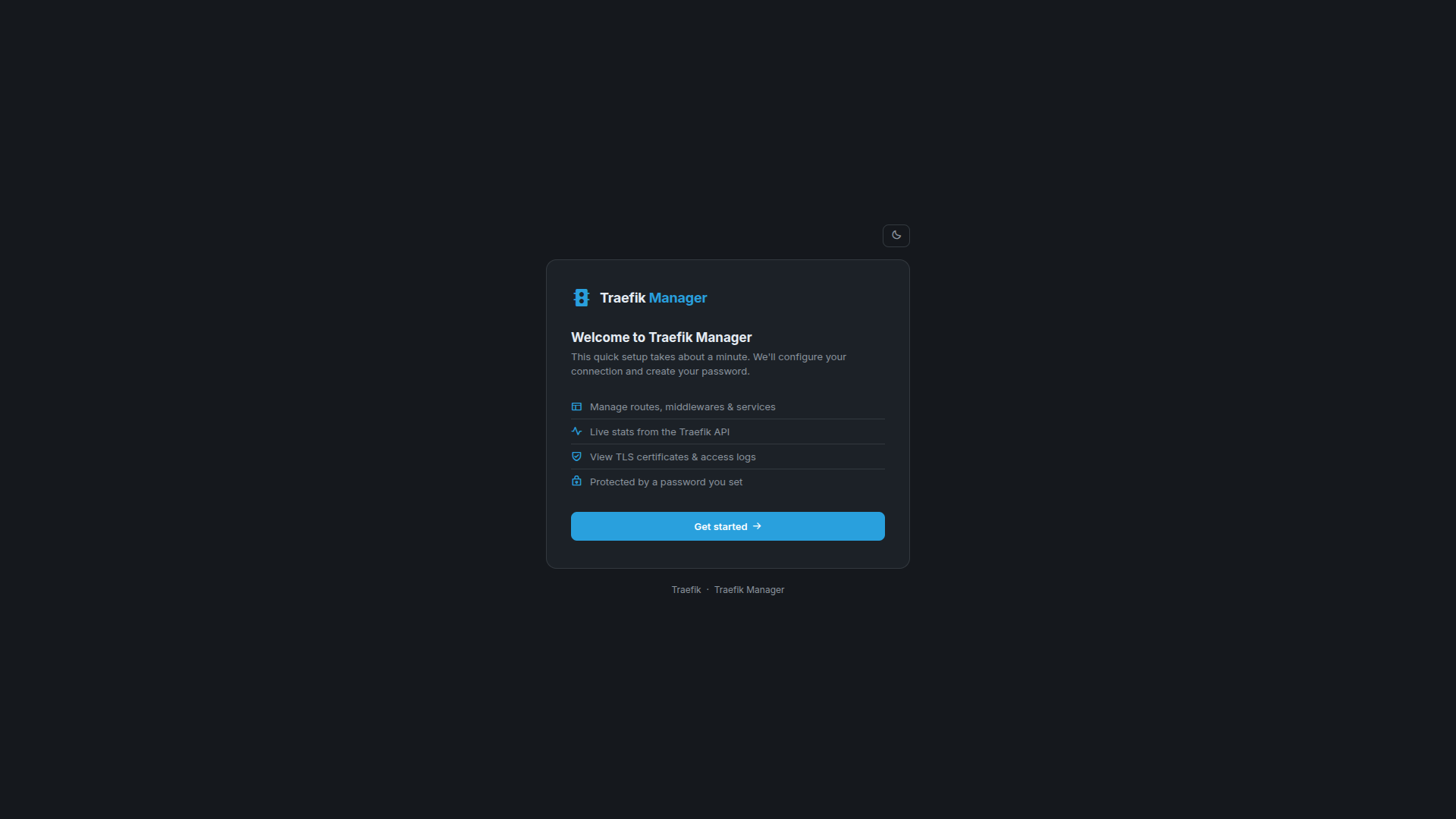
When first launching Traefik Manager you are guided through a short setup wizard.
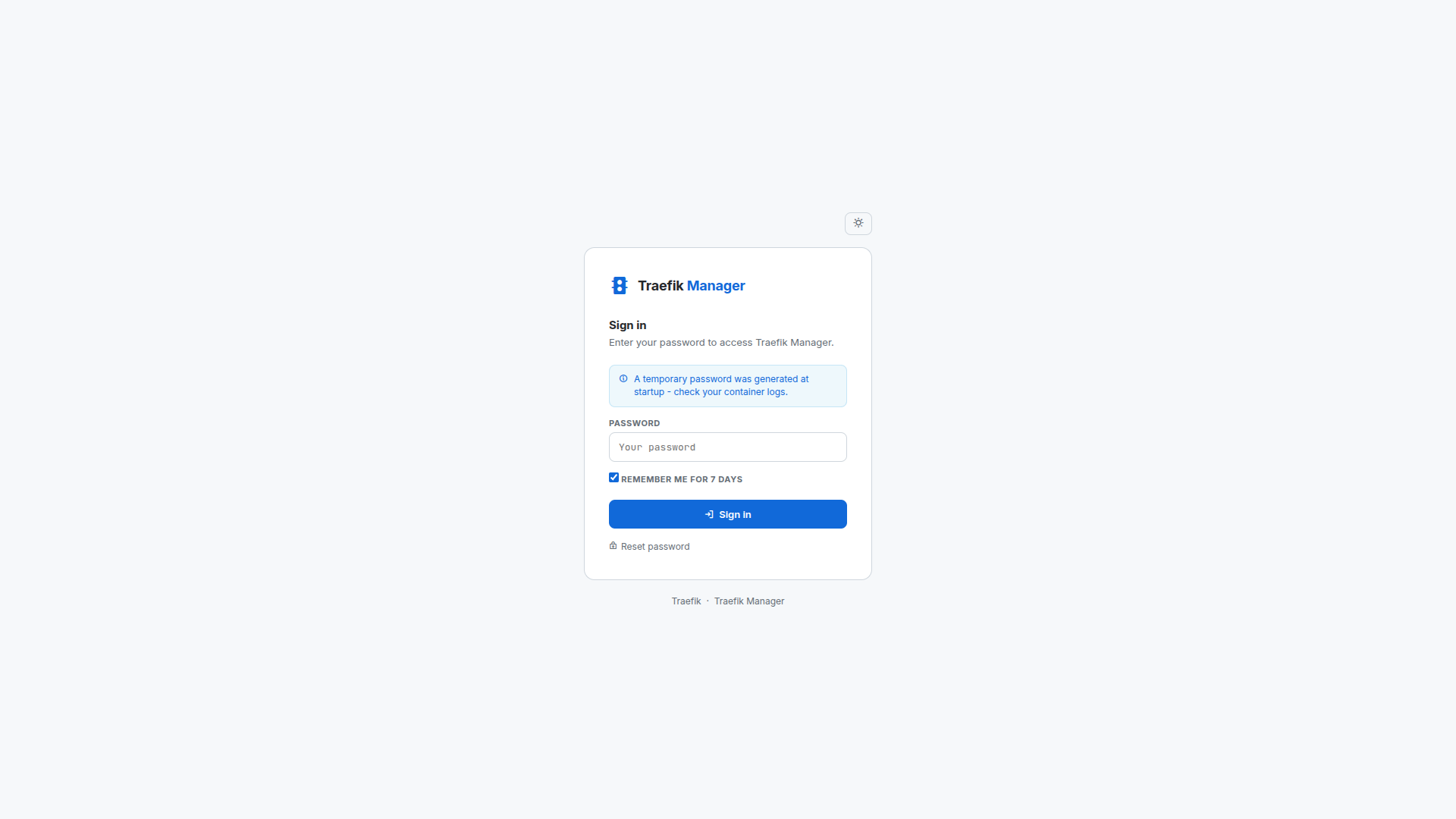
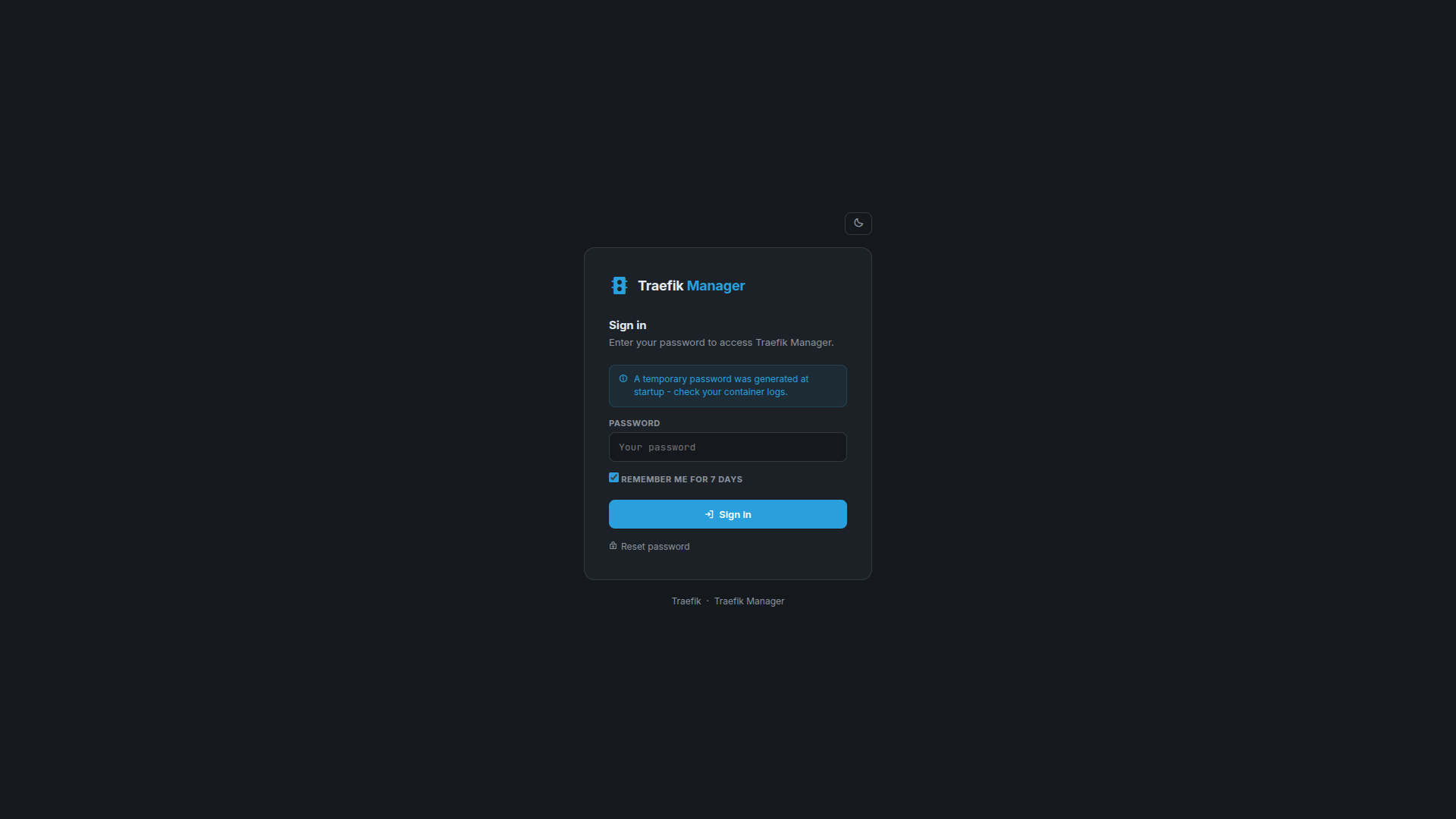
Step 1 - Temporary password
Step 2 - Welcome
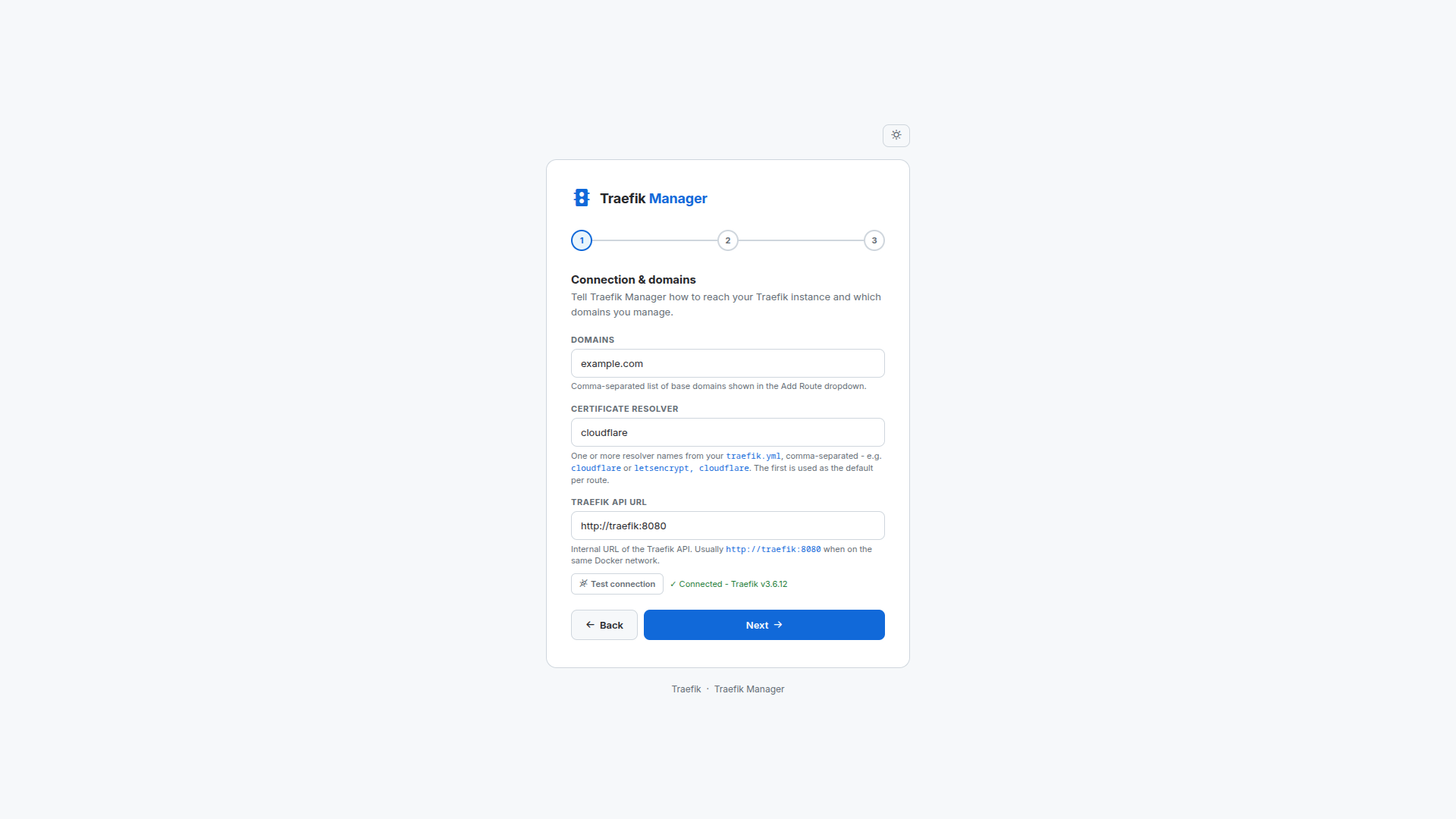
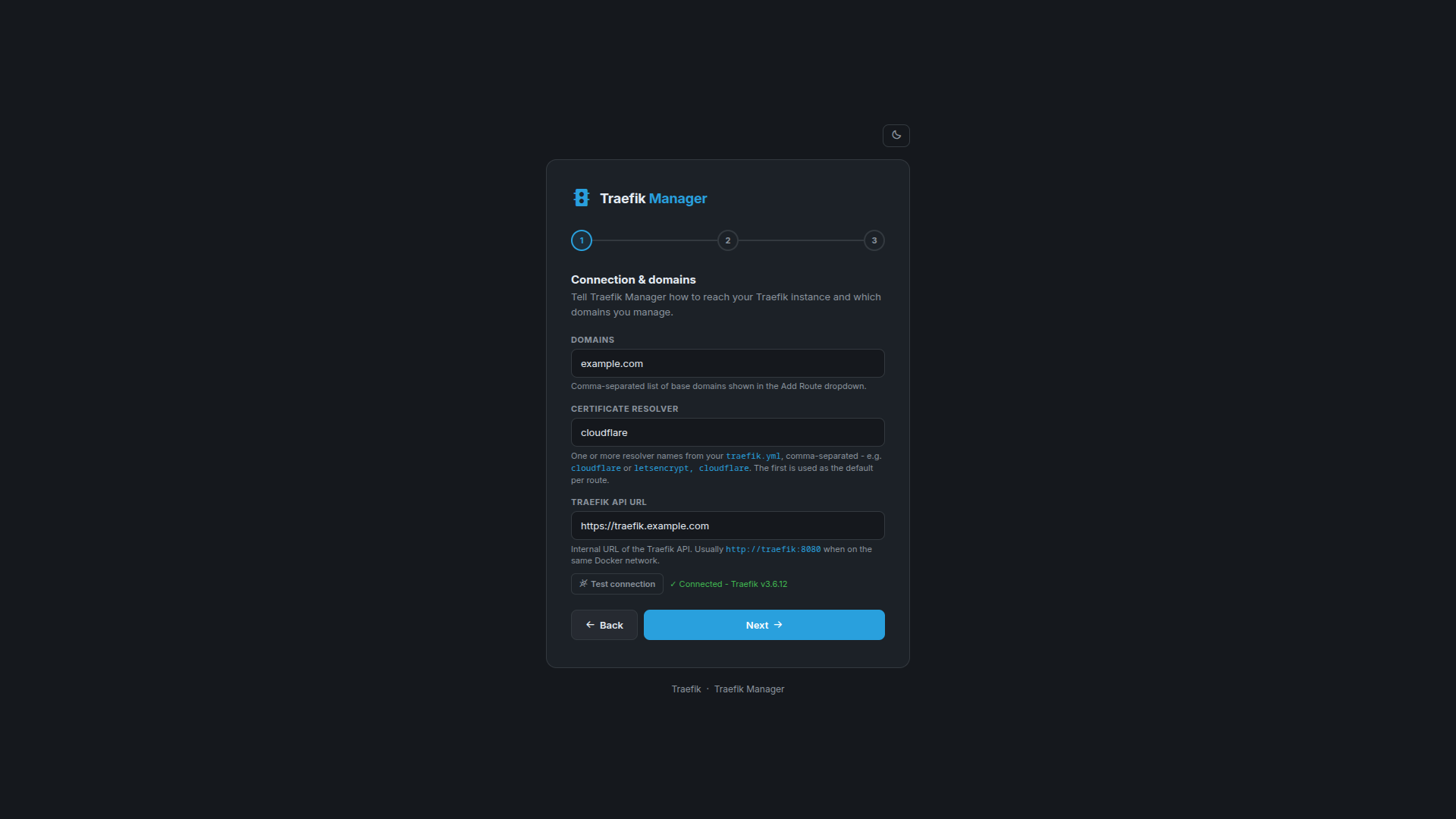
Step 3 - Connection & domains
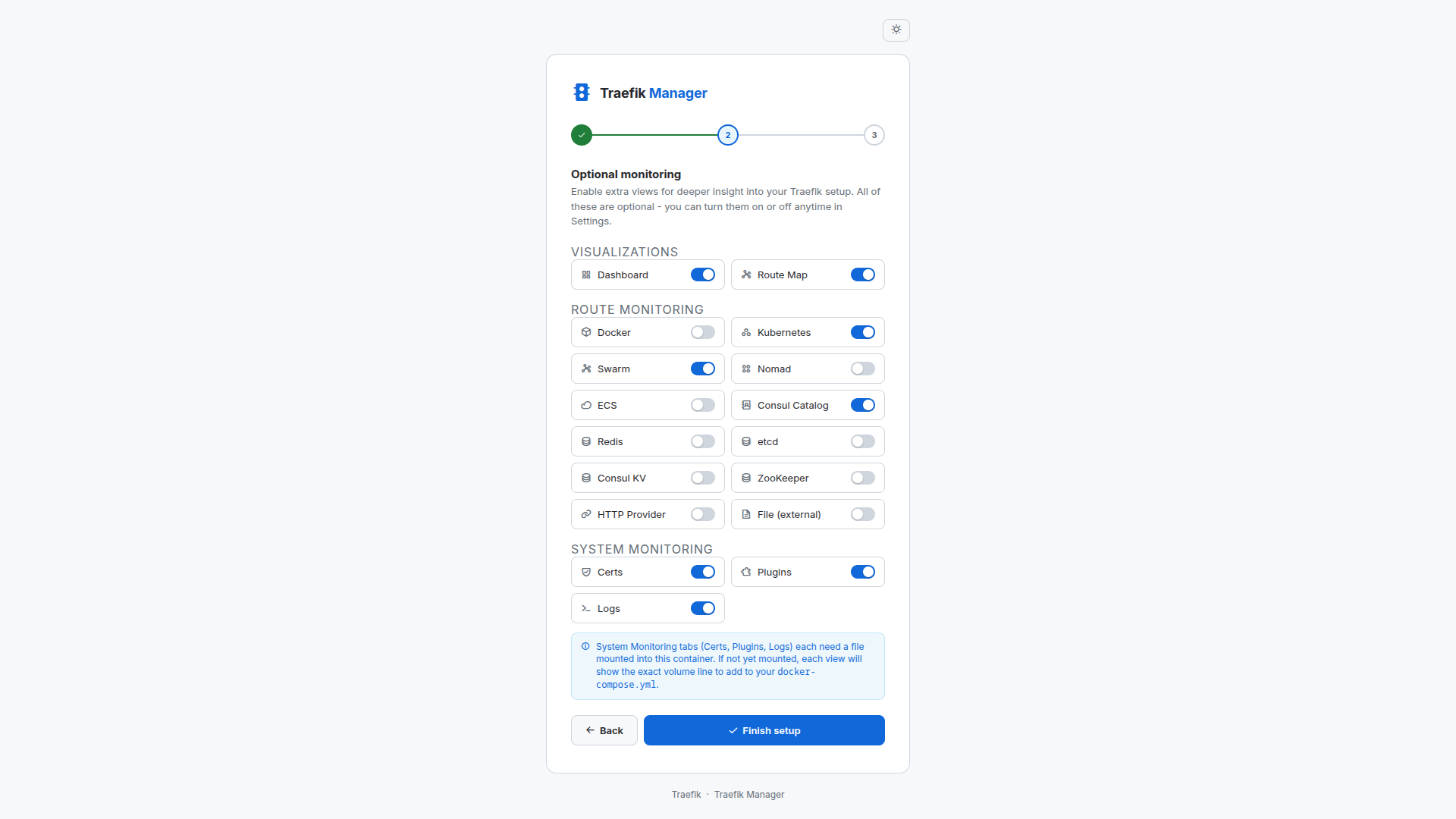
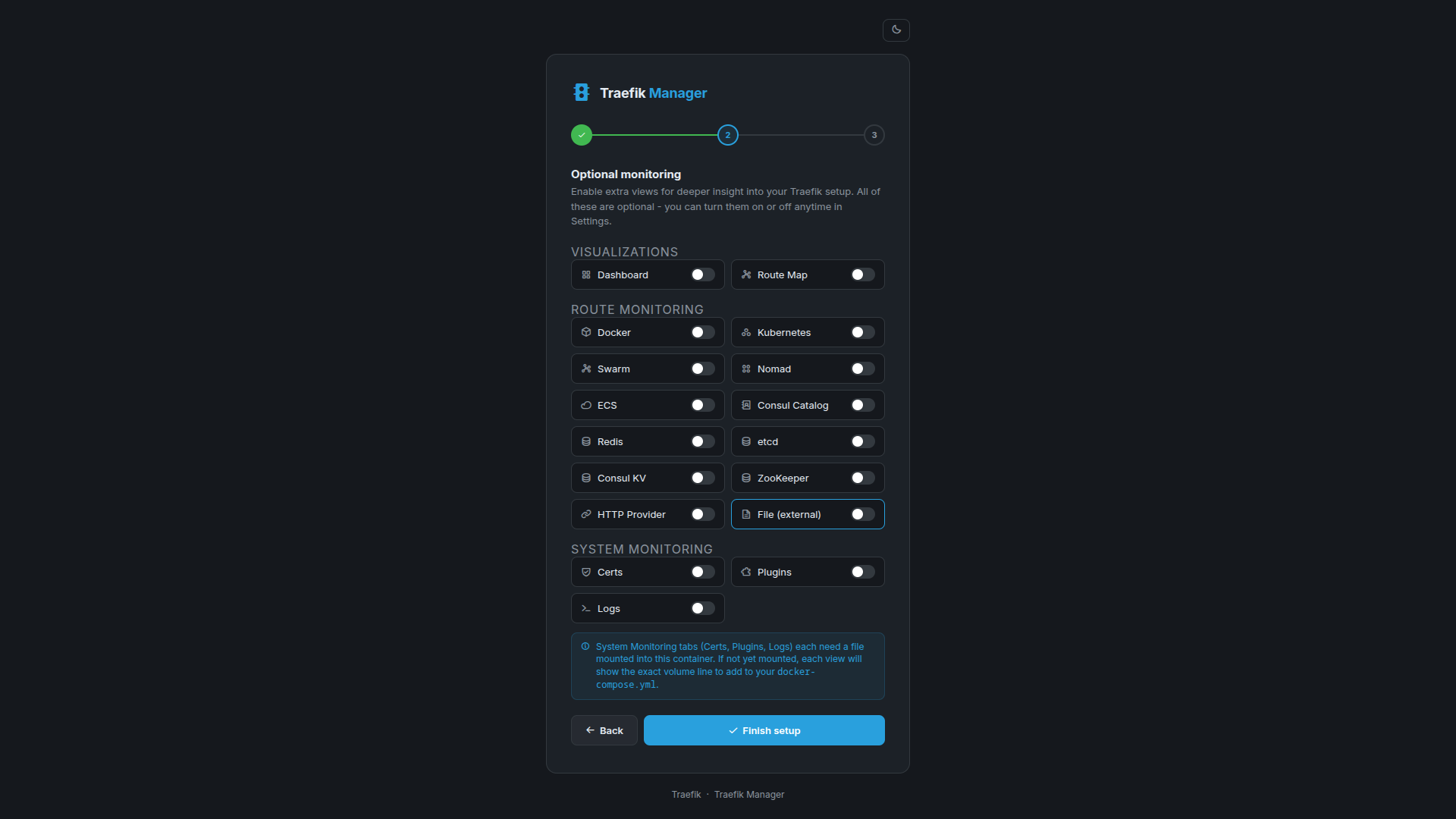
Step 4 - Optional tabs
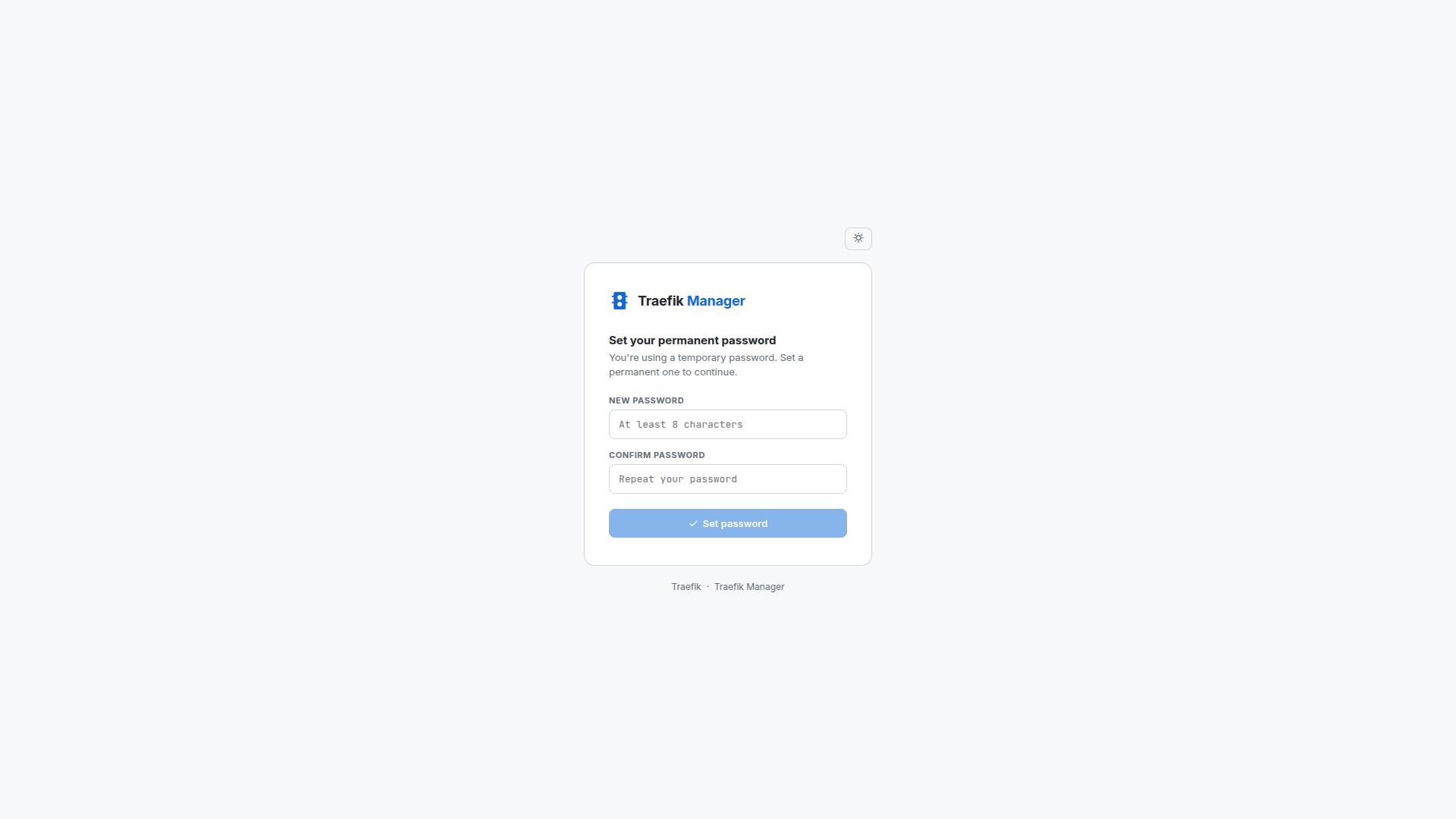
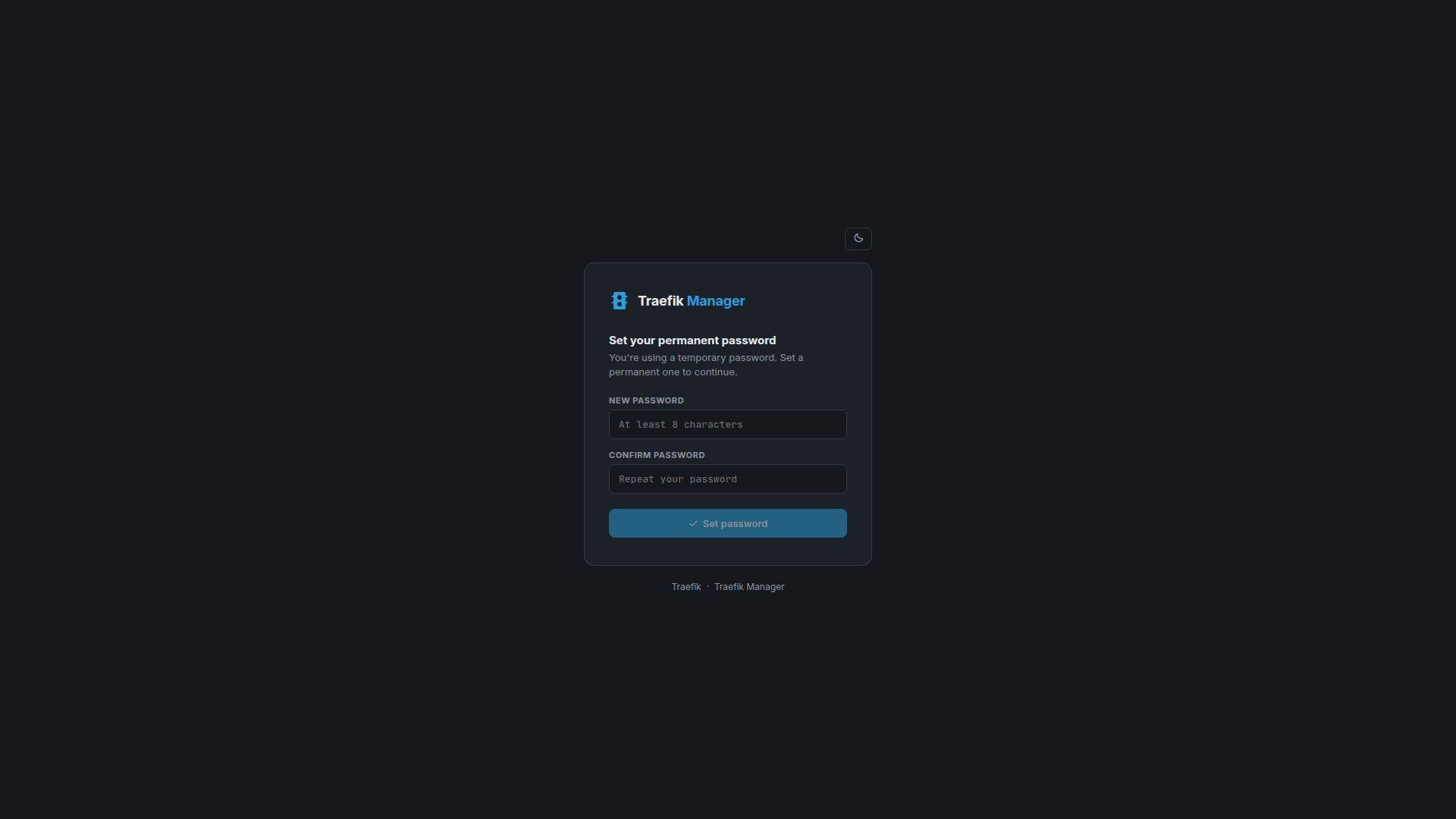
Step 5 - Set password
Dashboard
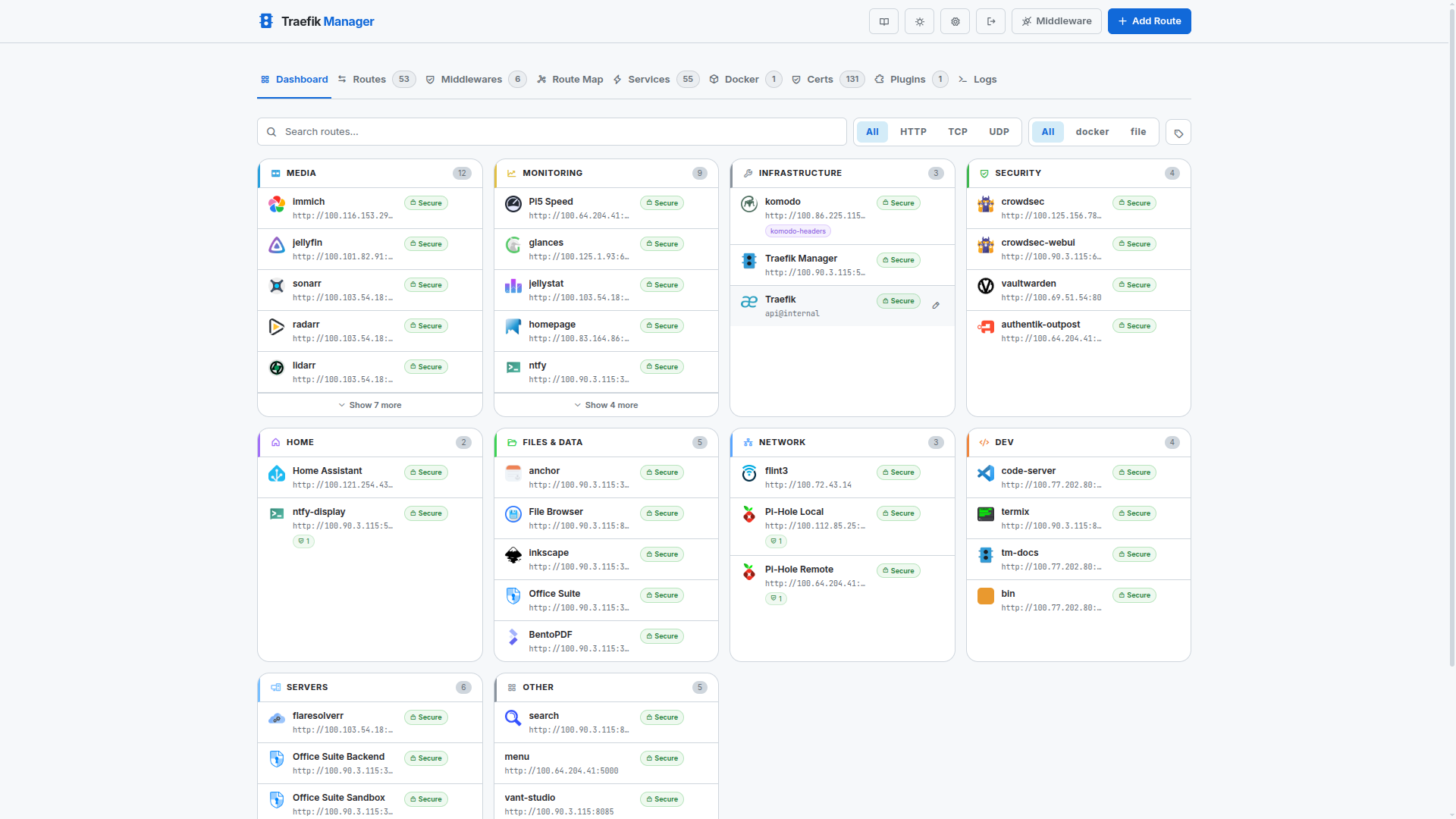
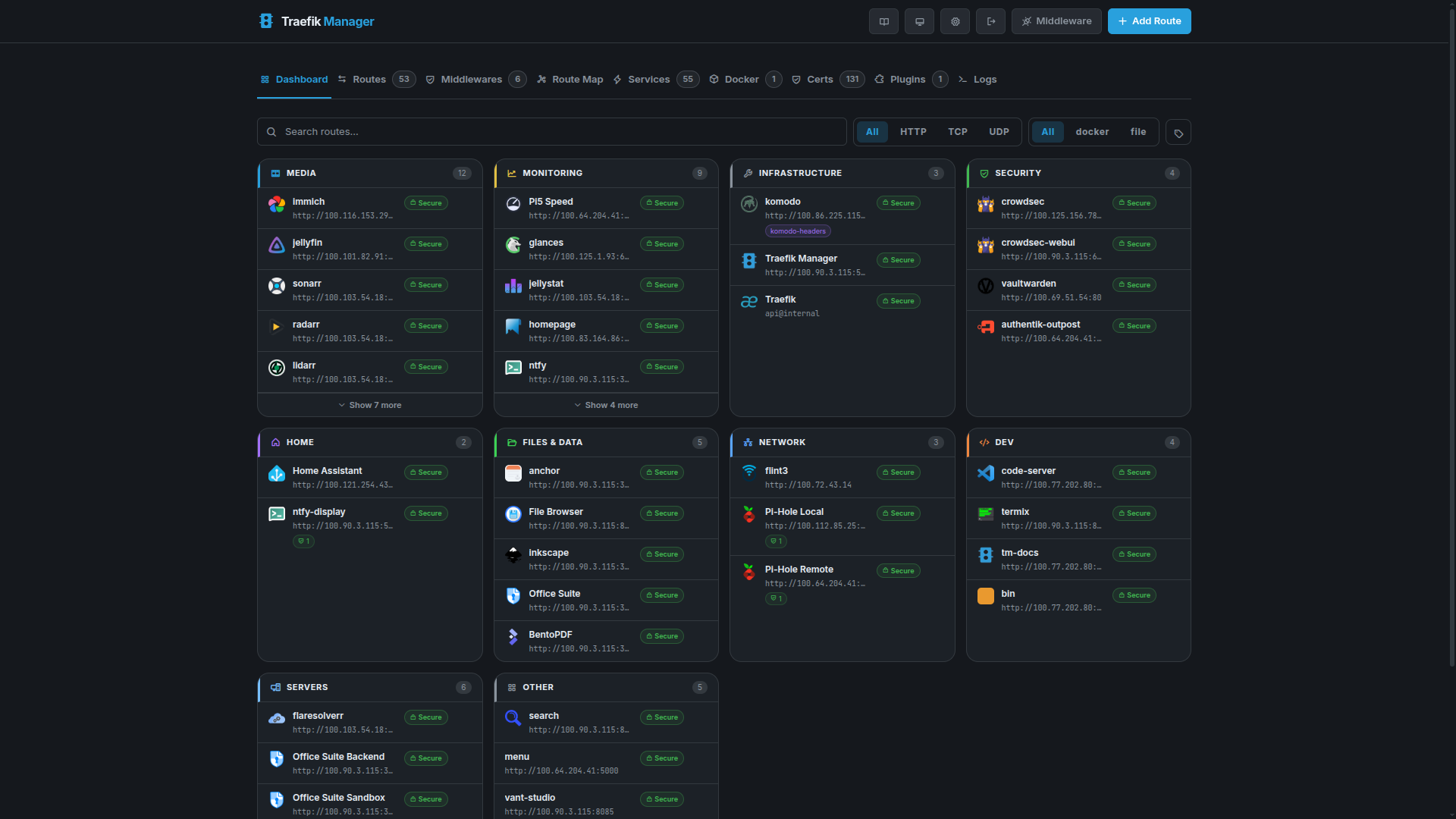
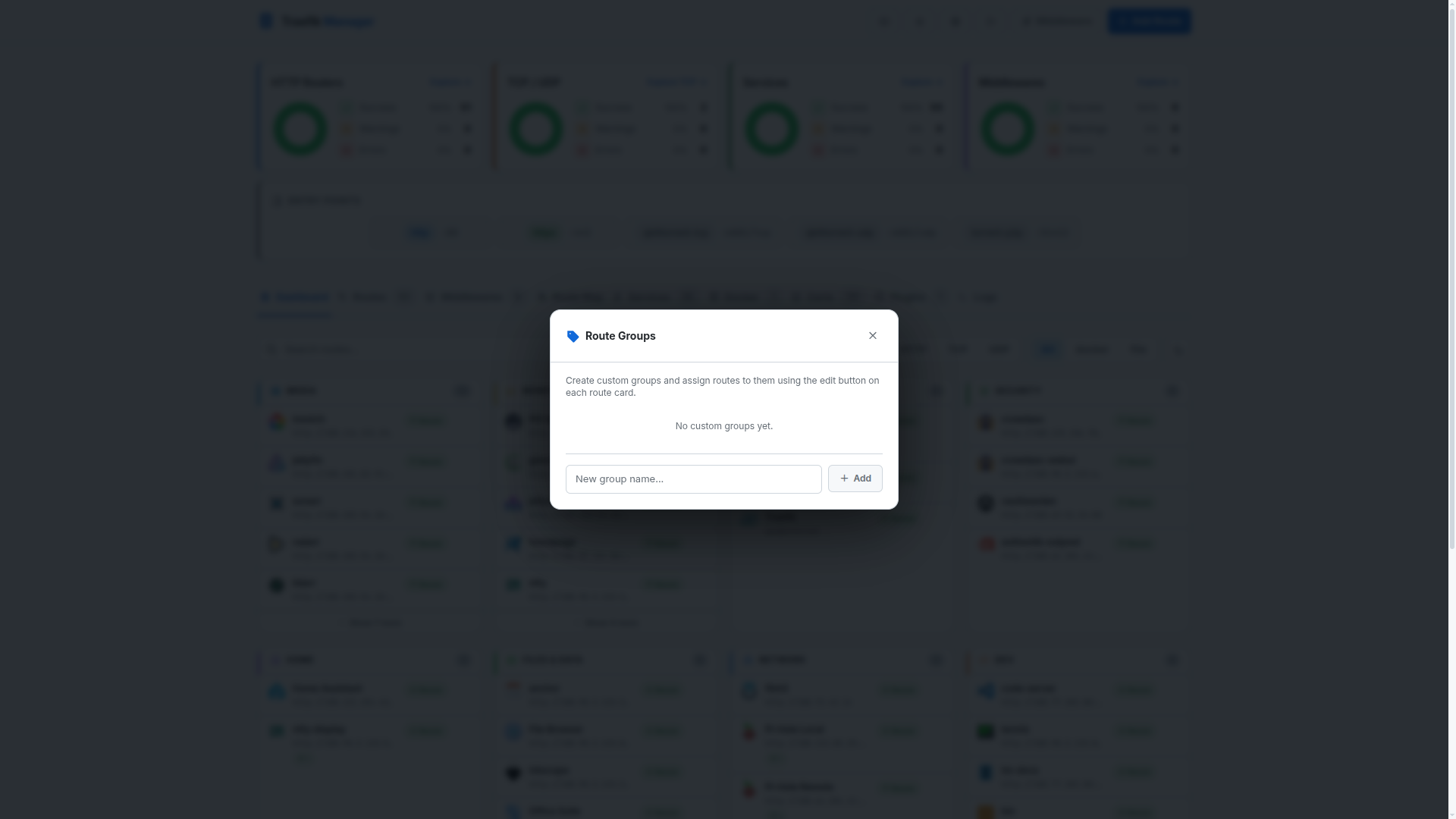
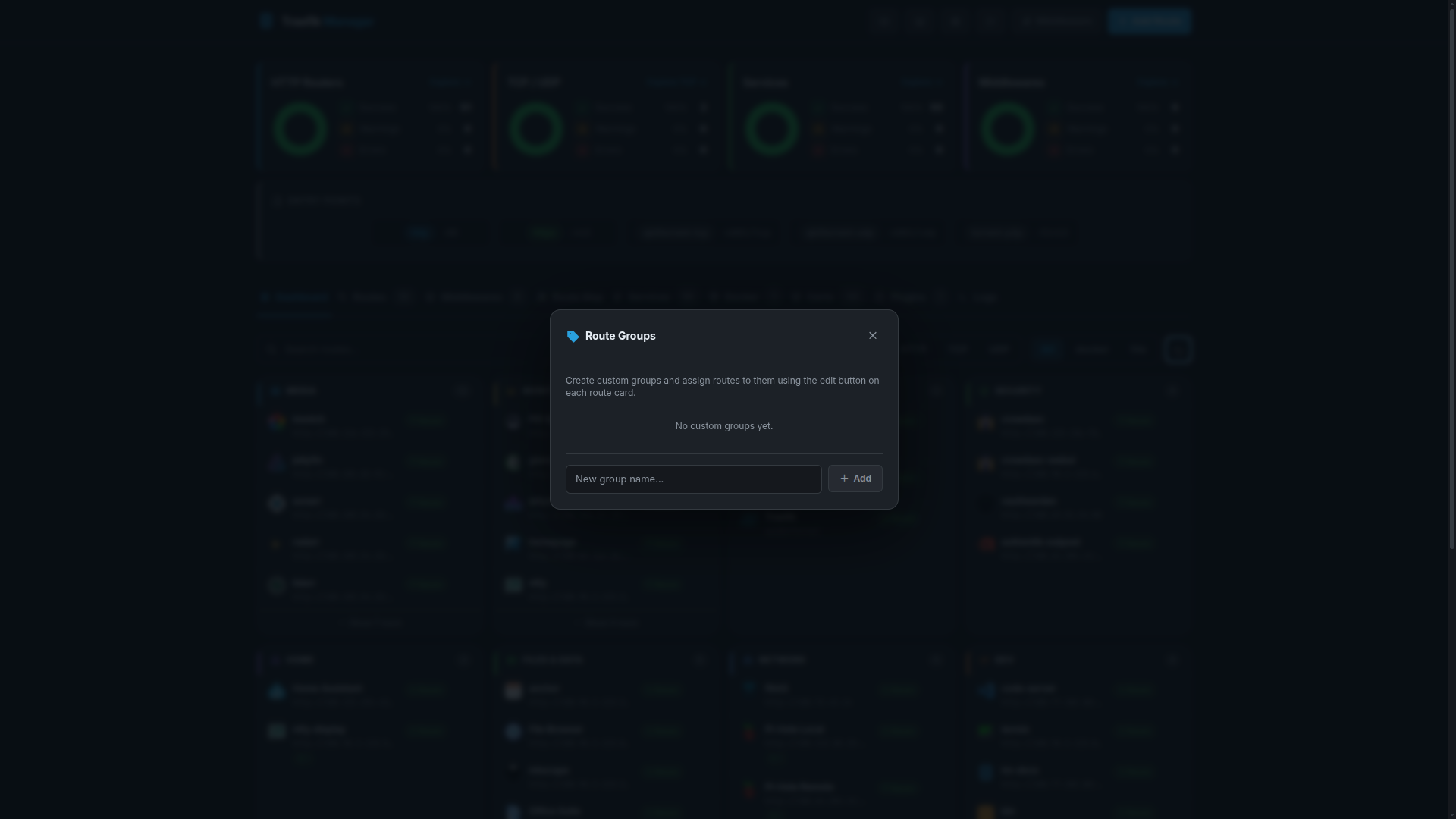
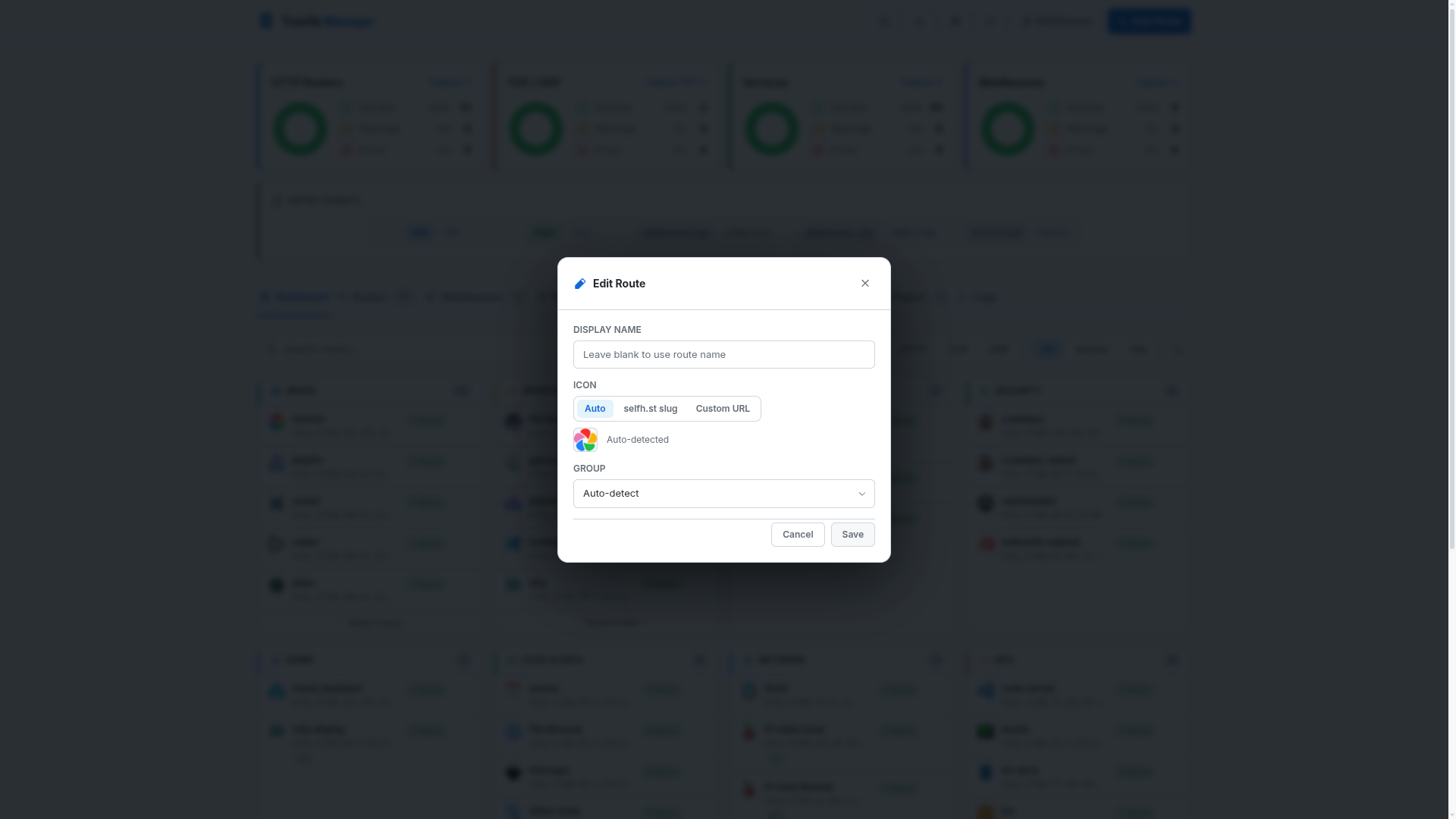
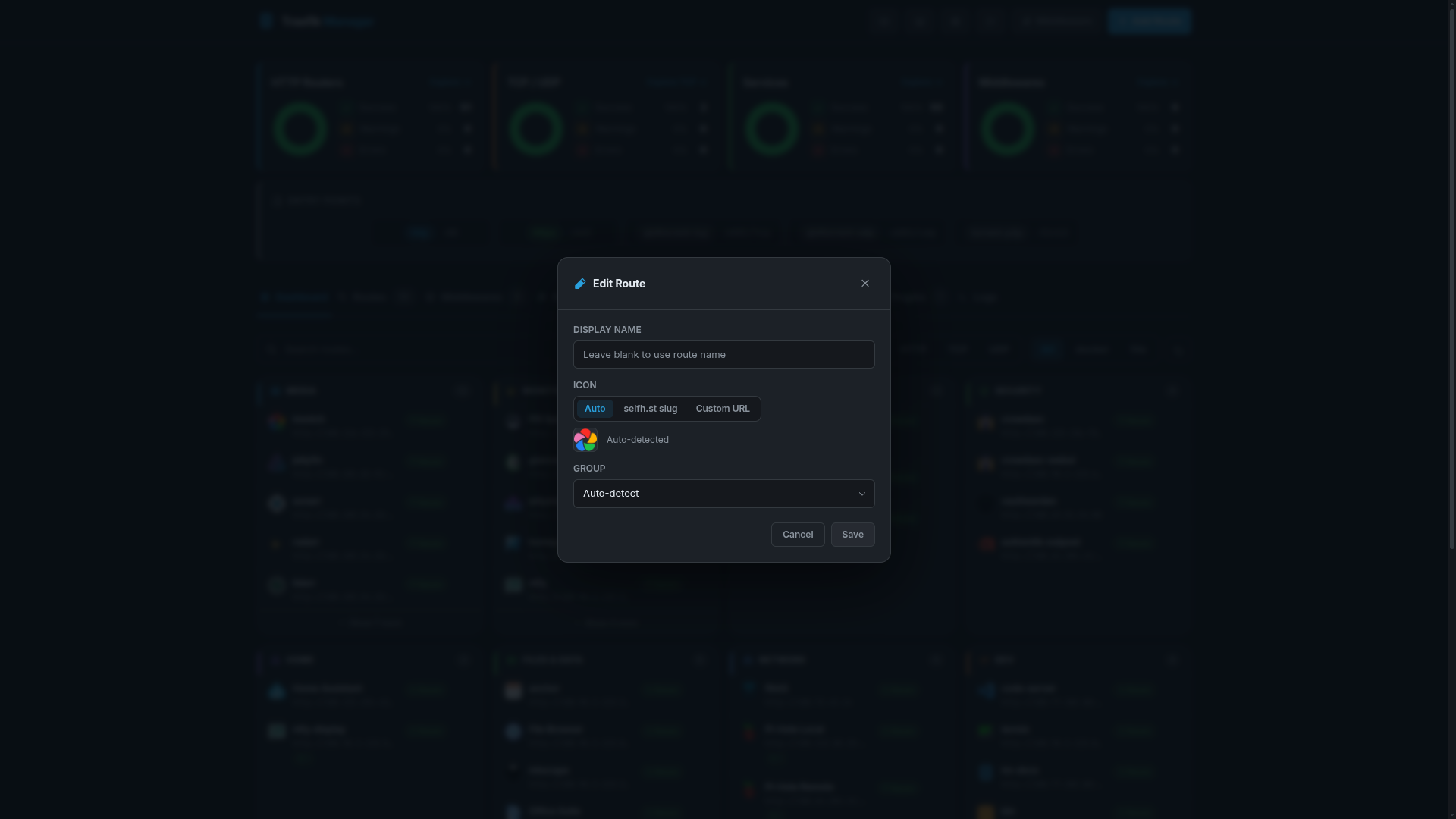
The dashboard shows app cards grouped by category with app icons, stat widgets, and quick-access controls. Cards can be customised per-route with a display name, icon override, and group override.
Main View
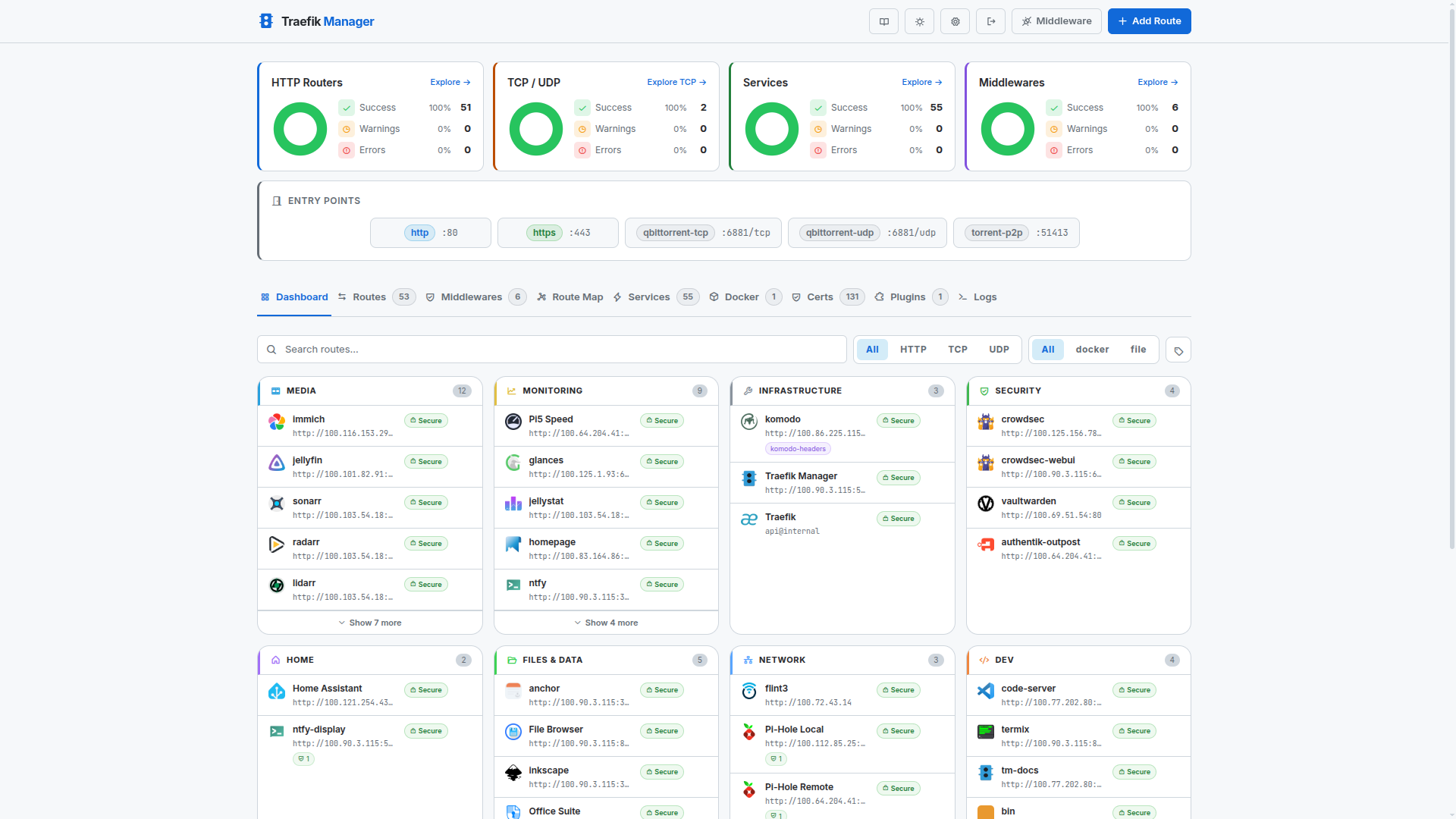
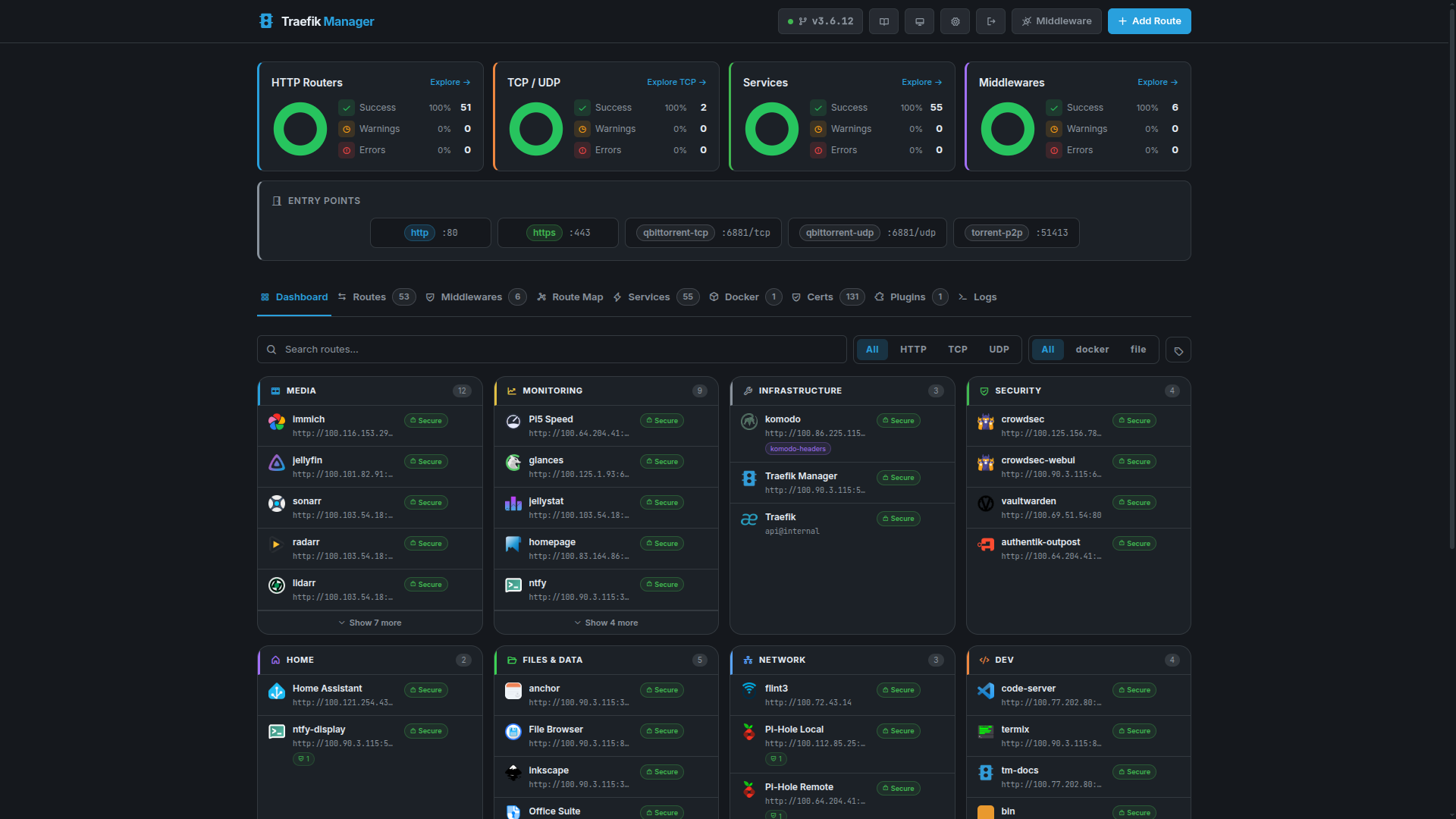
Compact Stats
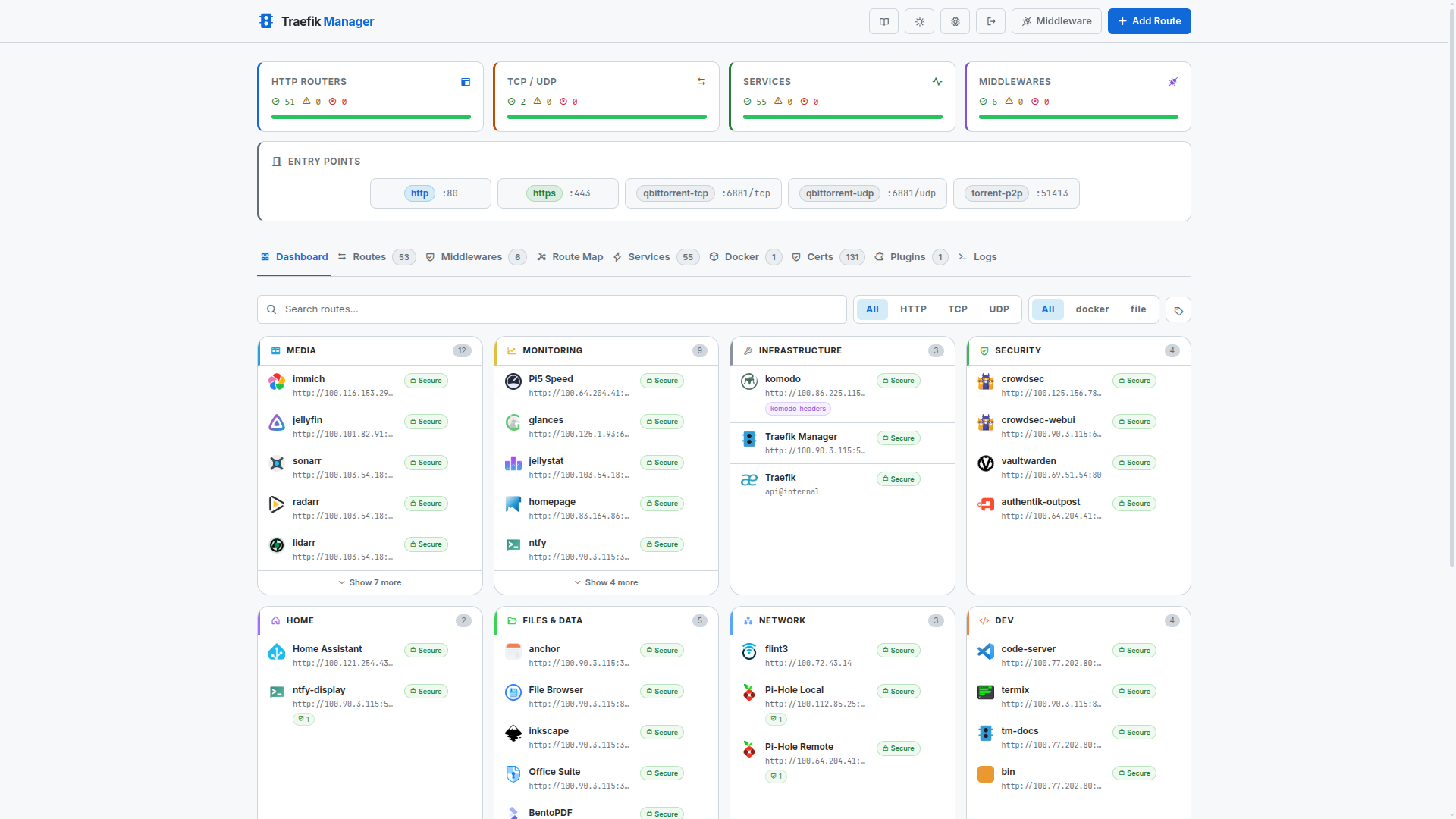
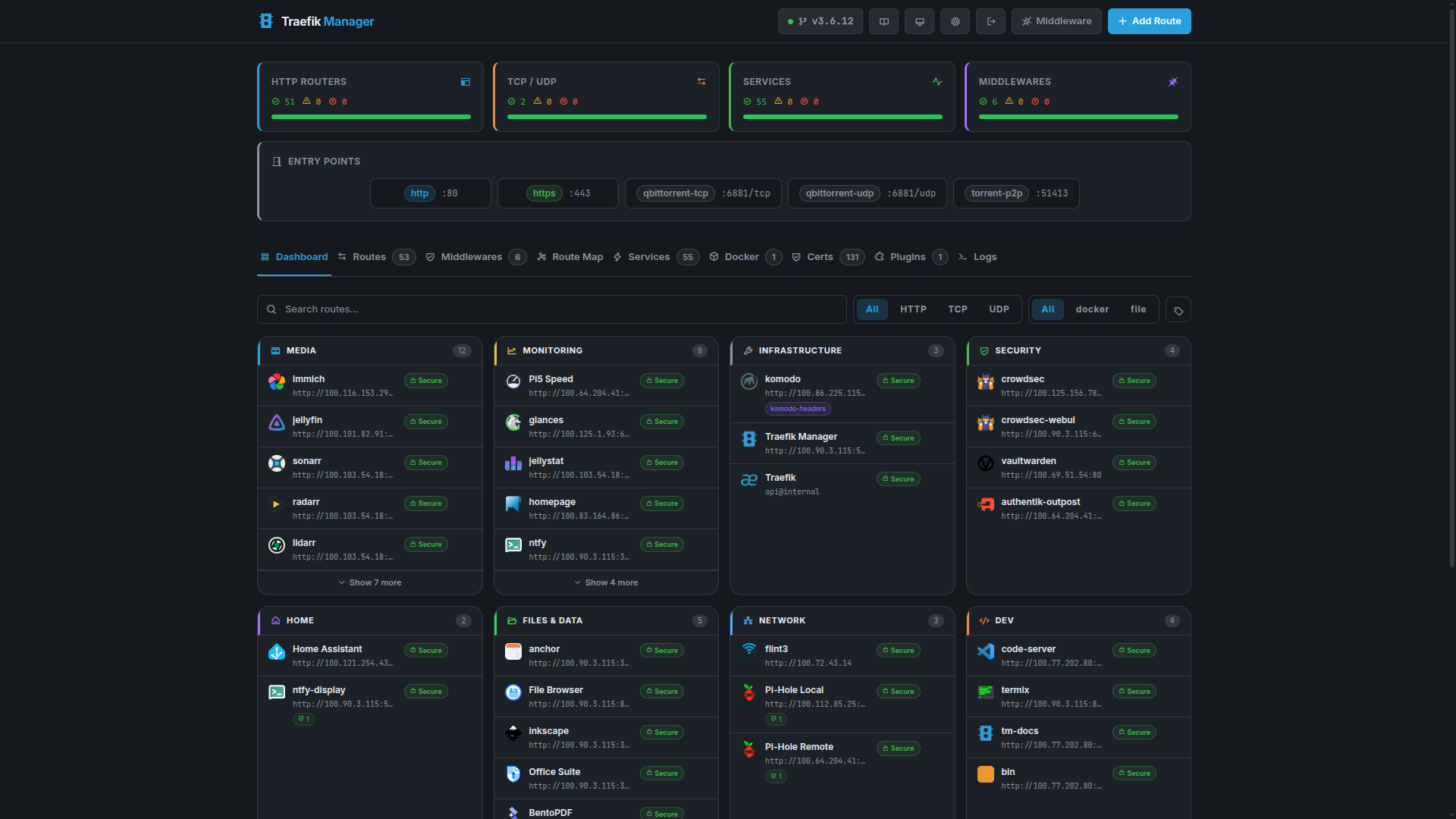
No Widgets
Edit Group
Edit Route Card
Route Map
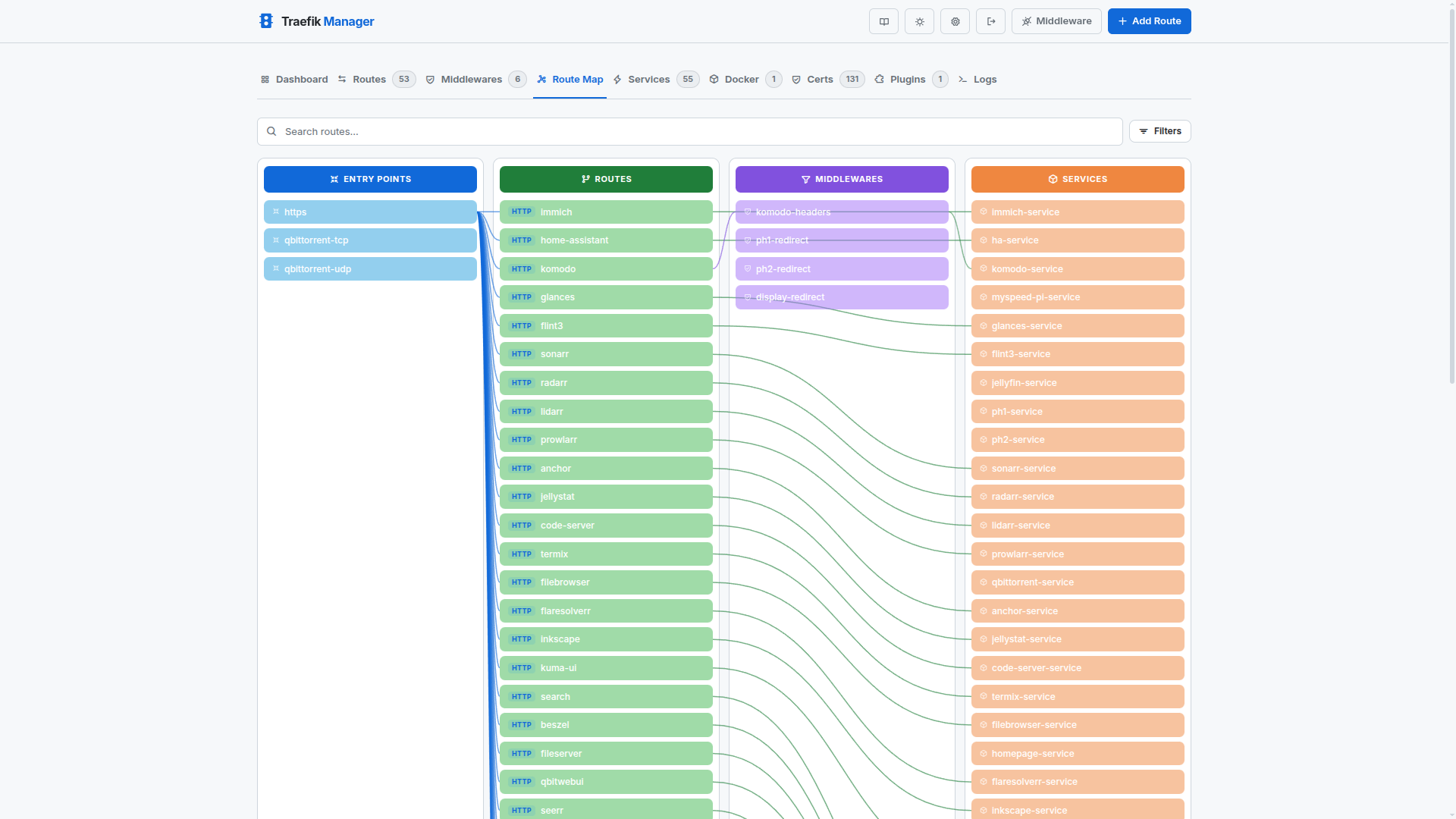
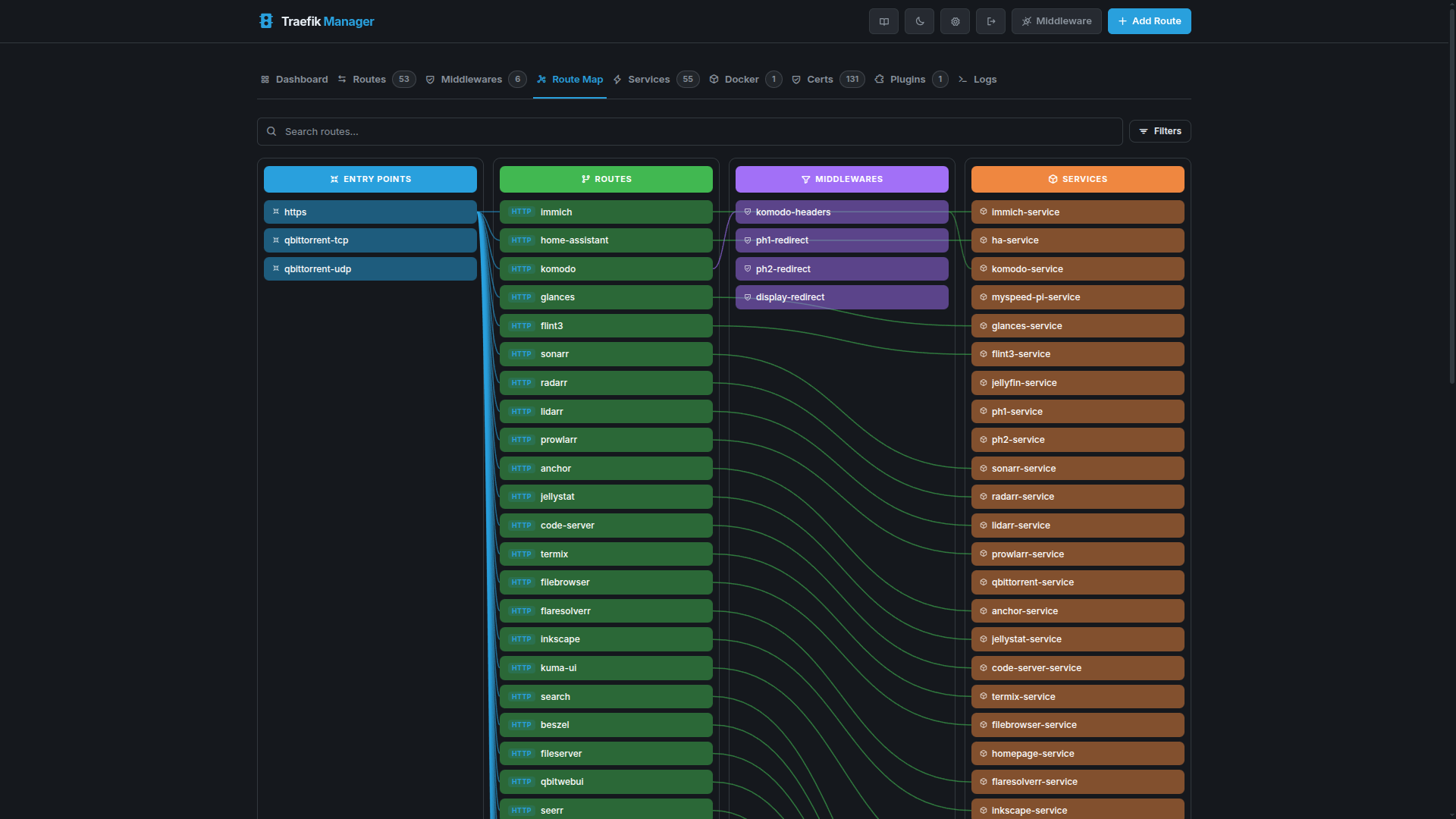
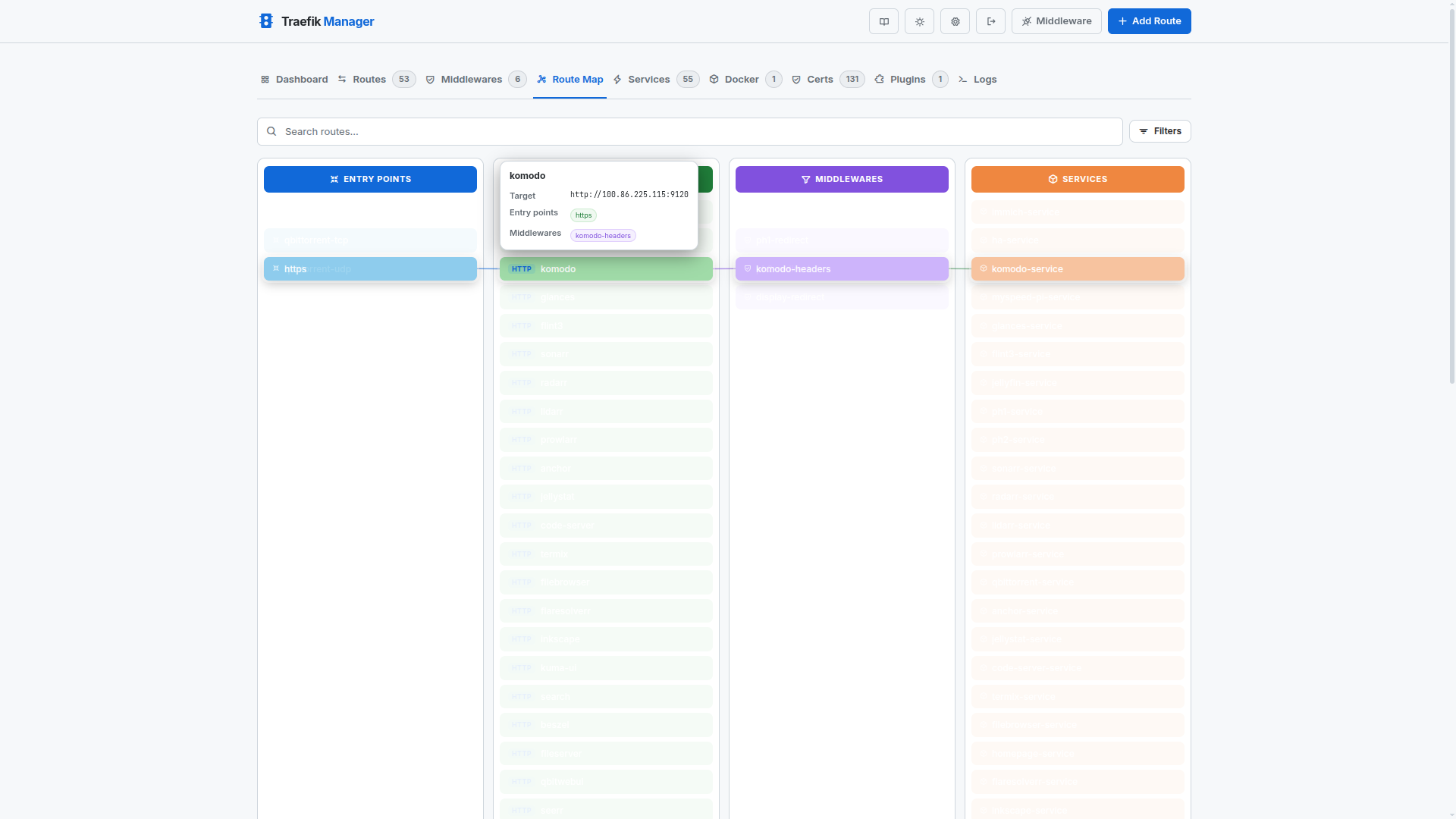
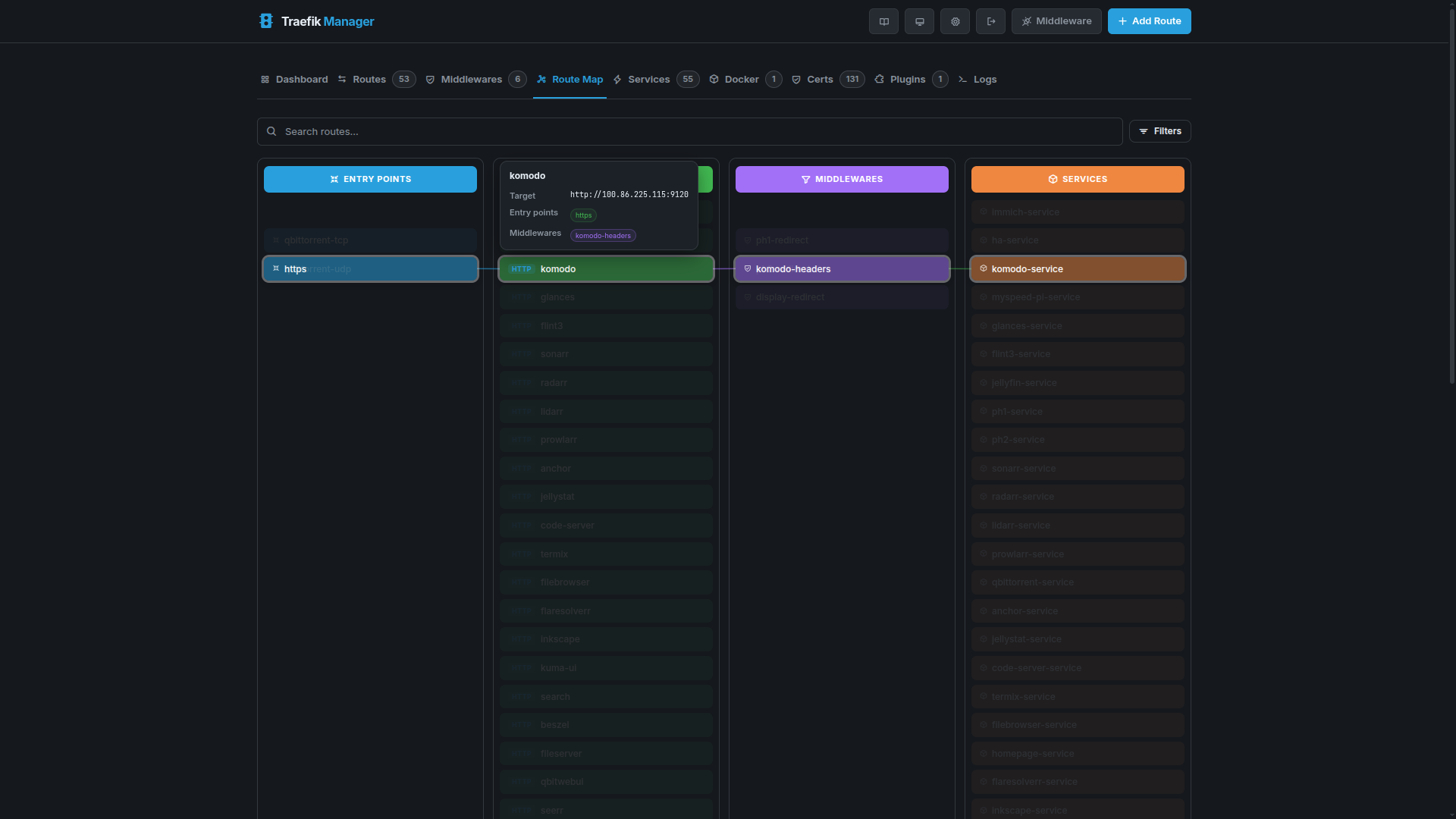
The Route Map tab shows a 4-column topology view of your Traefik setup - Entry Points, Routes, Middlewares, and Services - connected by Bezier curves.
Topology View
Hover Highlight
Hovering a route dims all unrelated nodes and animates the connected entry point, middlewares, and service into alignment.
Routes
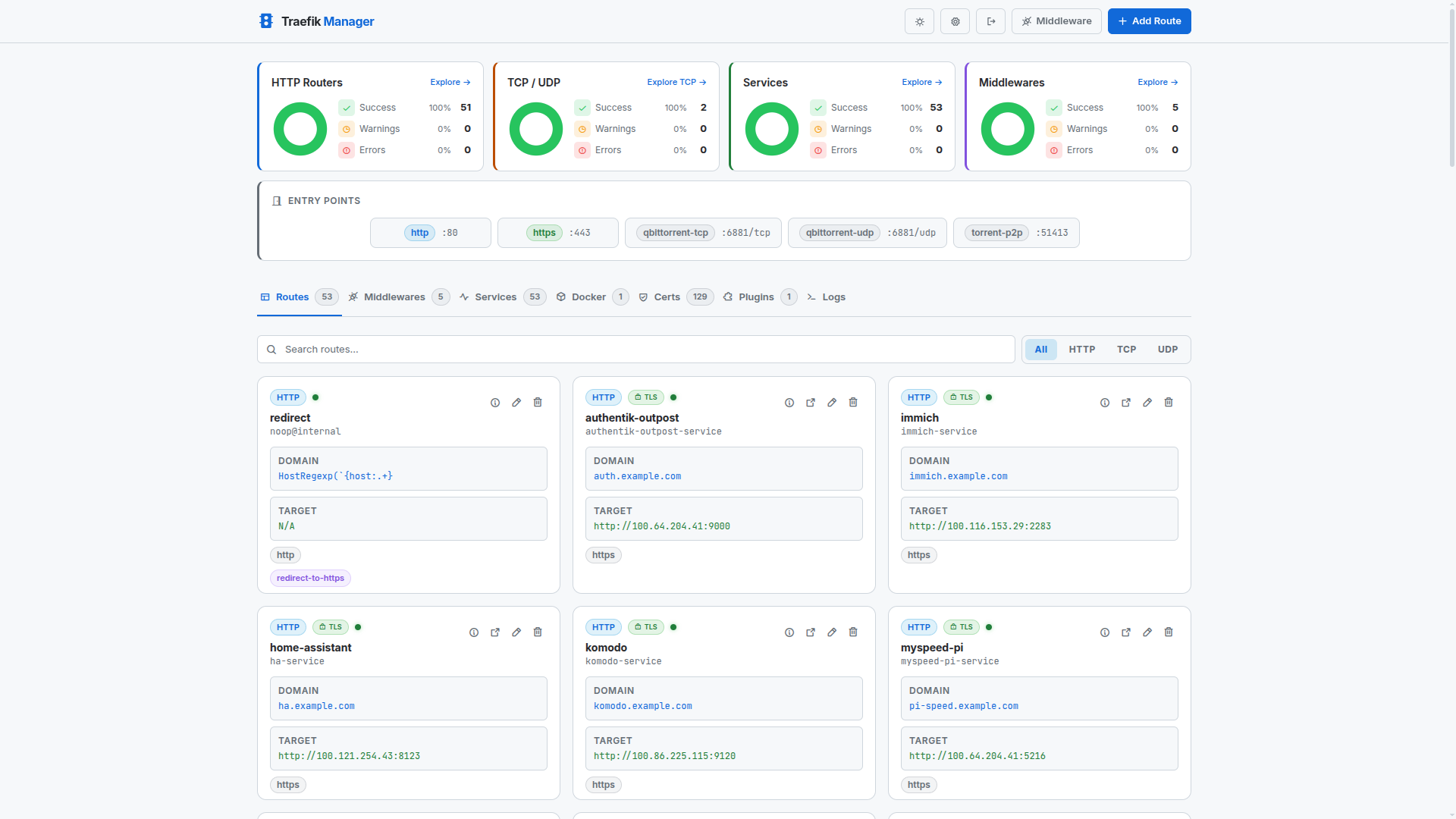
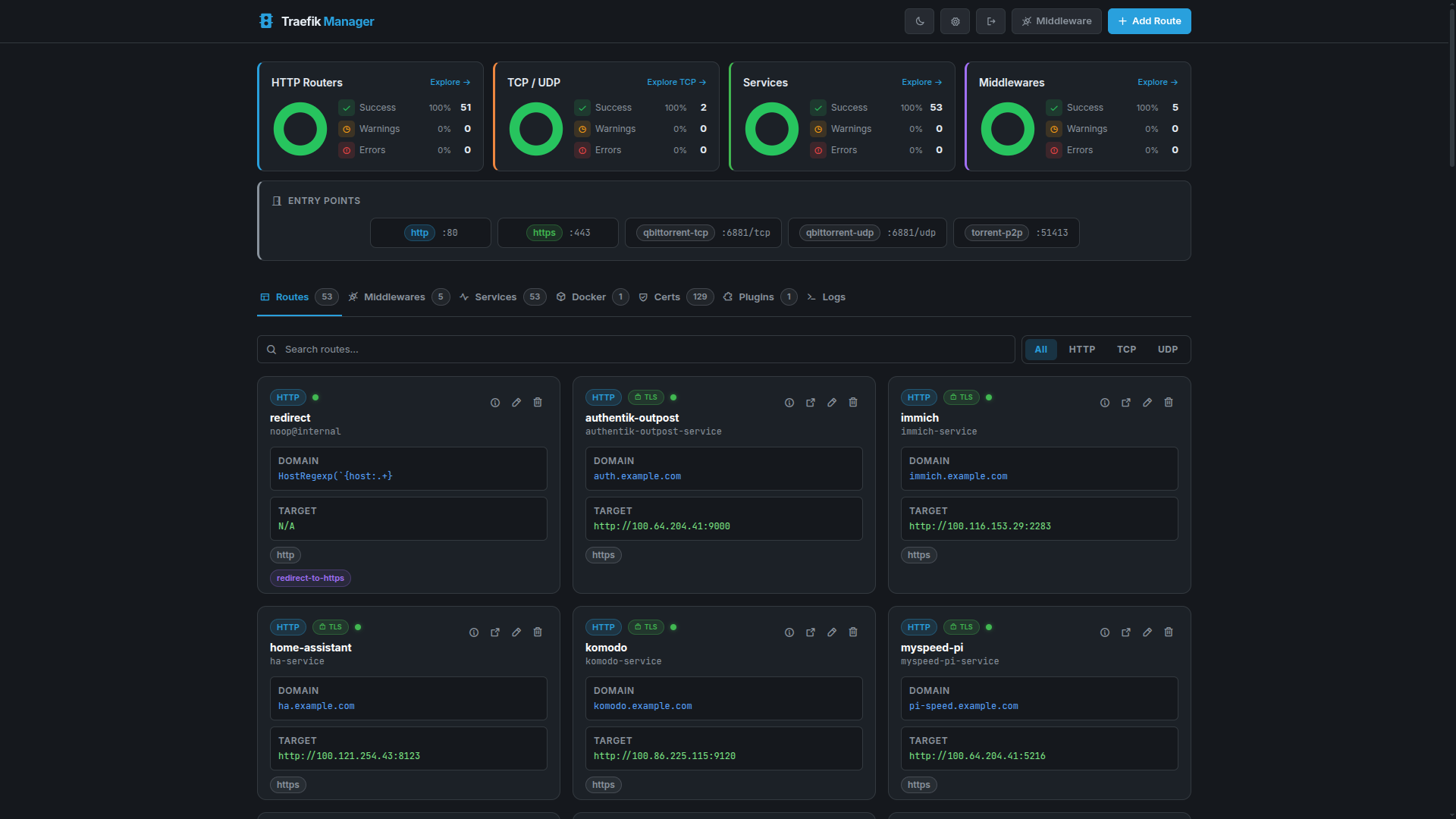
Routes define how incoming traffic is forwarded to backend services.
Routes Overview
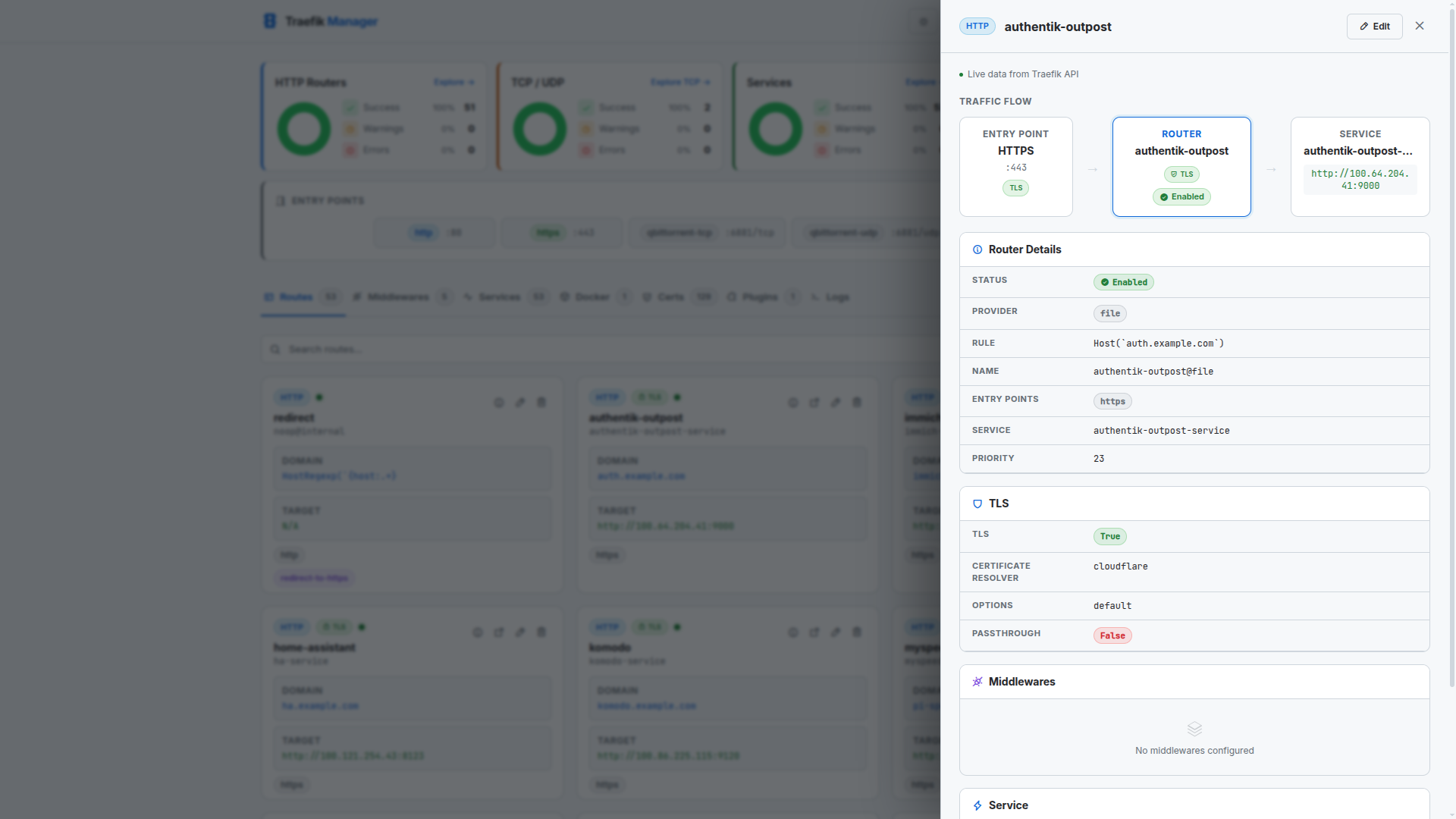
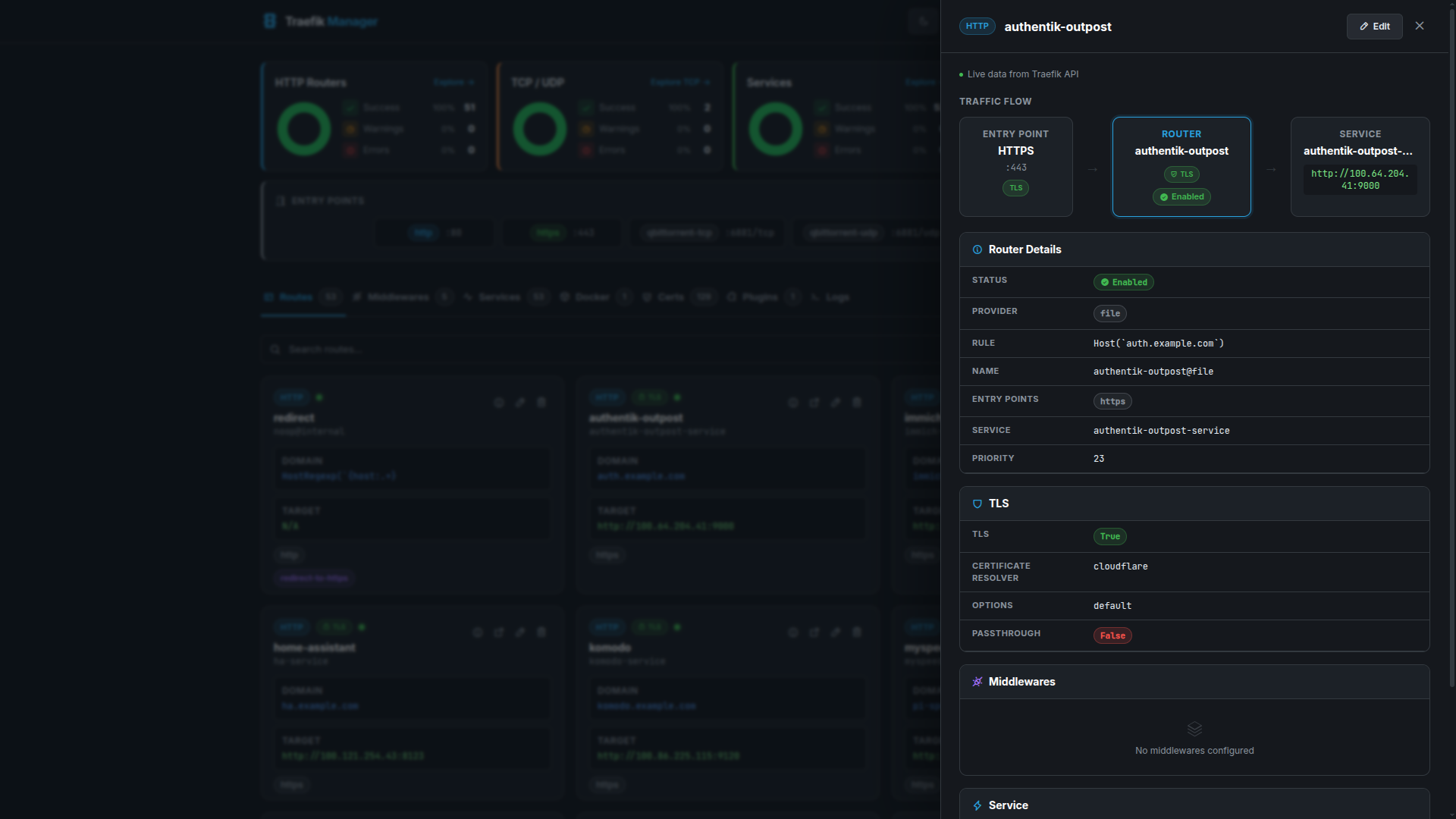
Route Details
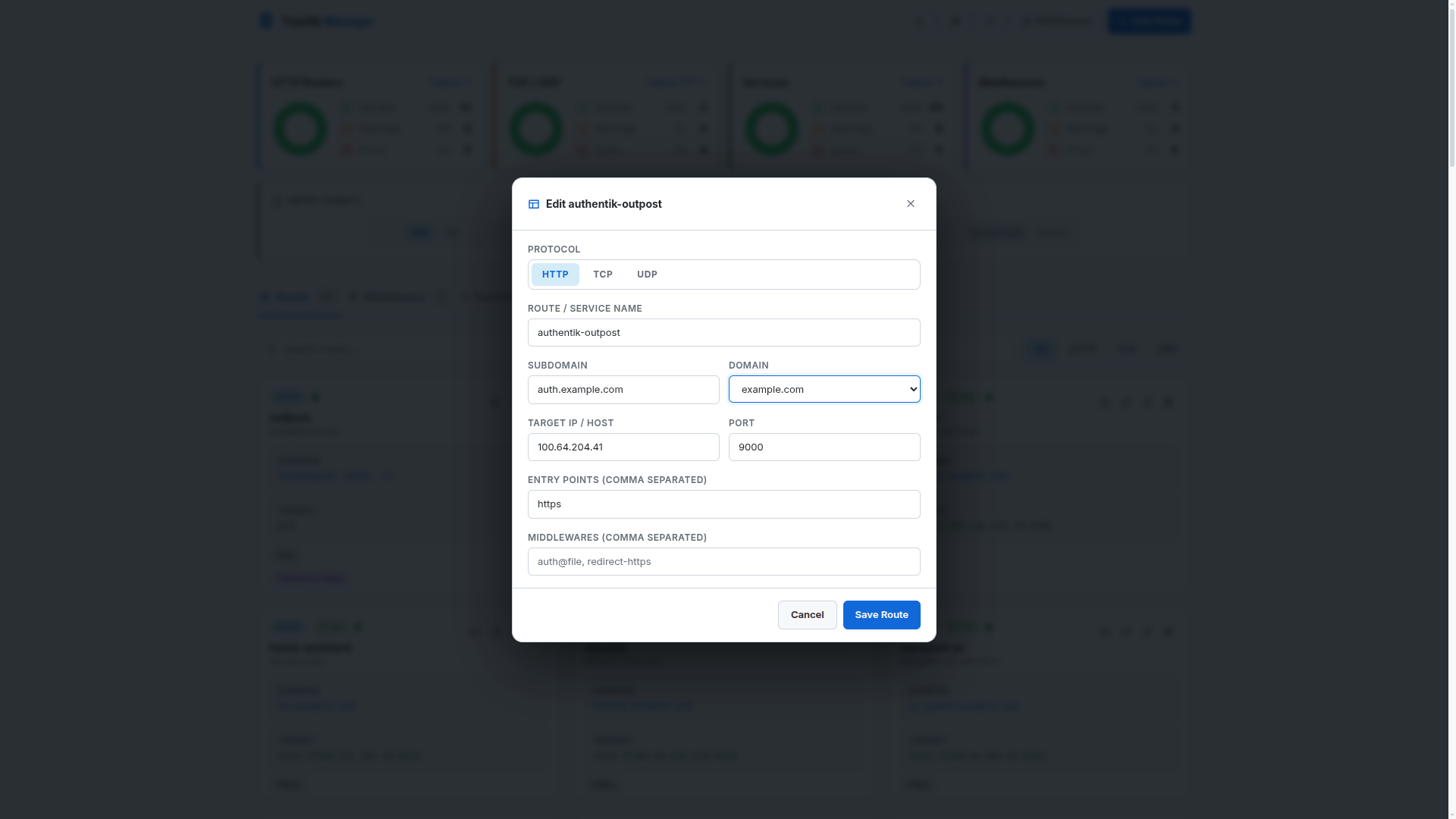
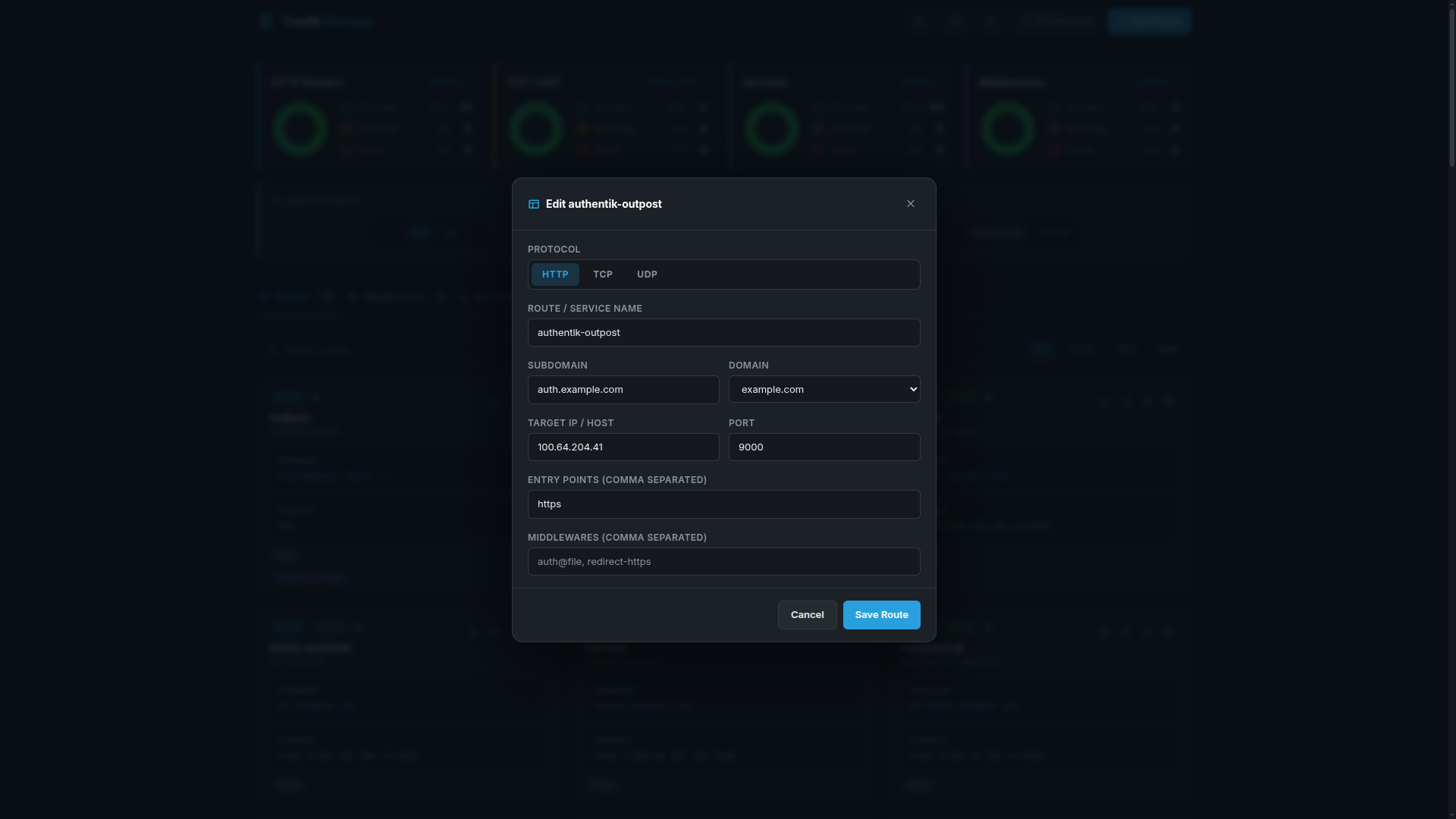
Editing a Route
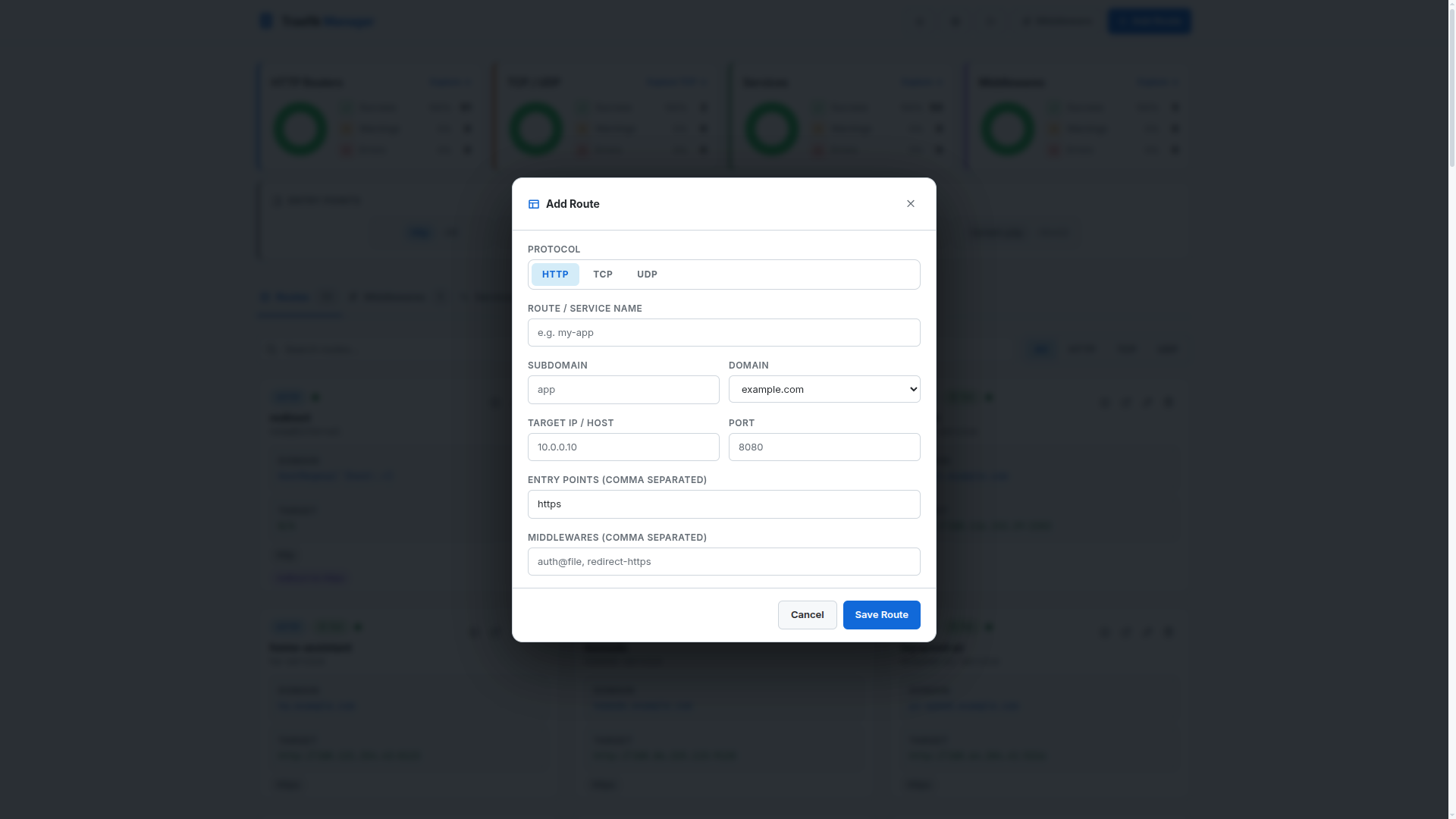
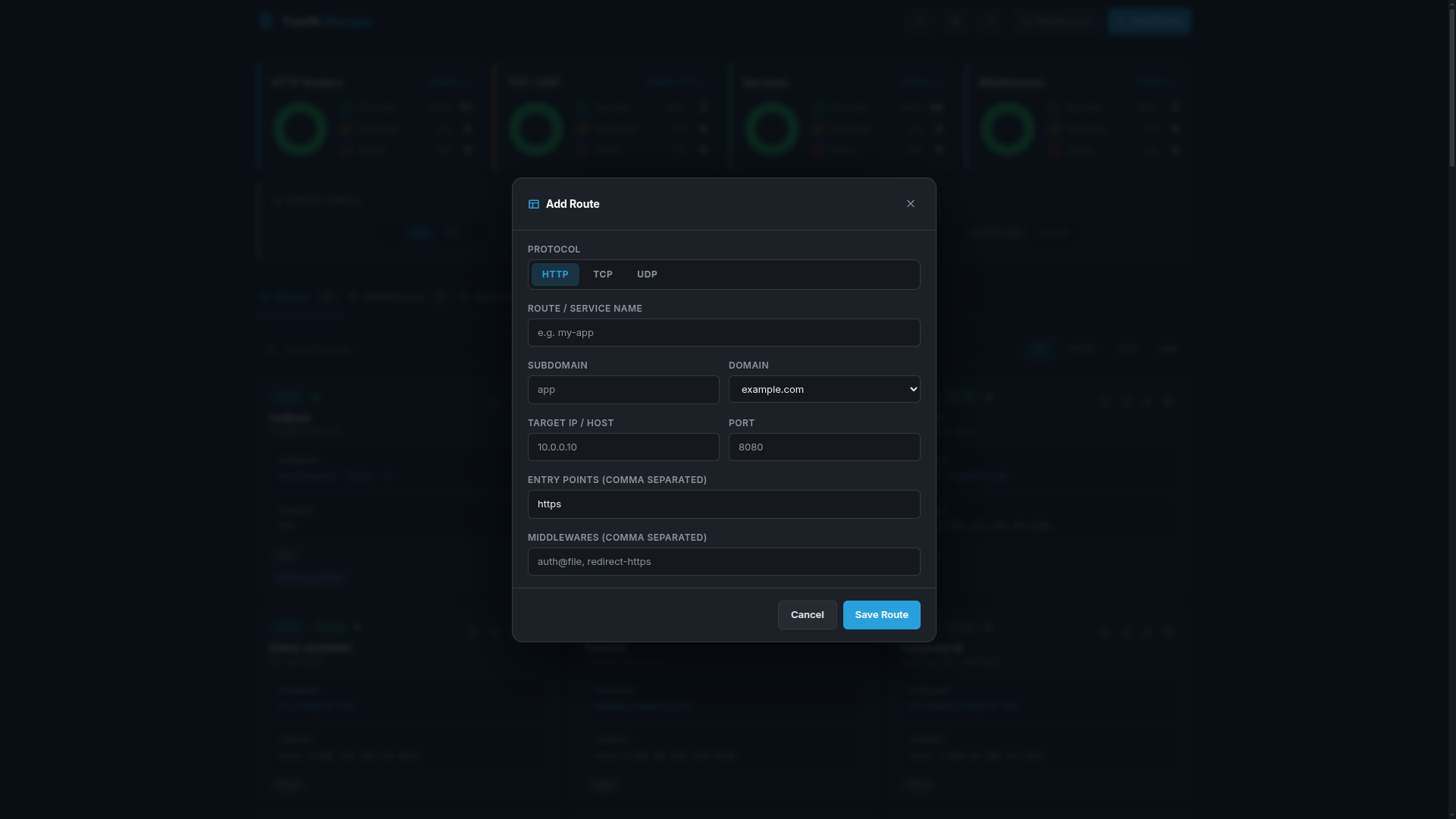
Adding an HTTP Route
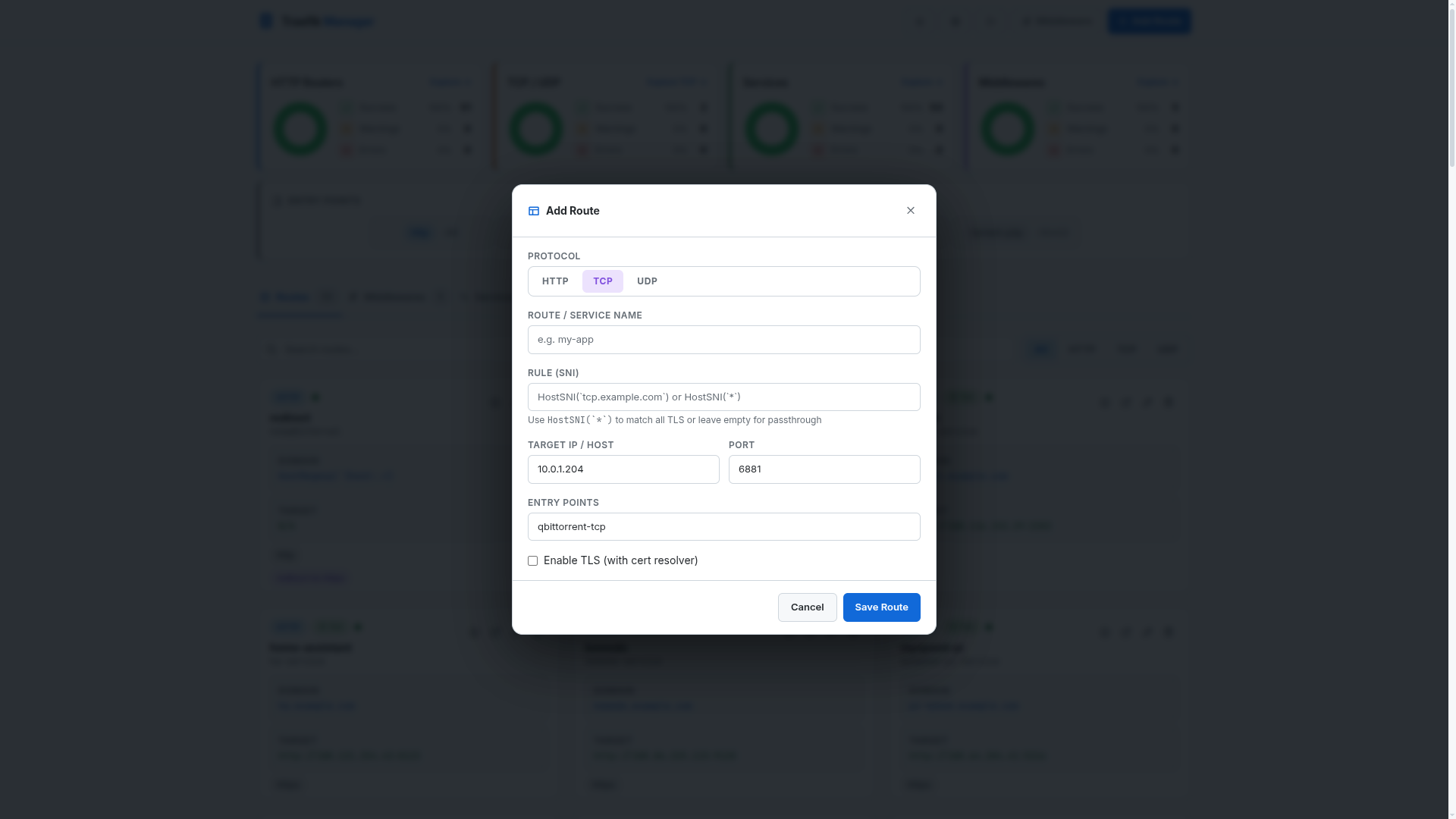
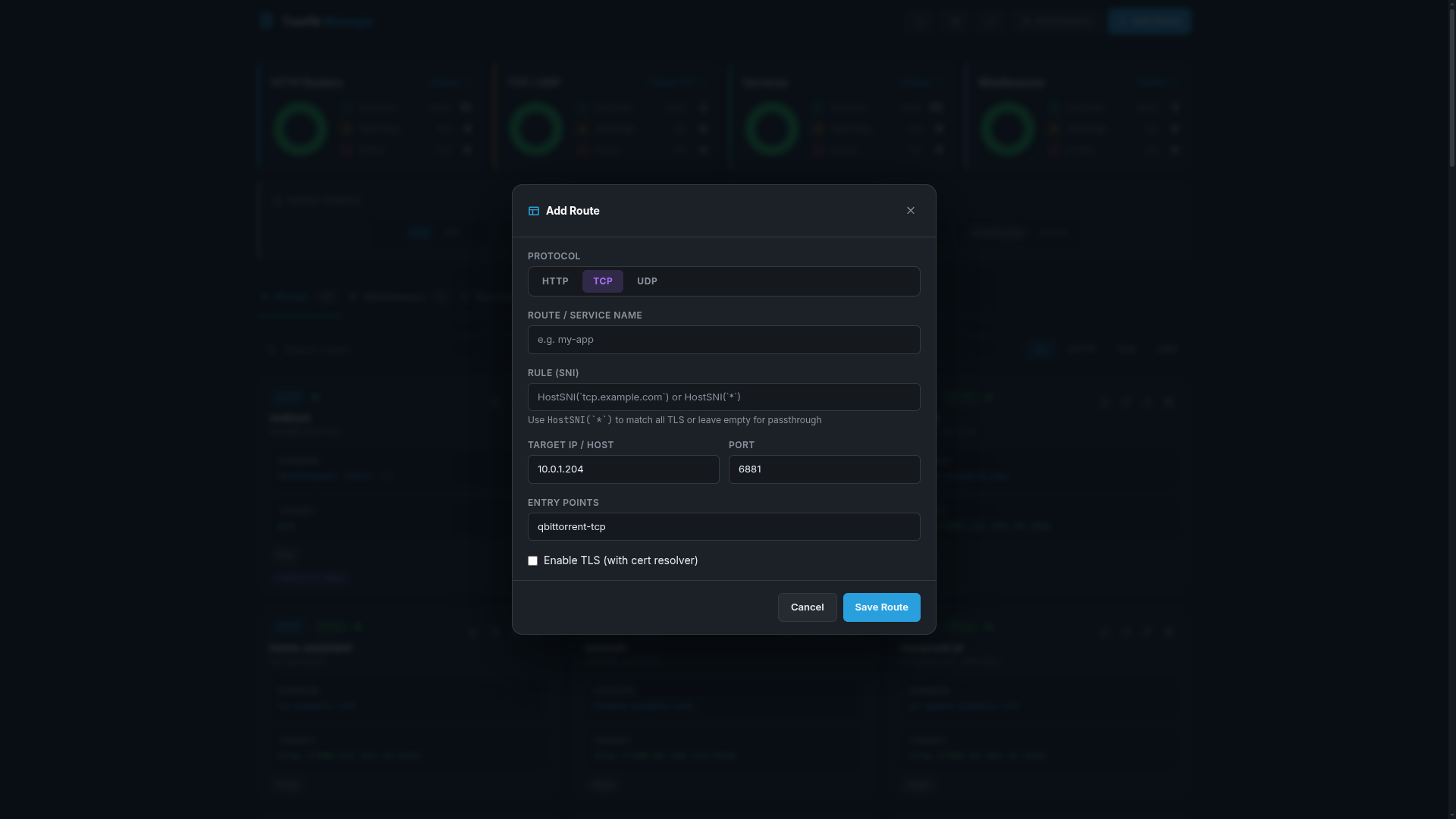
Adding a TCP Route
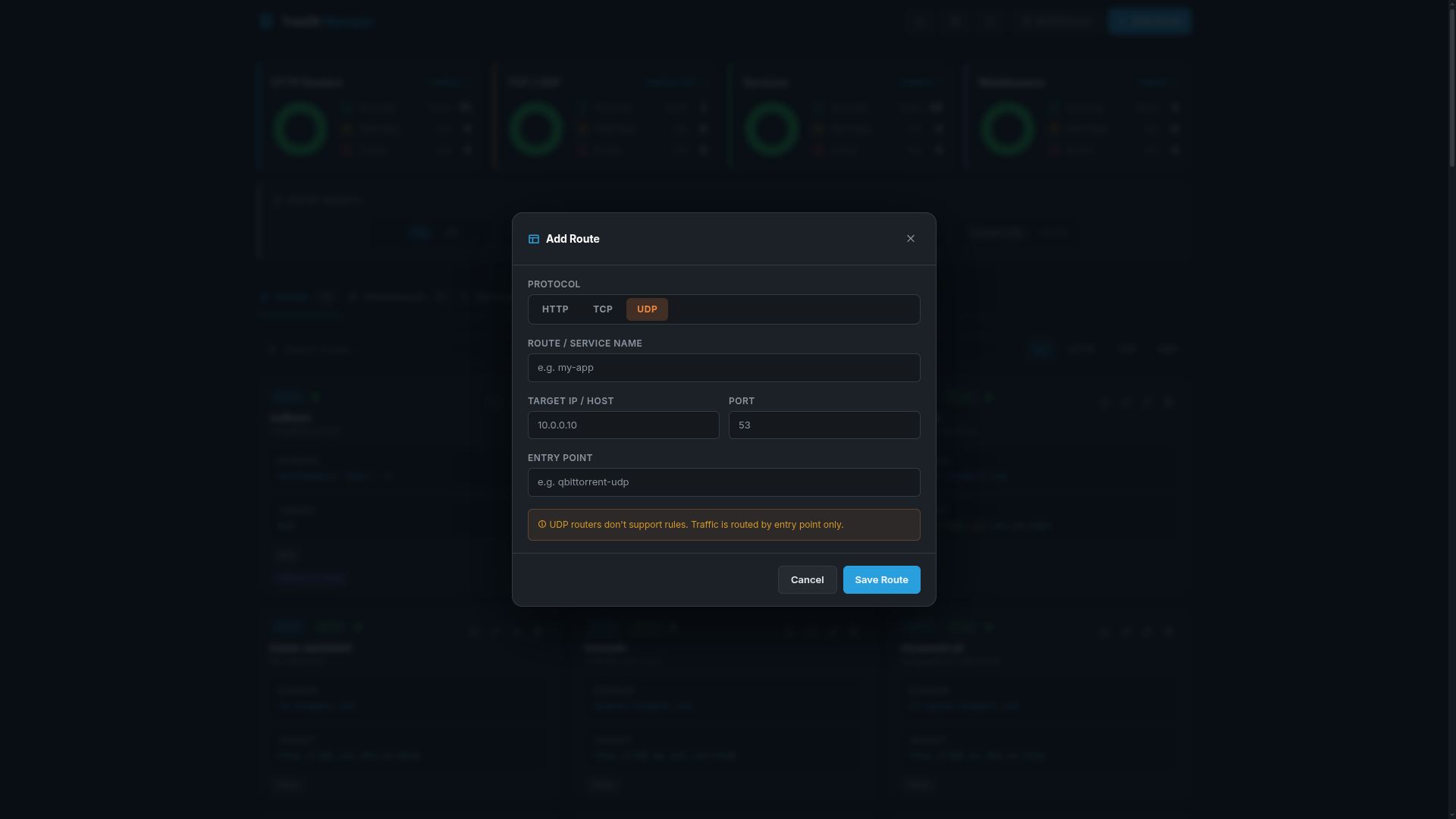
Adding a UDP Route

Services
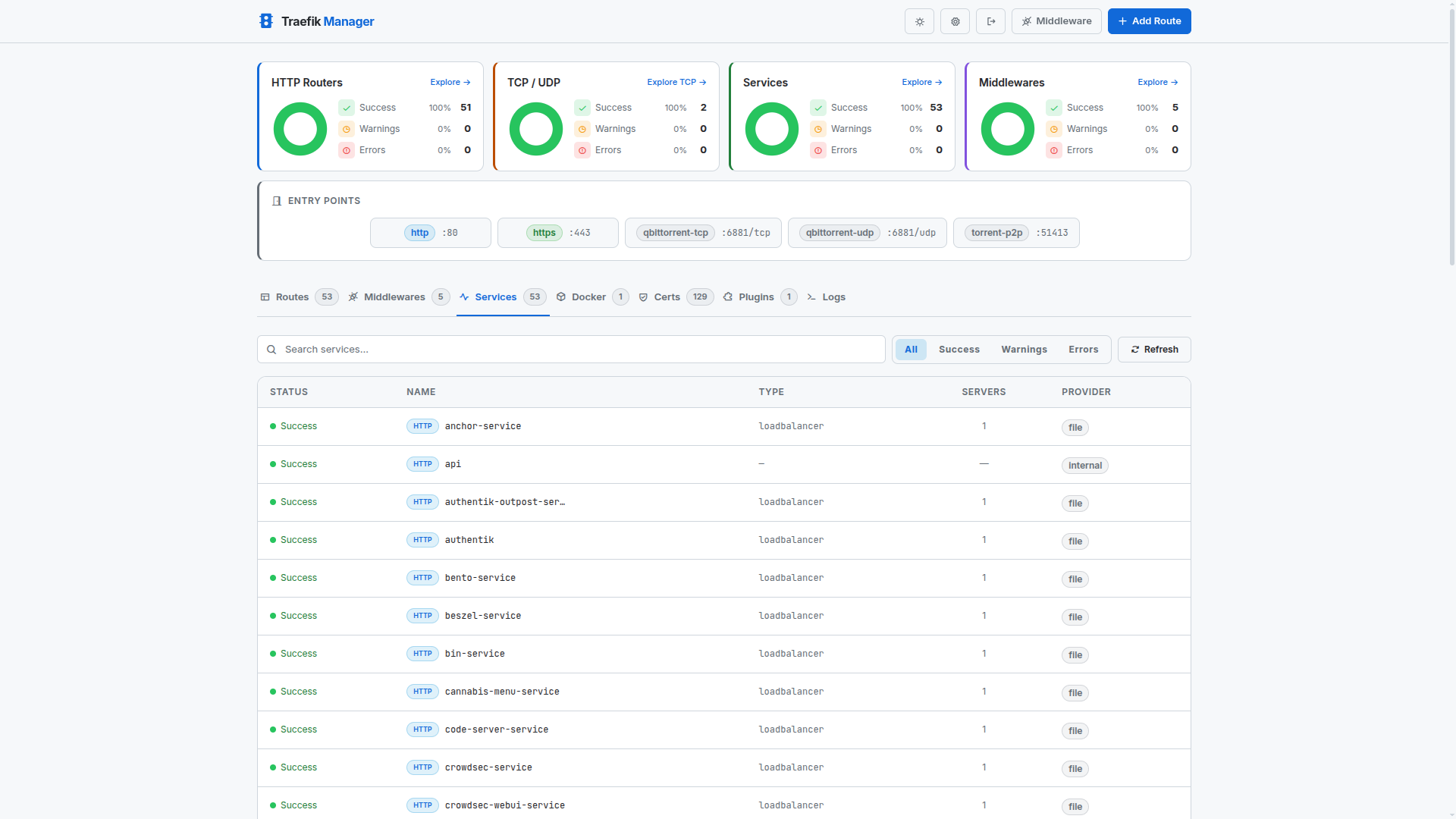
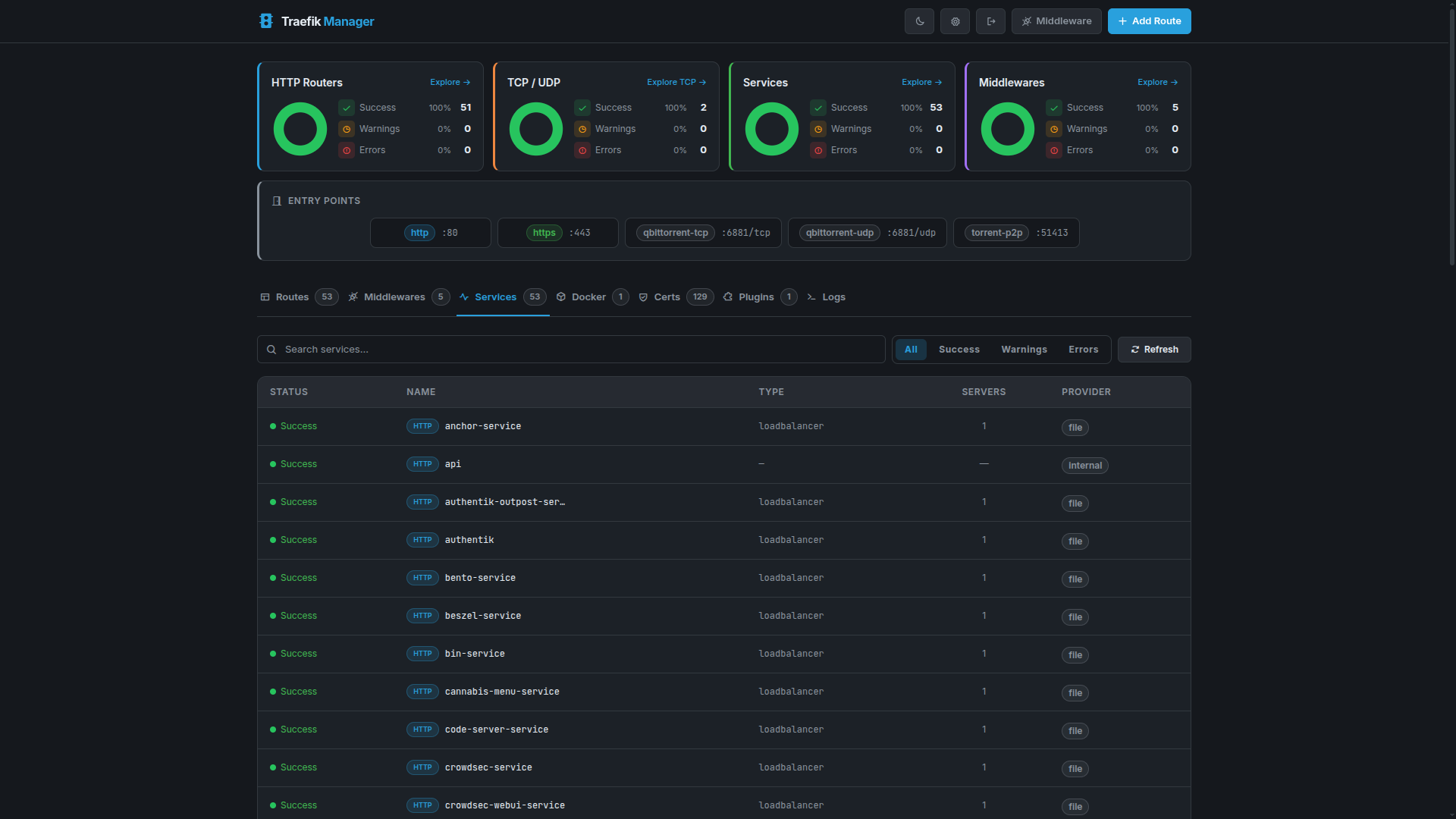
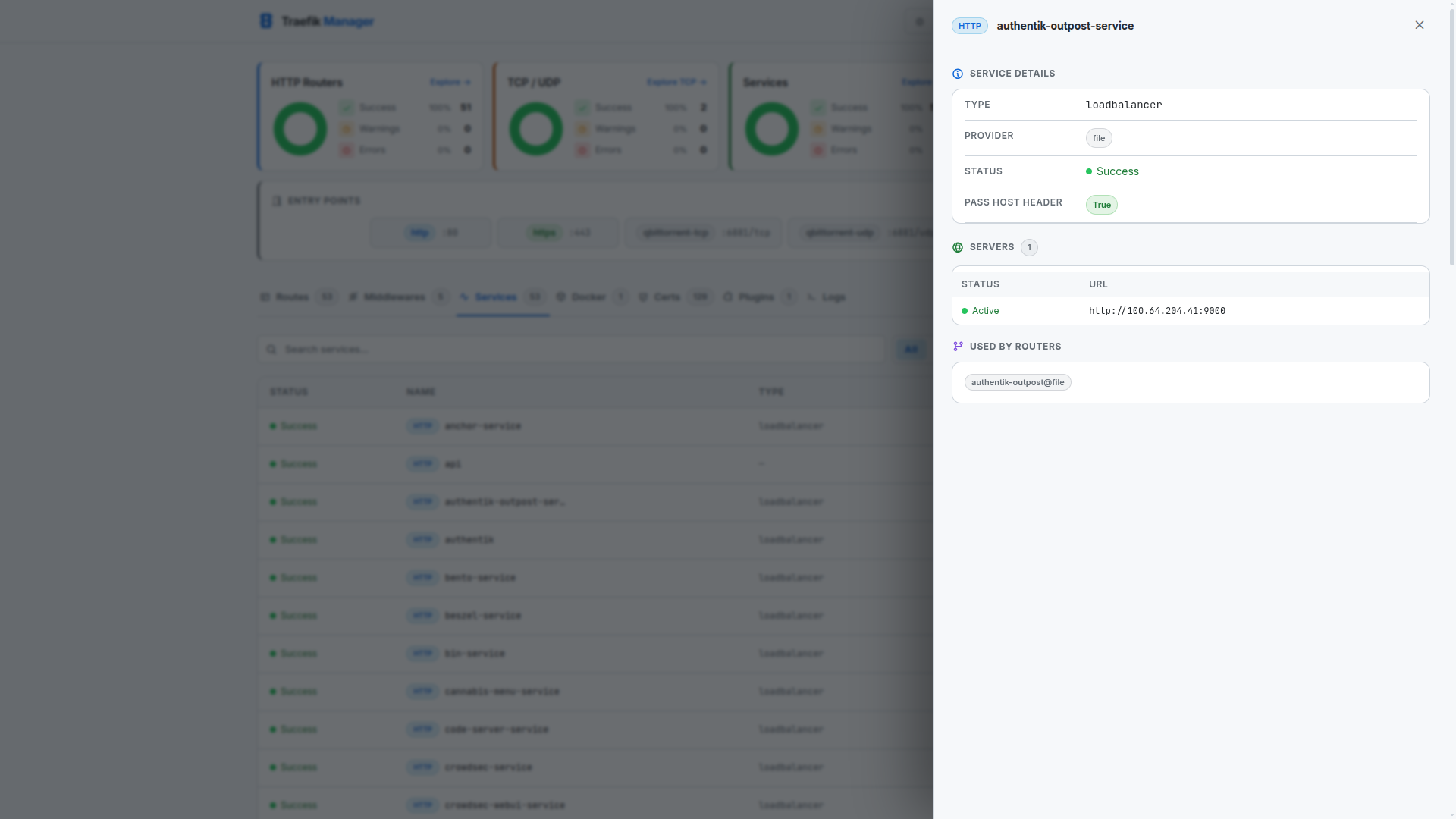
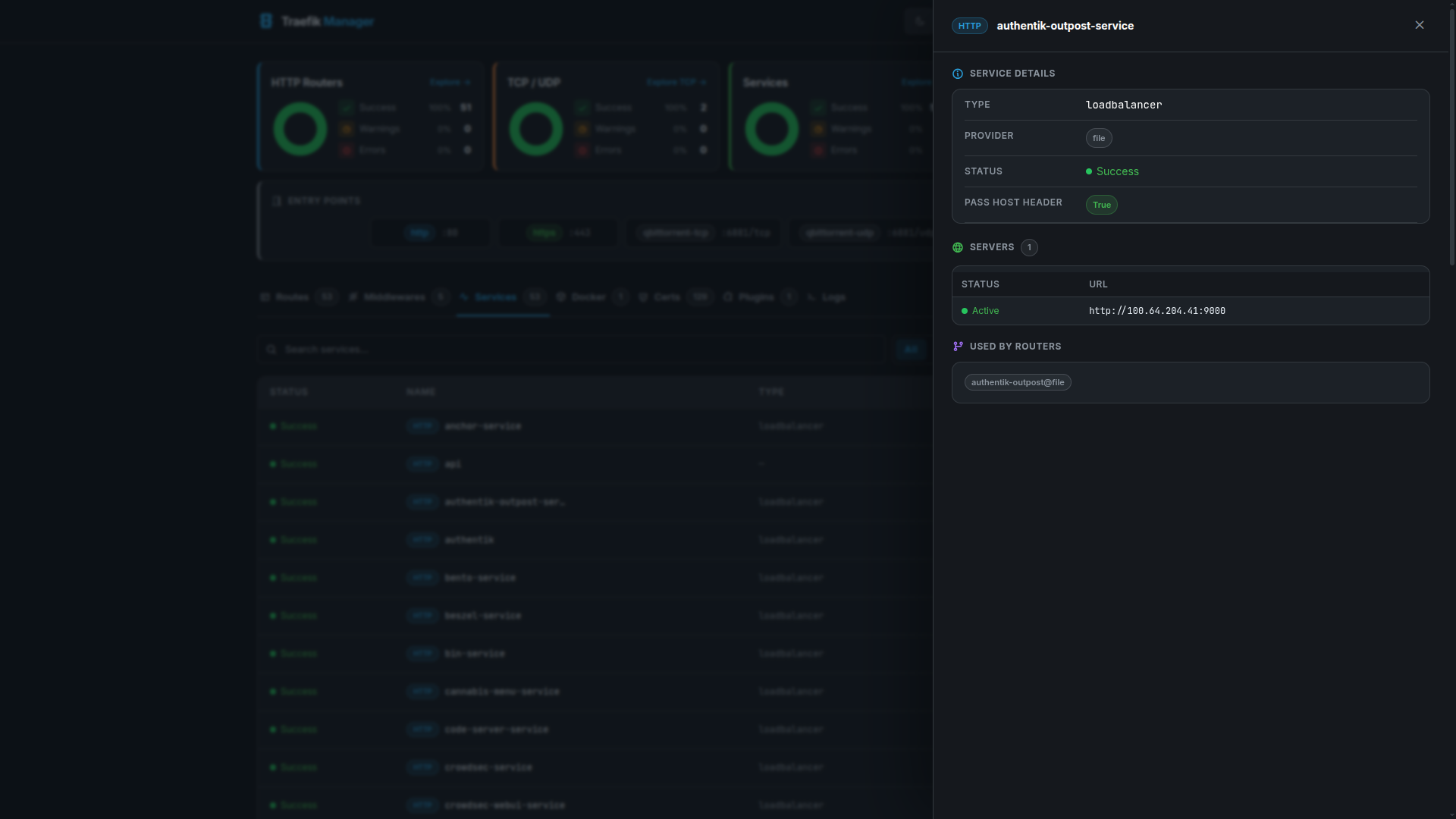
Services represent the backend targets that Traefik forwards traffic to.
Services Overview
Service Details
Middlewares
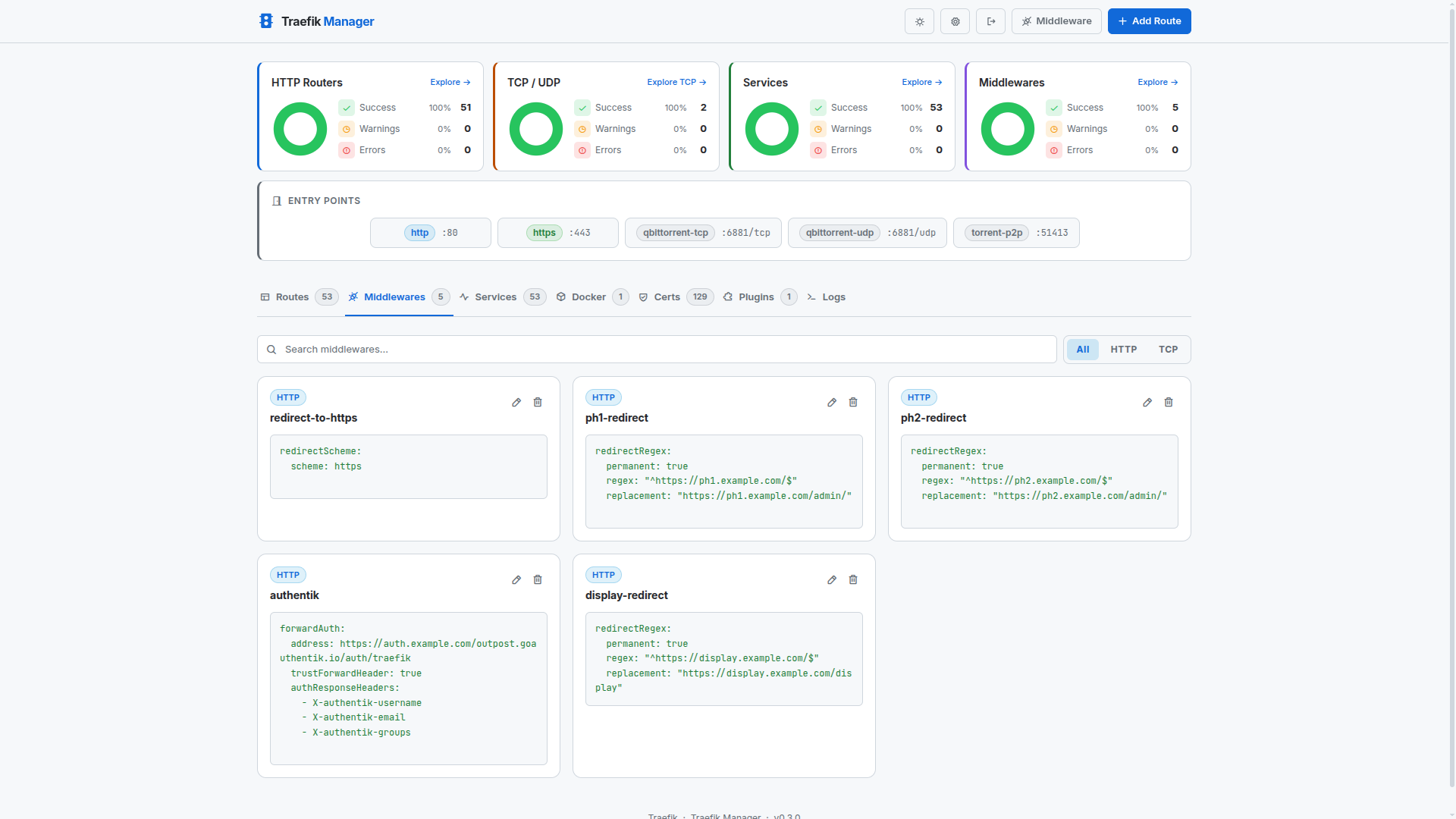
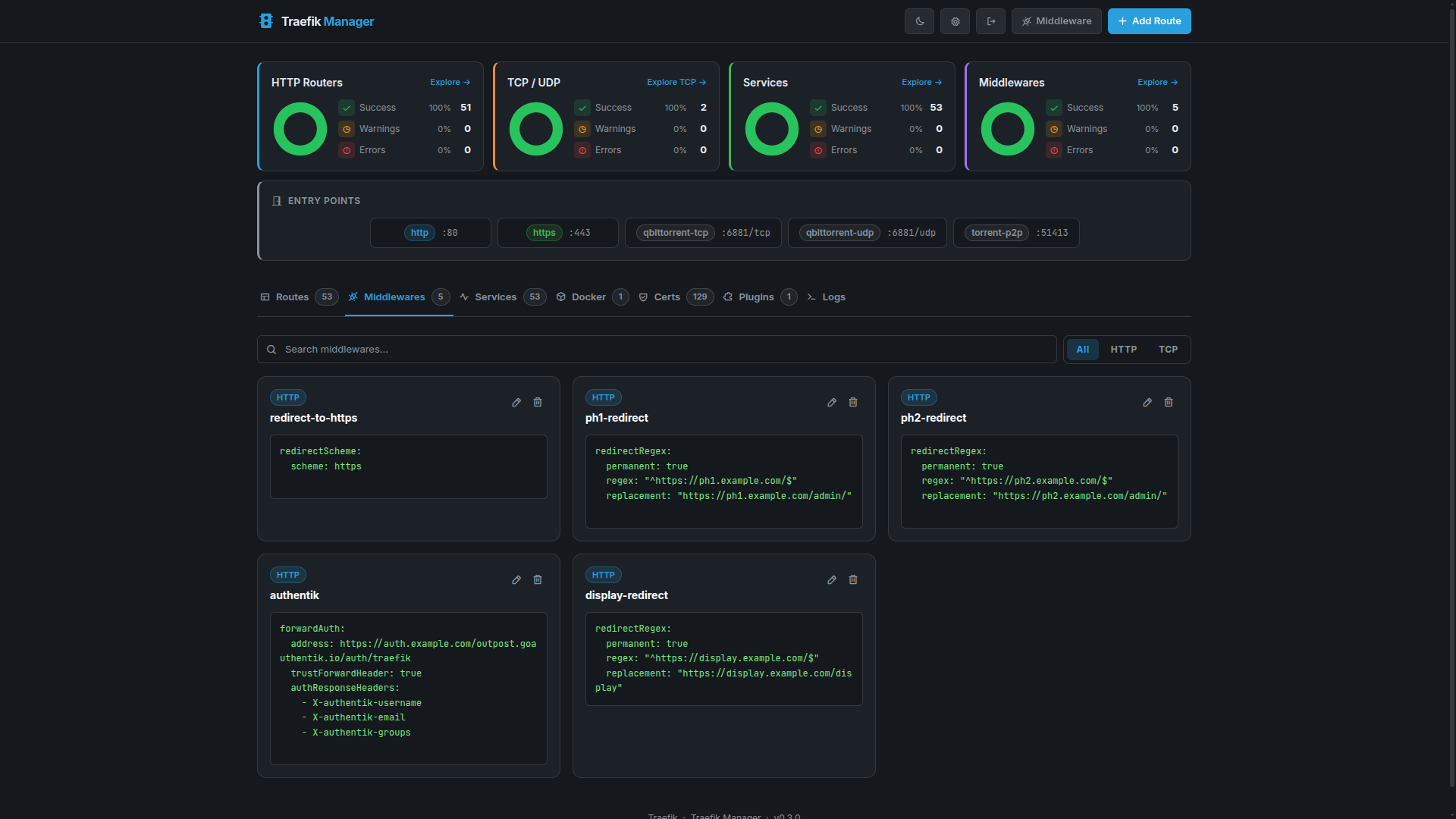
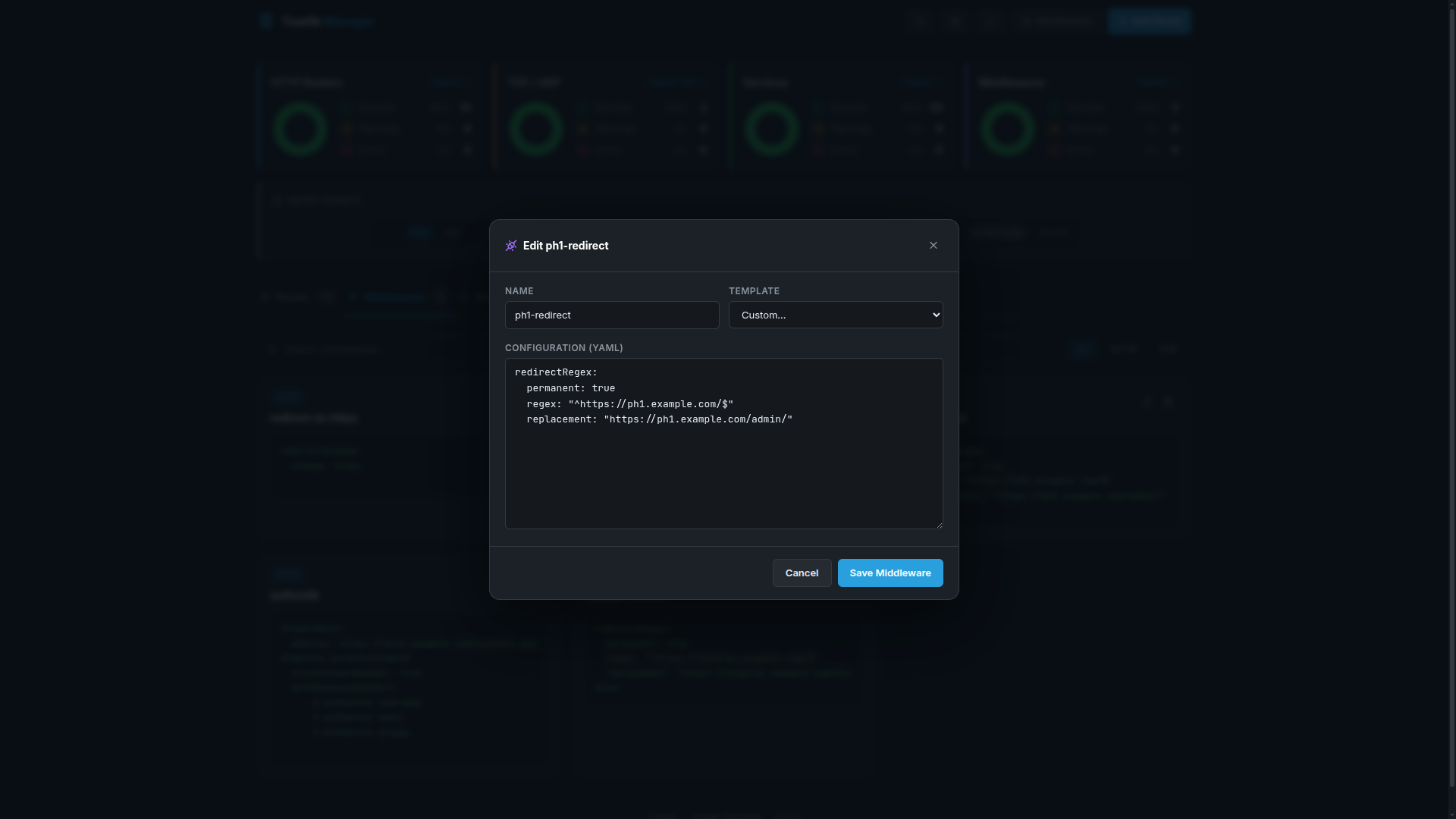
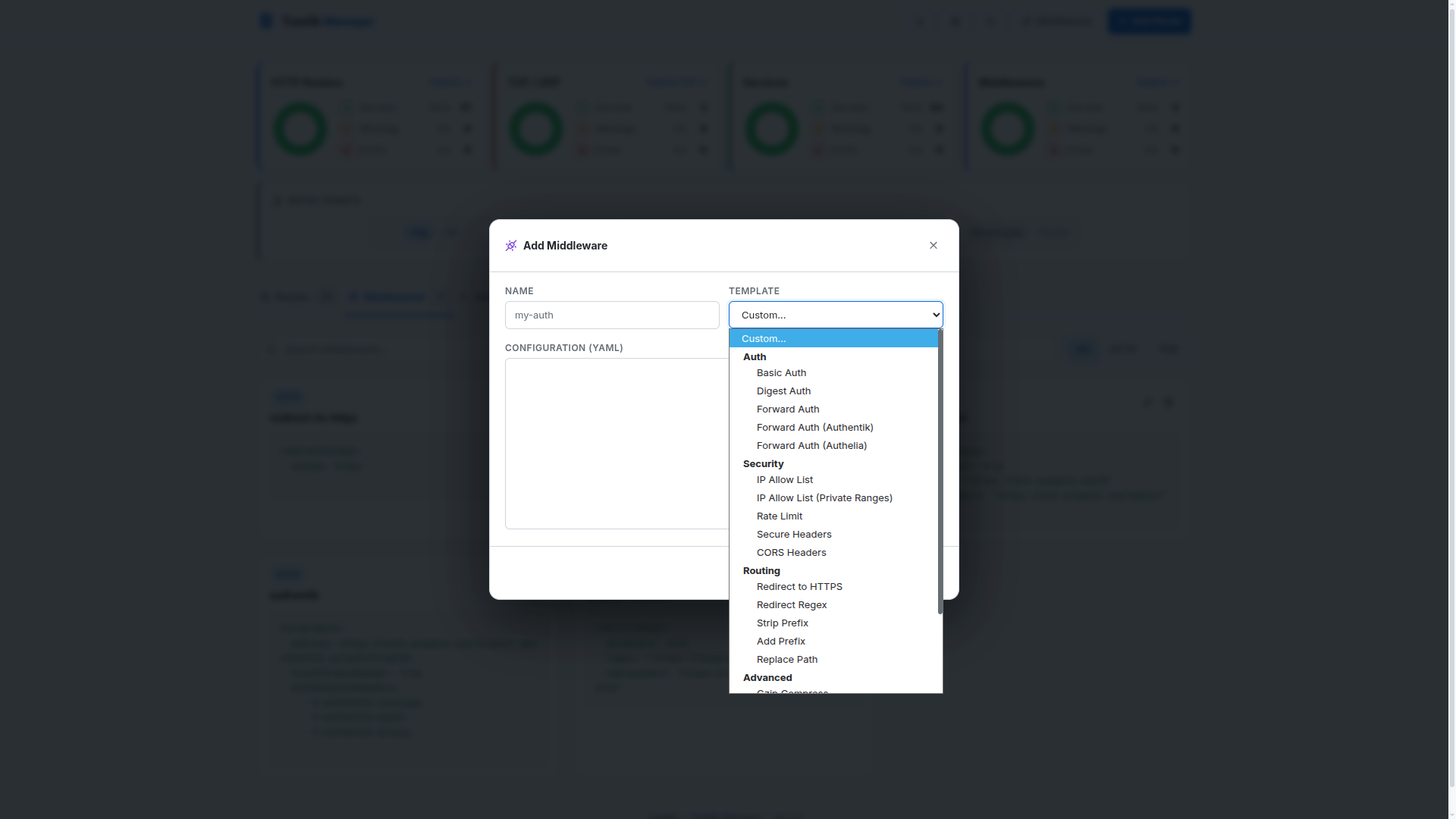
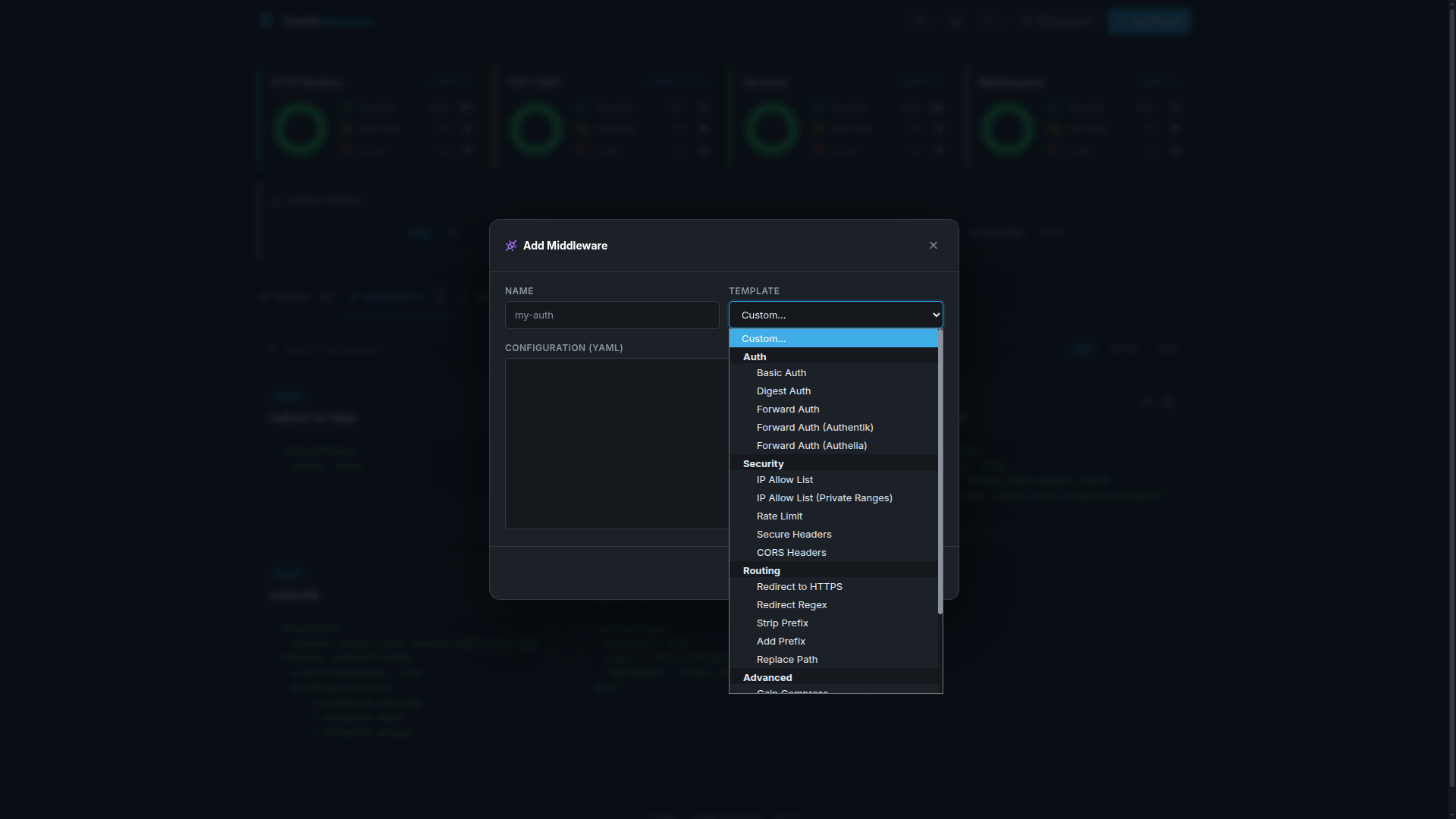
Middlewares modify requests before they reach your services - authentication, rate limiting, headers, redirects, and more.
Middleware List
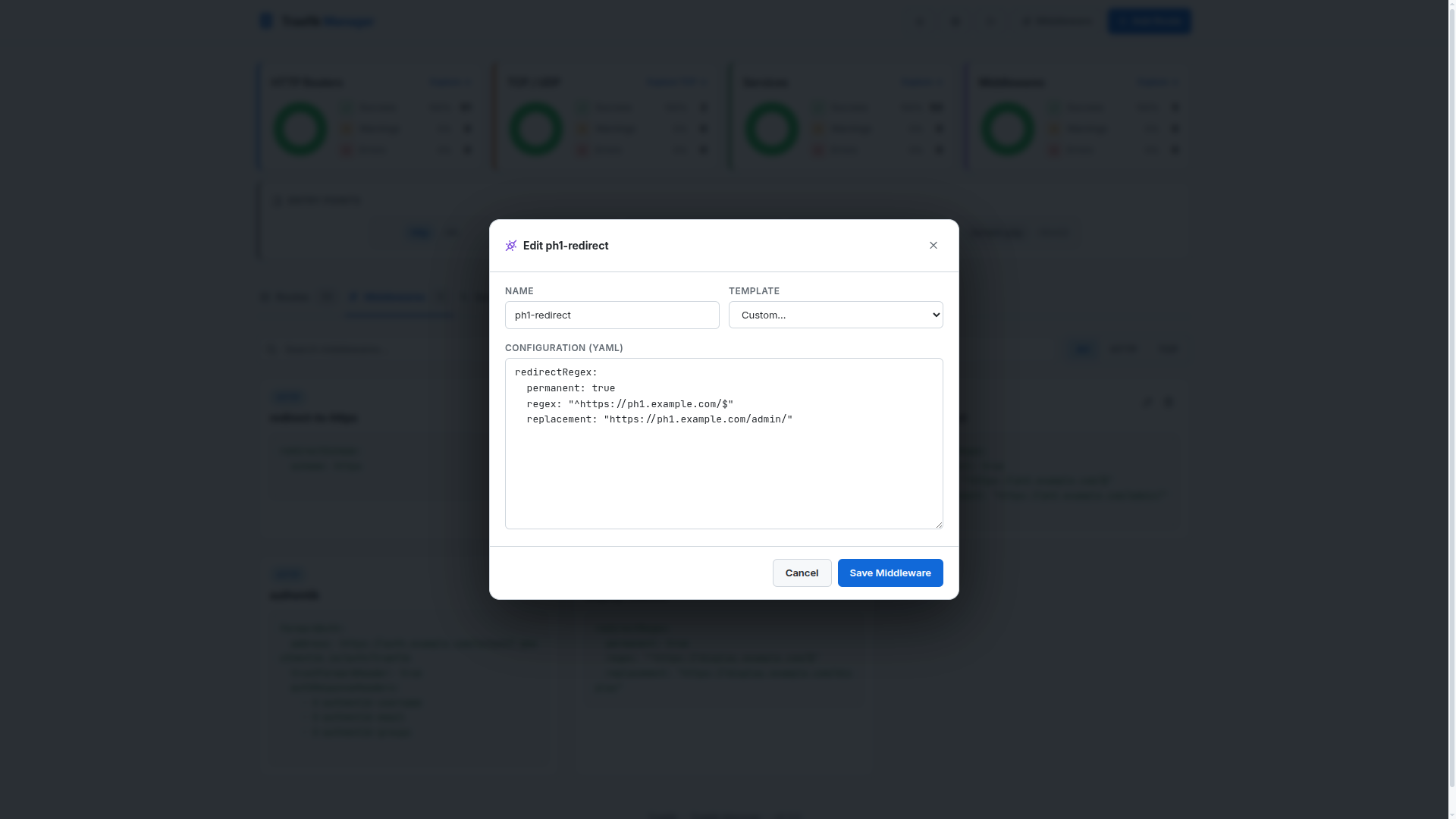
Editing Middleware
Adding Middleware
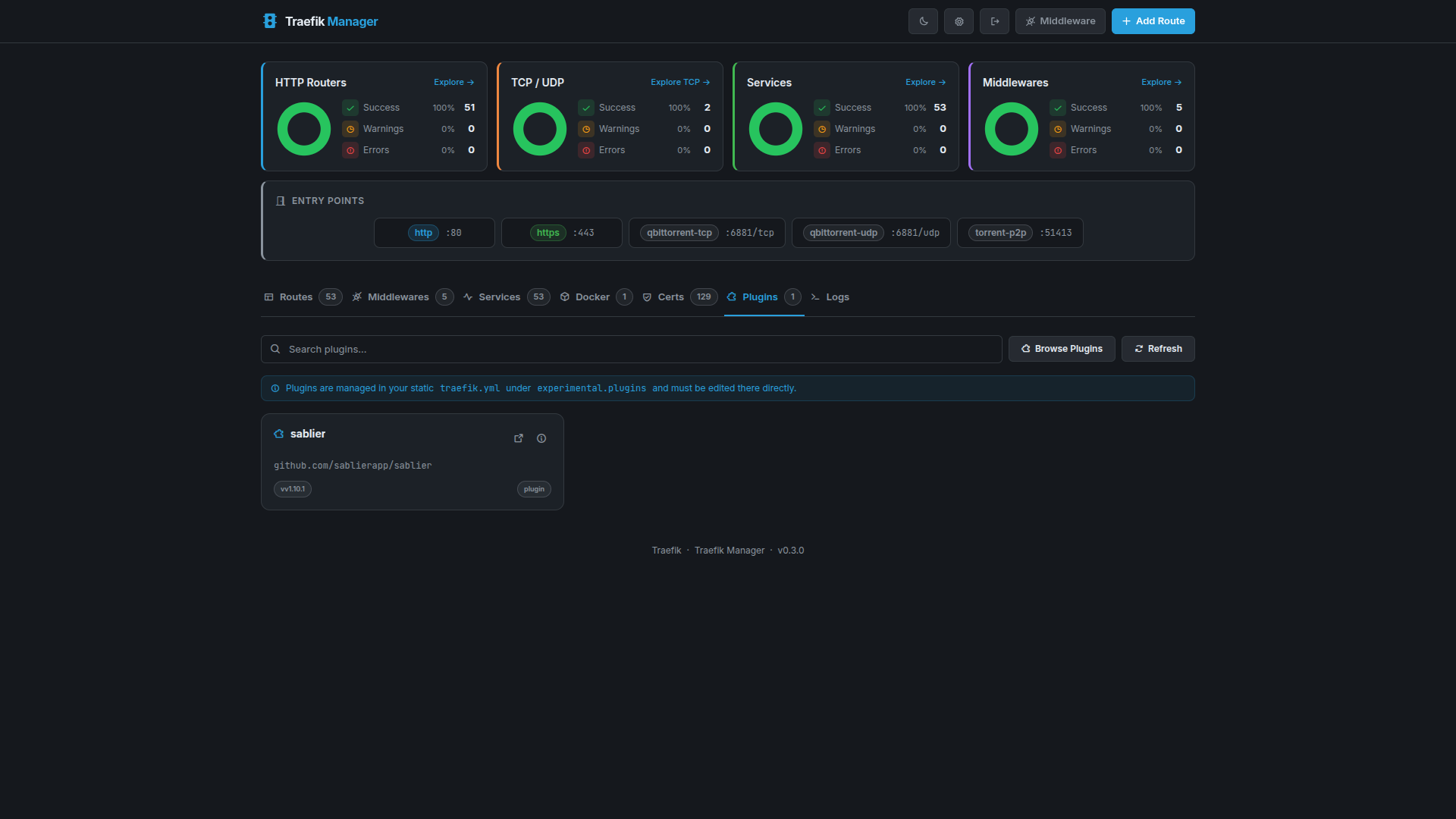
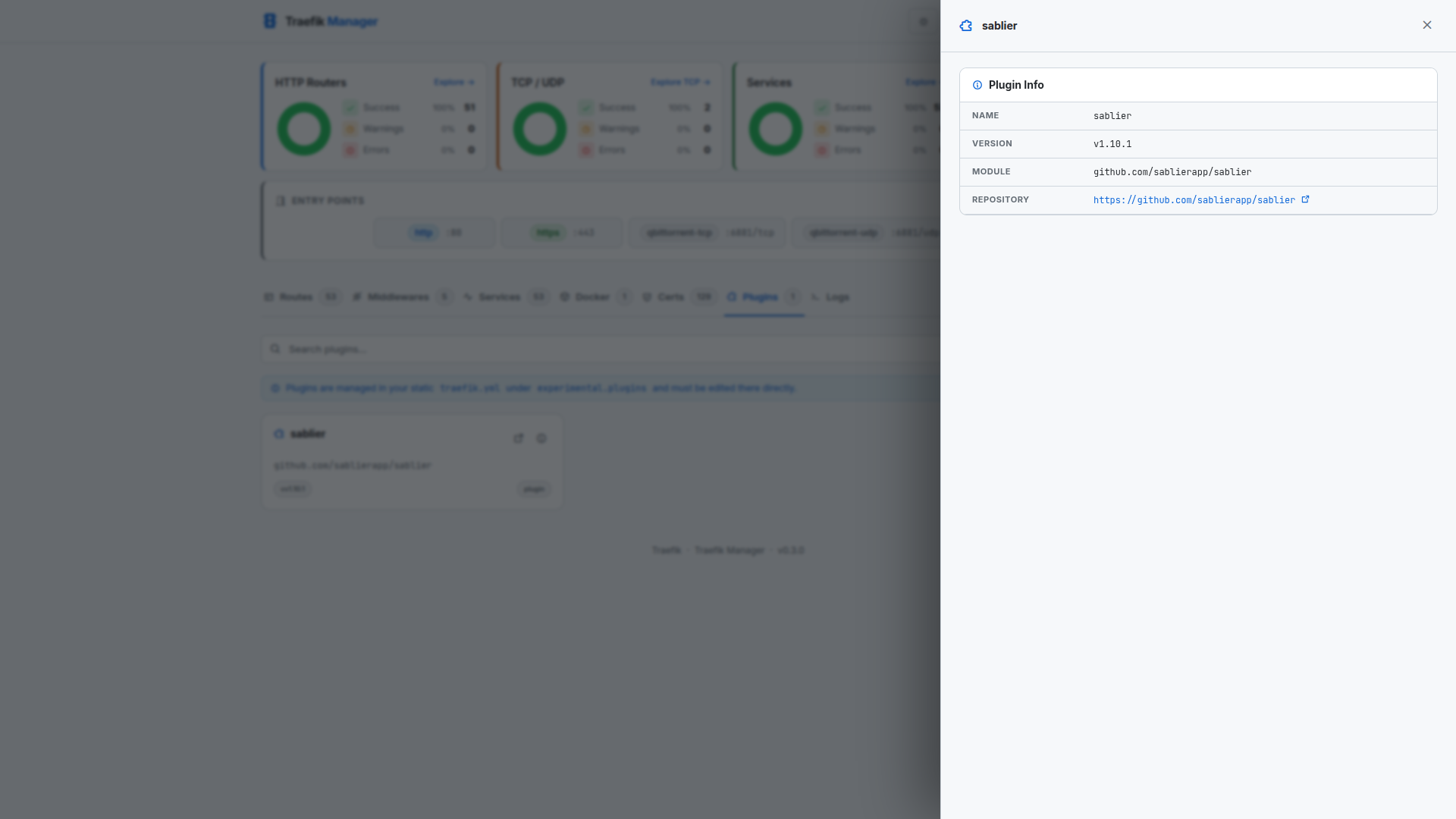
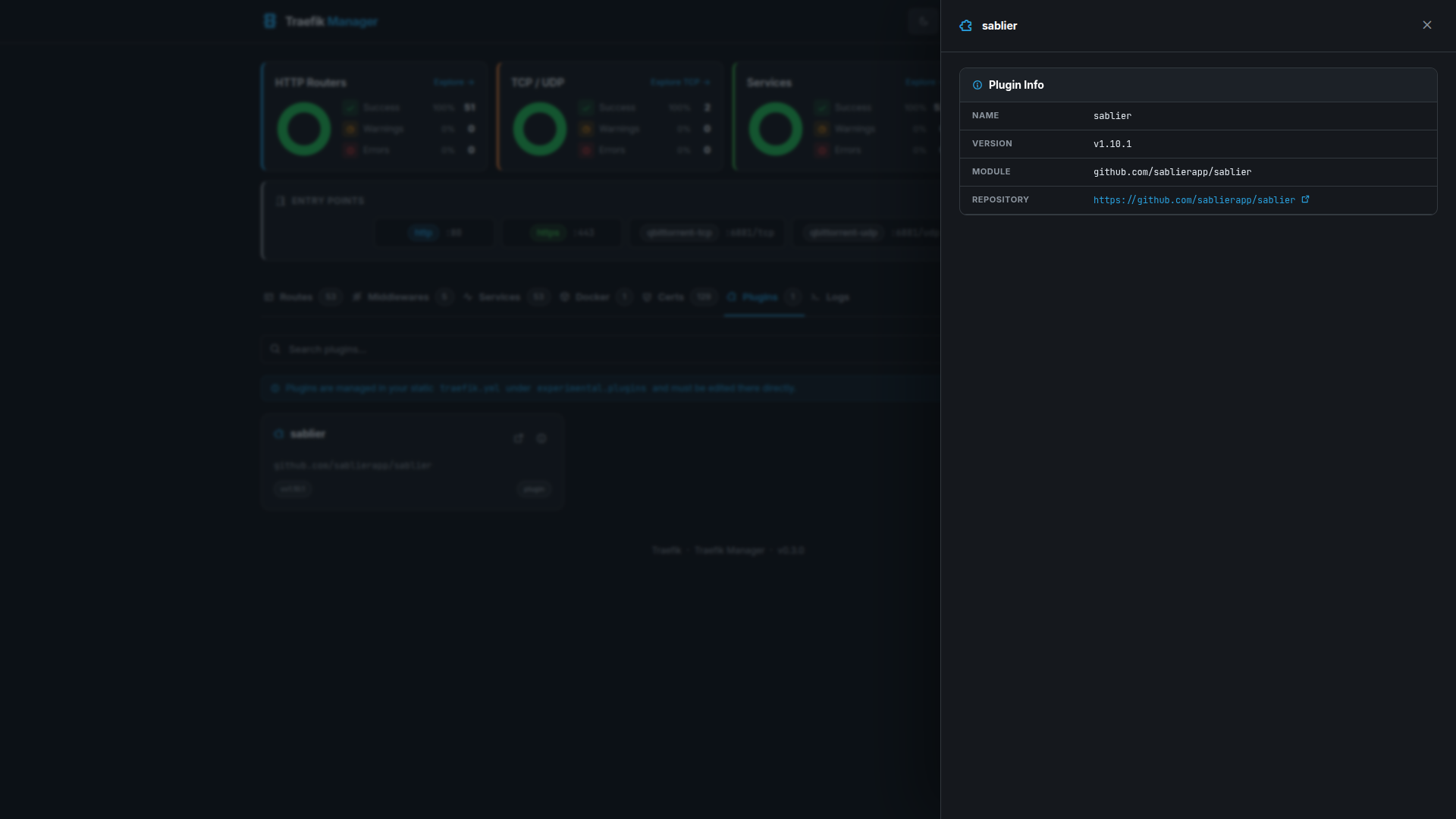
Plugins
View and monitor active Traefik plugins.
Plugin List
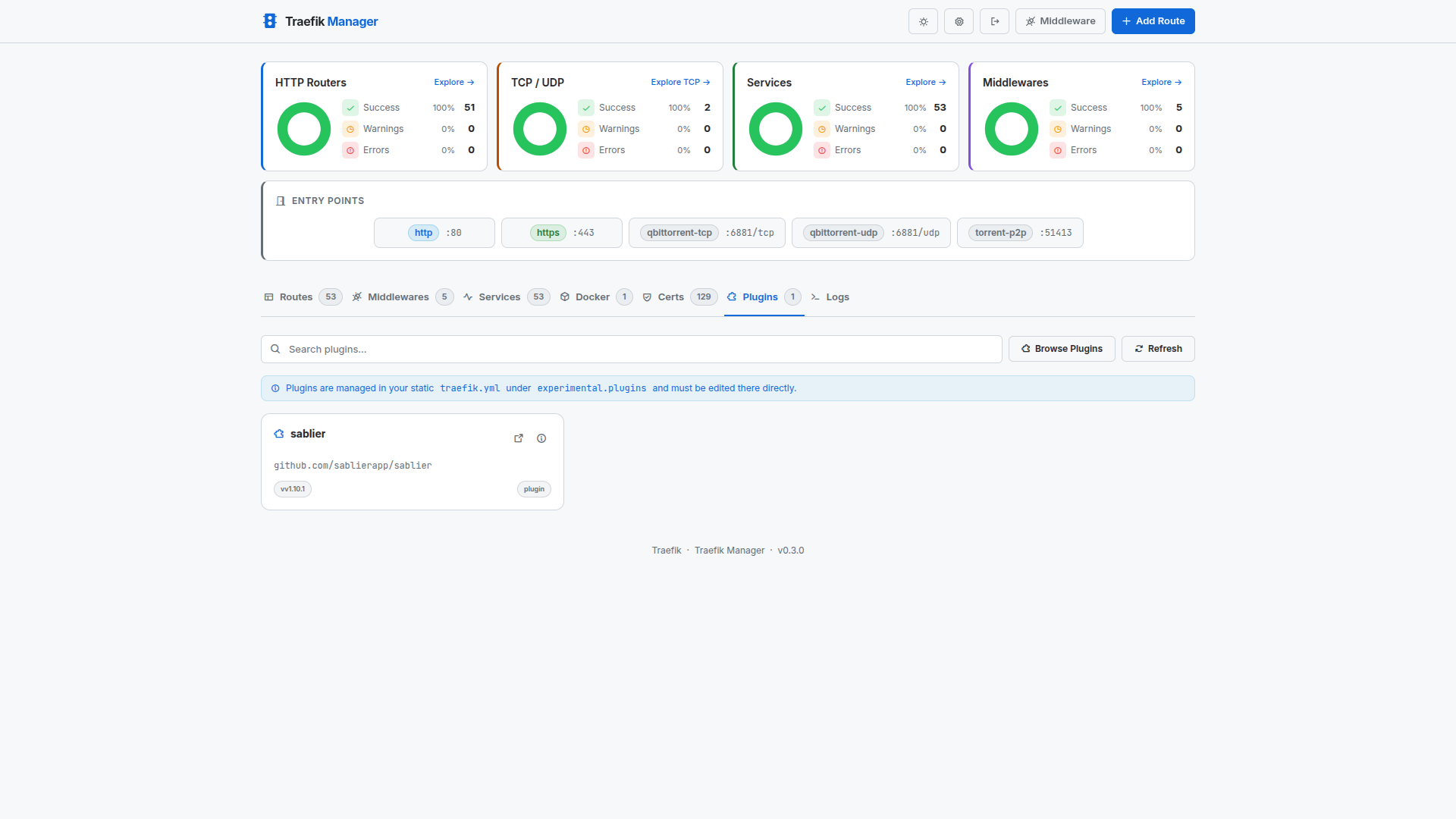
Plugin Details
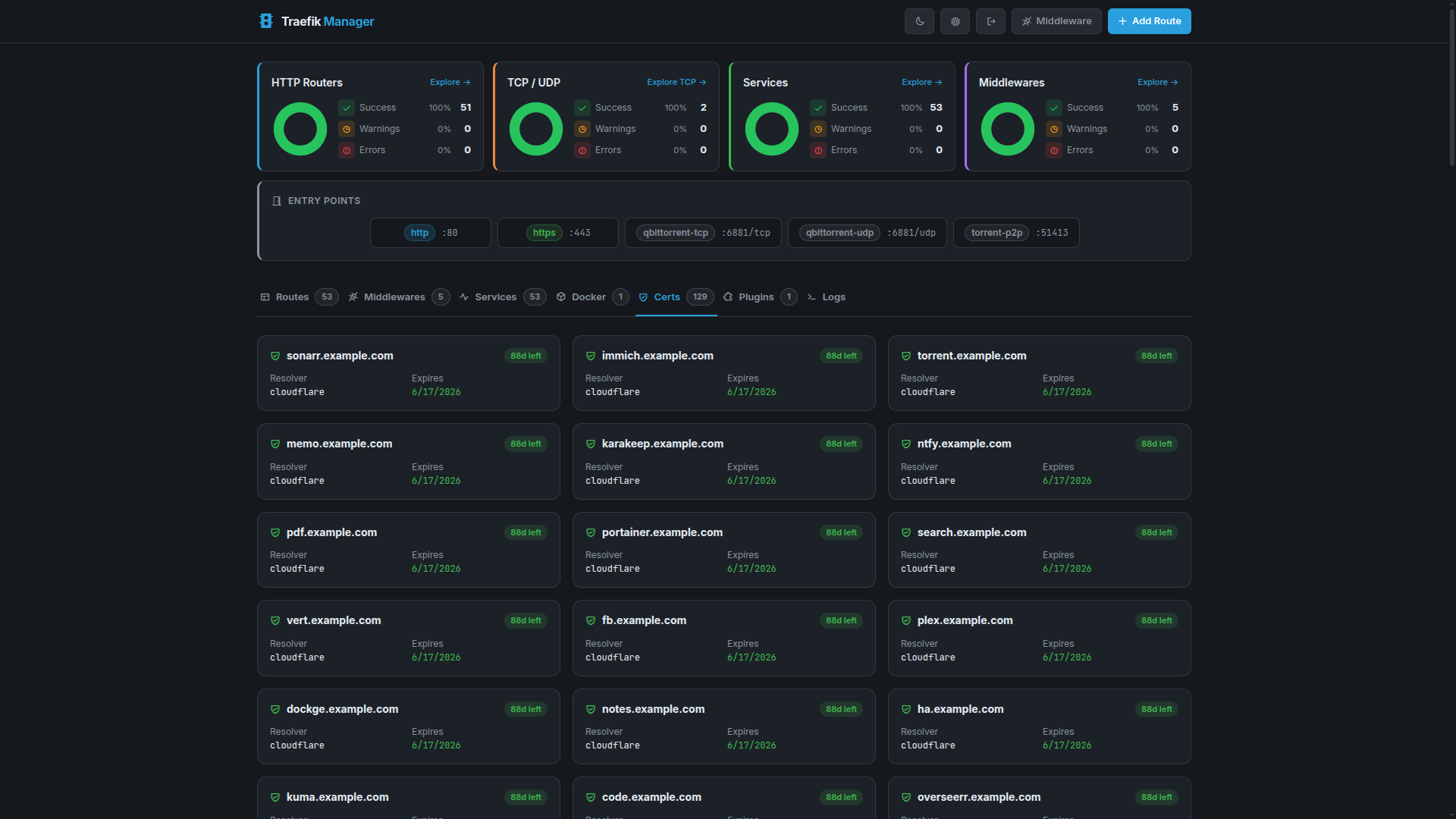
Certificates
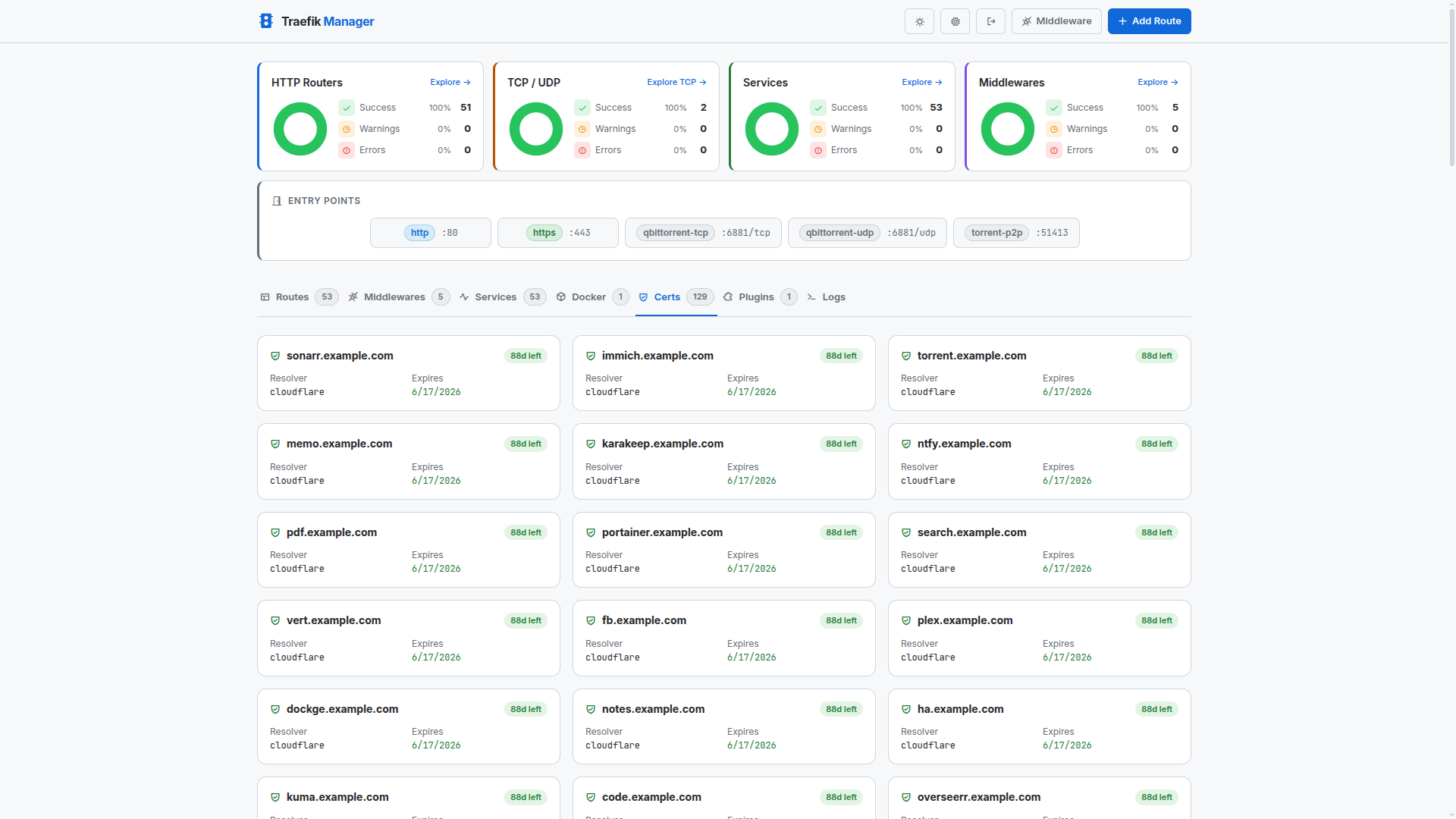
View and monitor TLS certificates managed by Traefik.
Certificates View
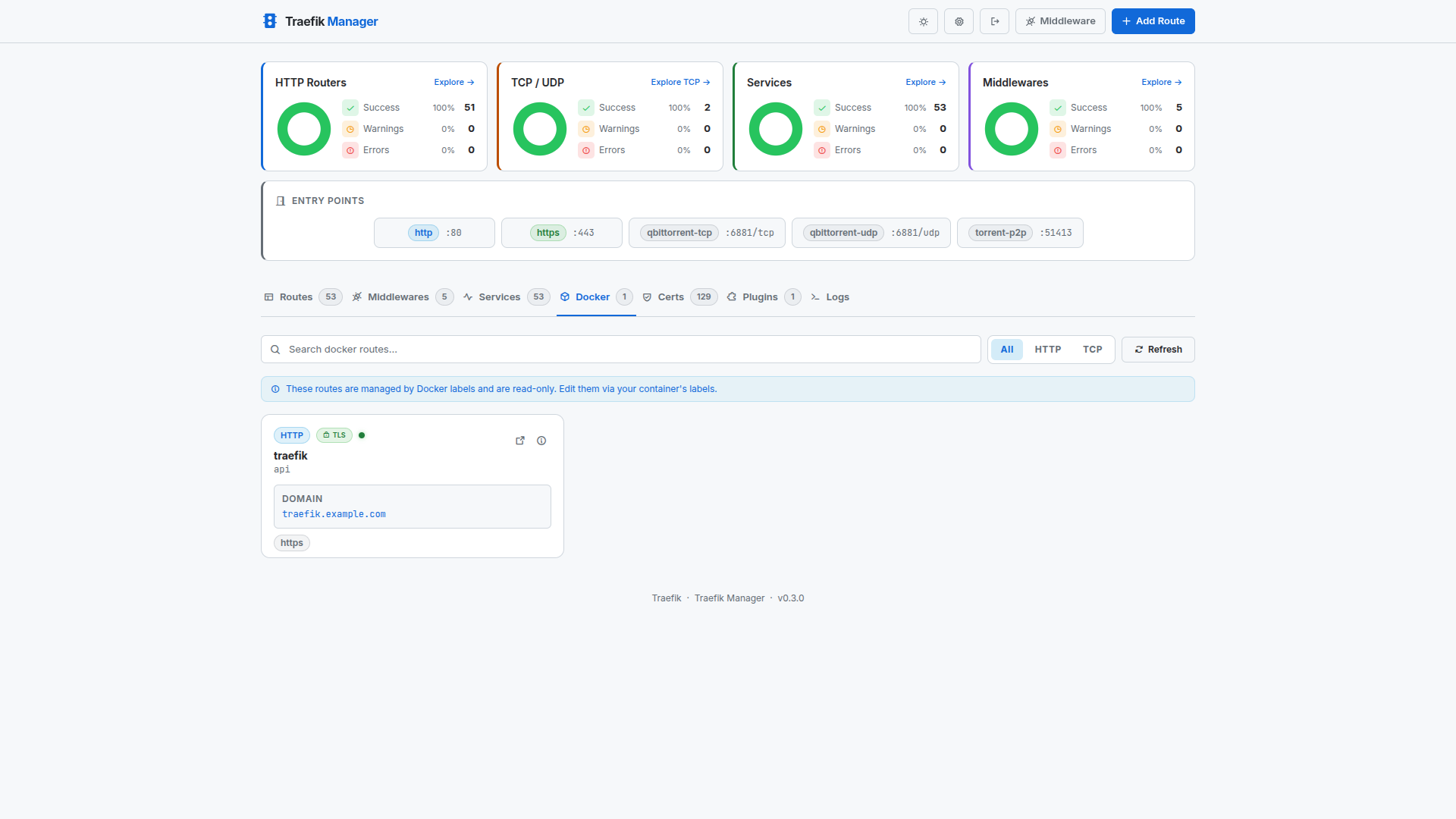
Docker
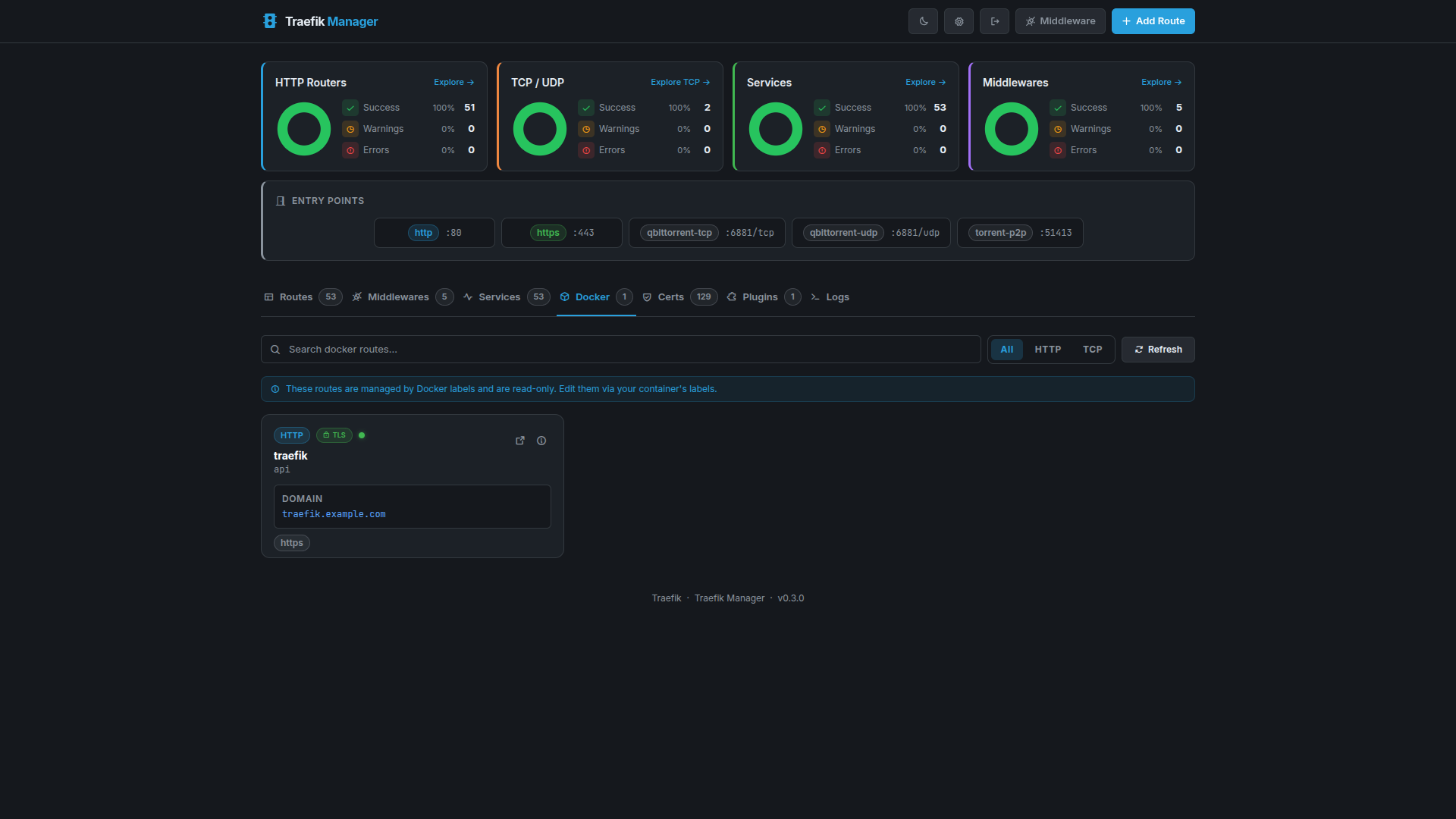
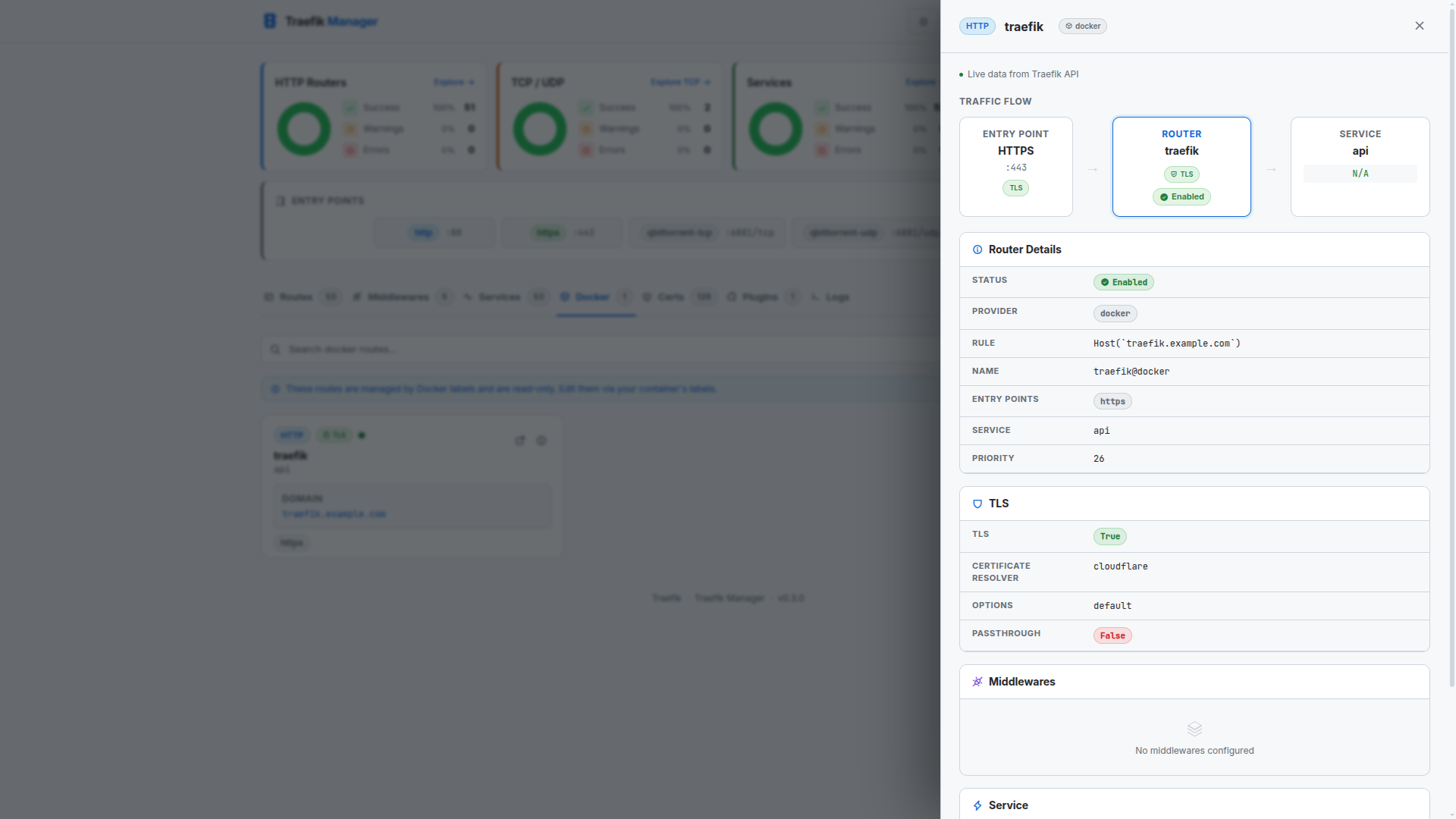
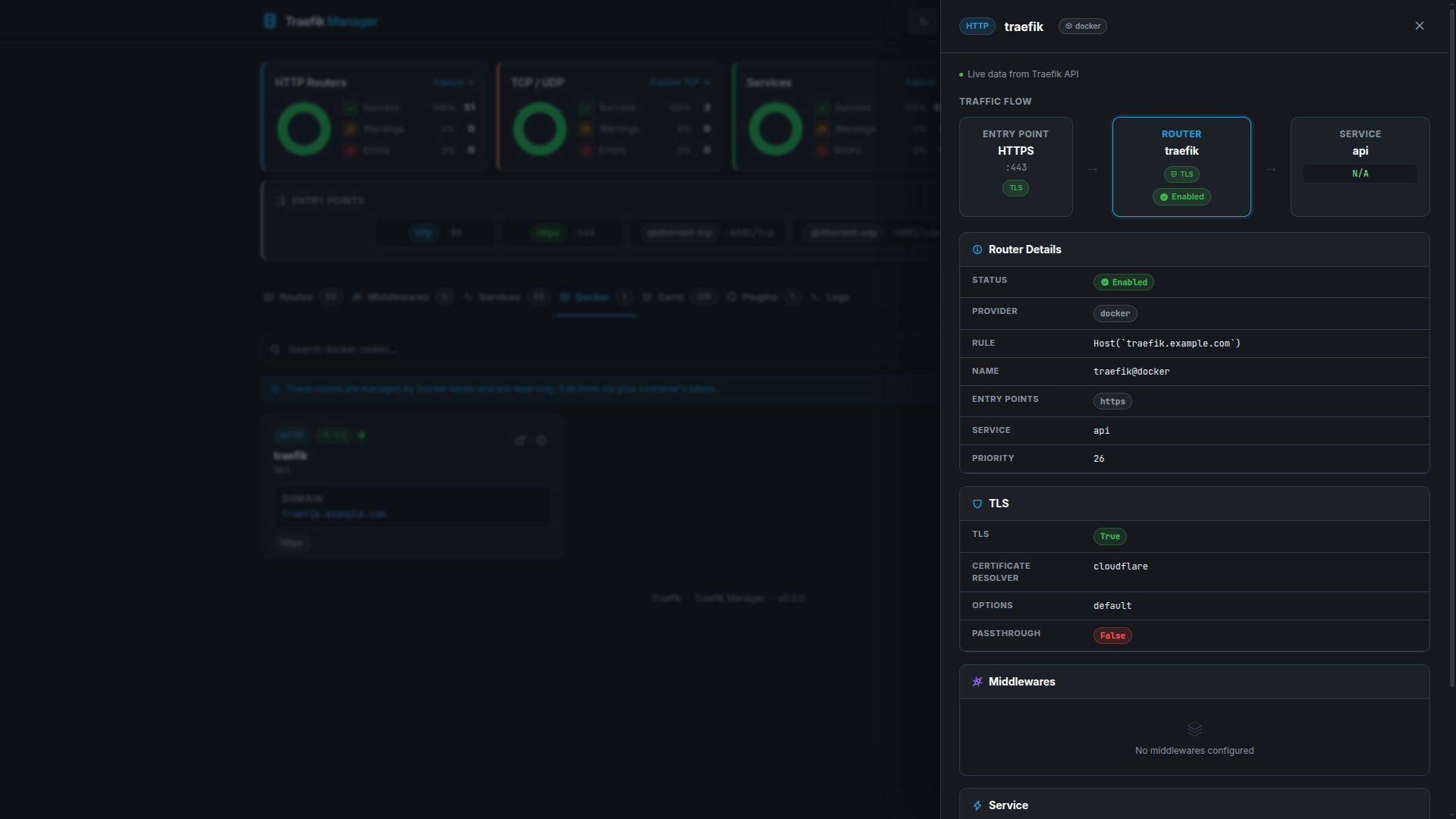
Inspect routes and services discovered via the Docker provider, including container labels and health state.
Docker Routes
Docker Route Details
Logs
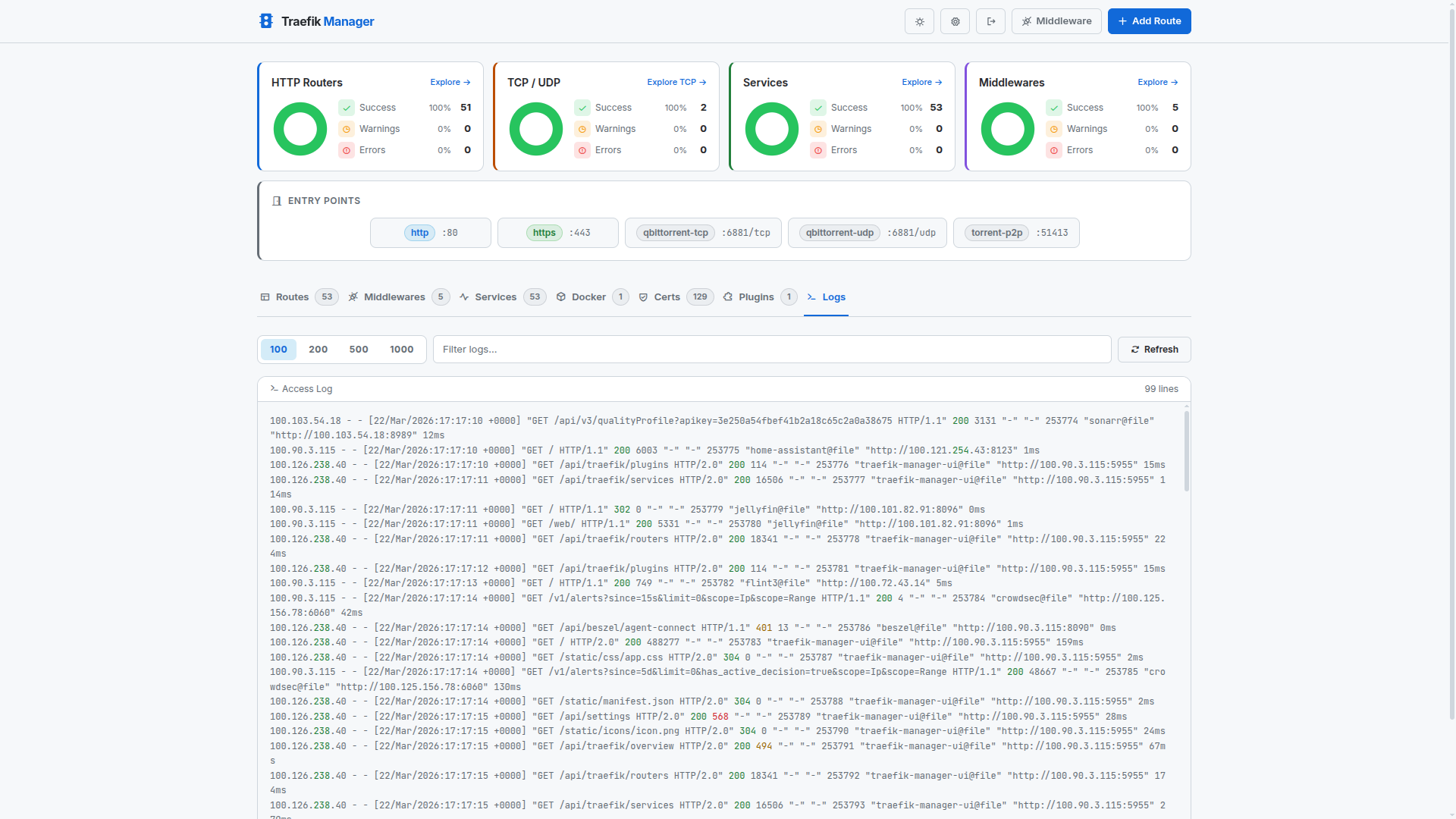
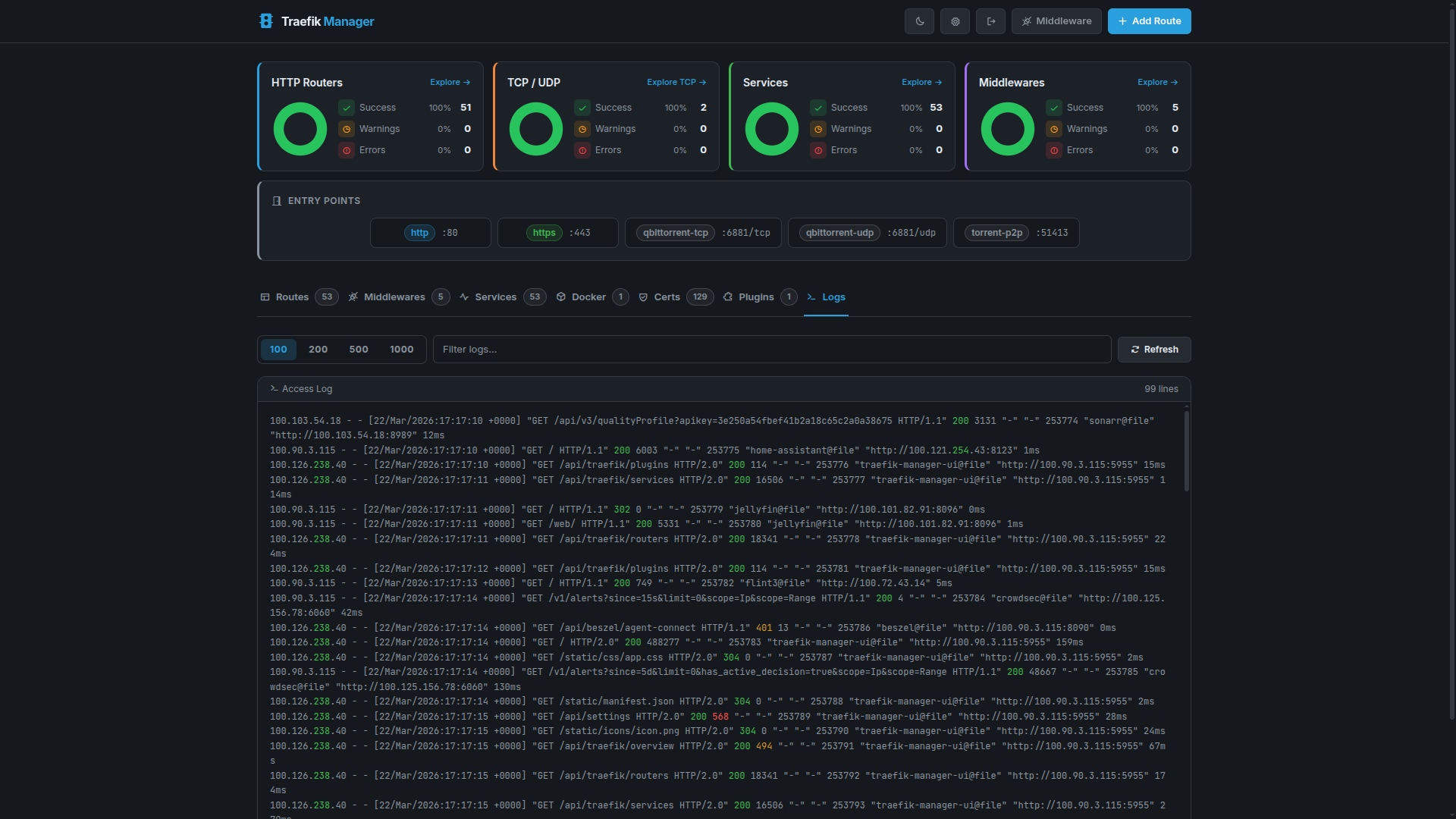
Live and historical Traefik access logs with line-count control and filtering.
Logs View
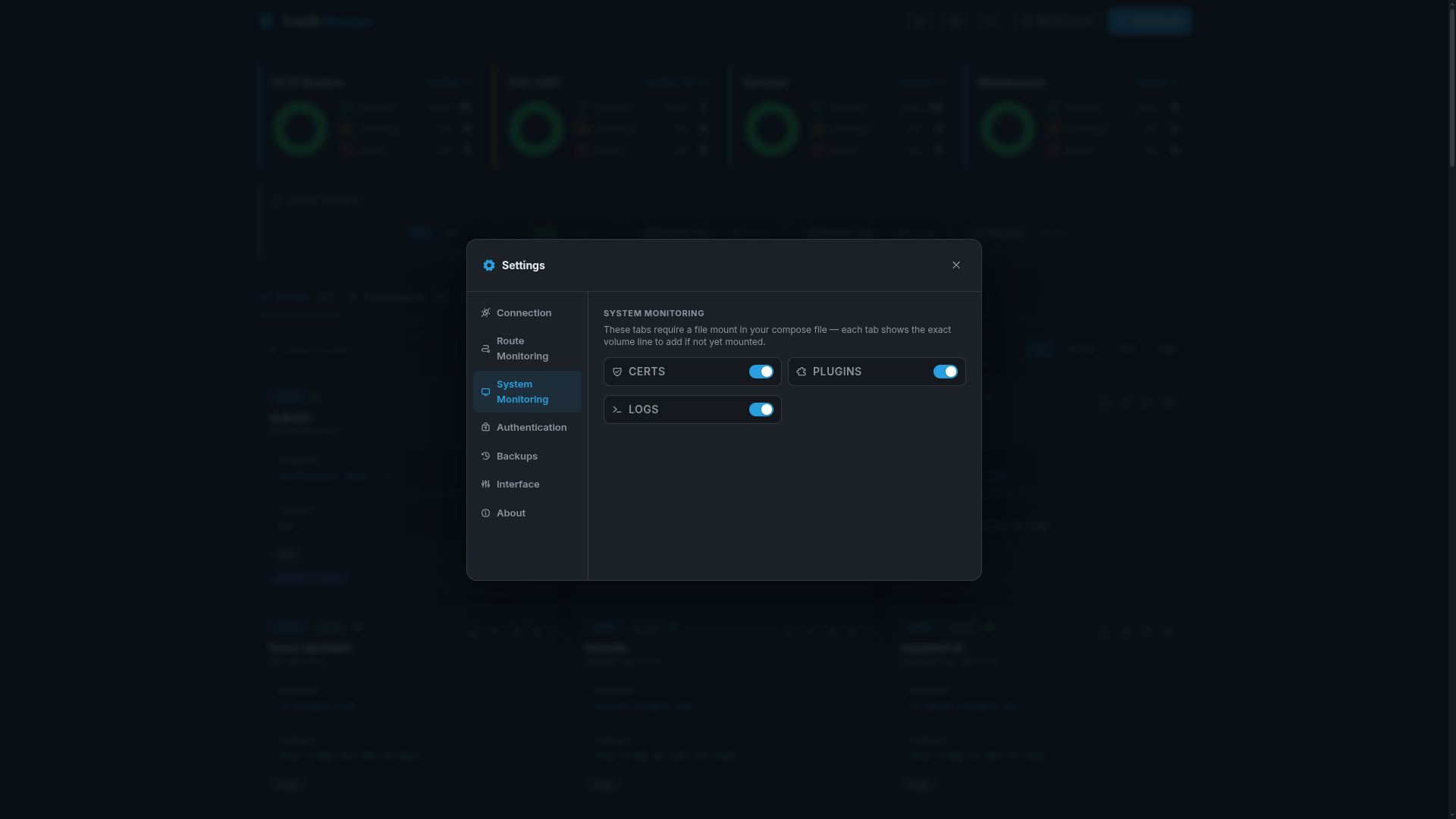
Settings
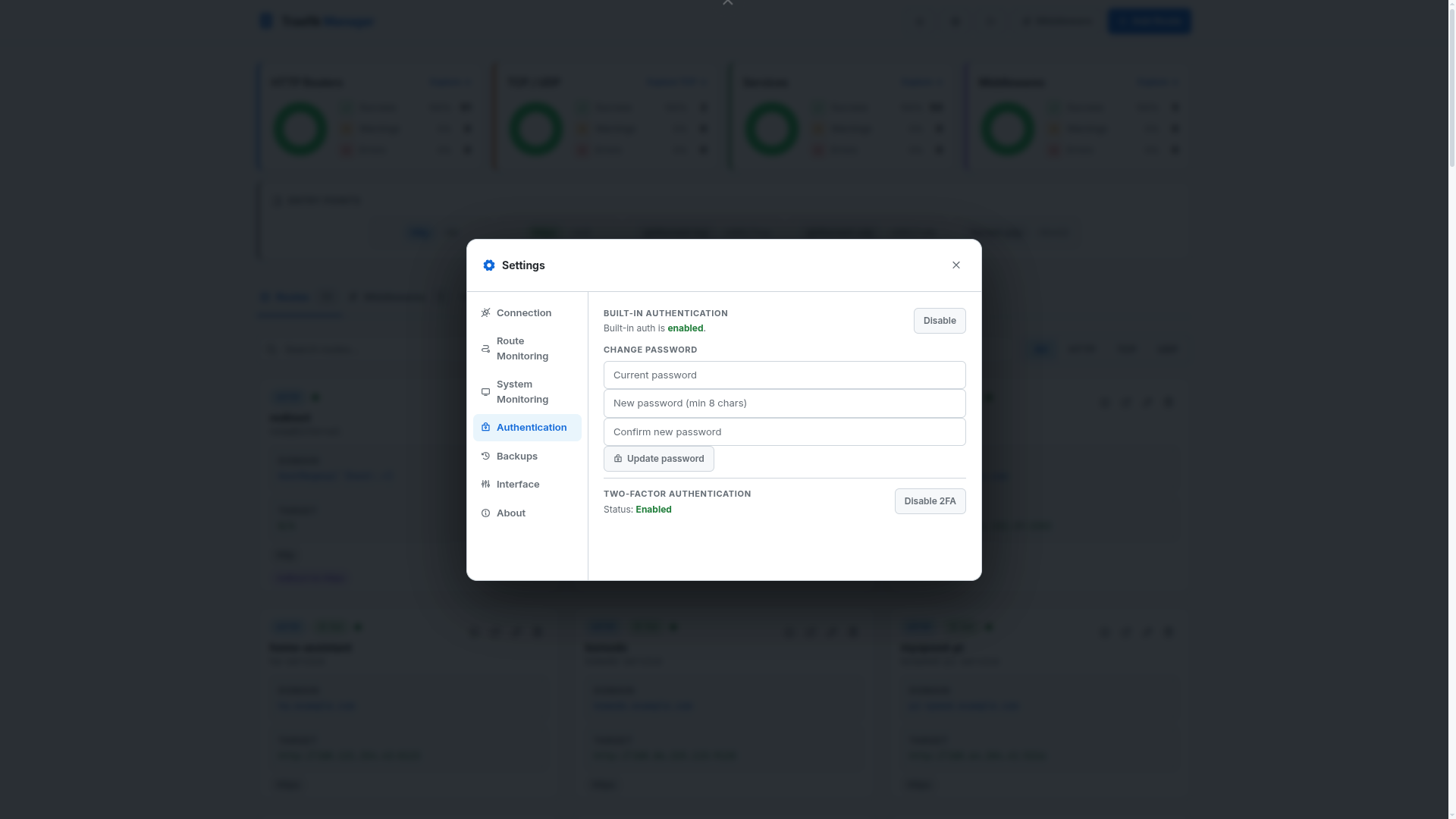
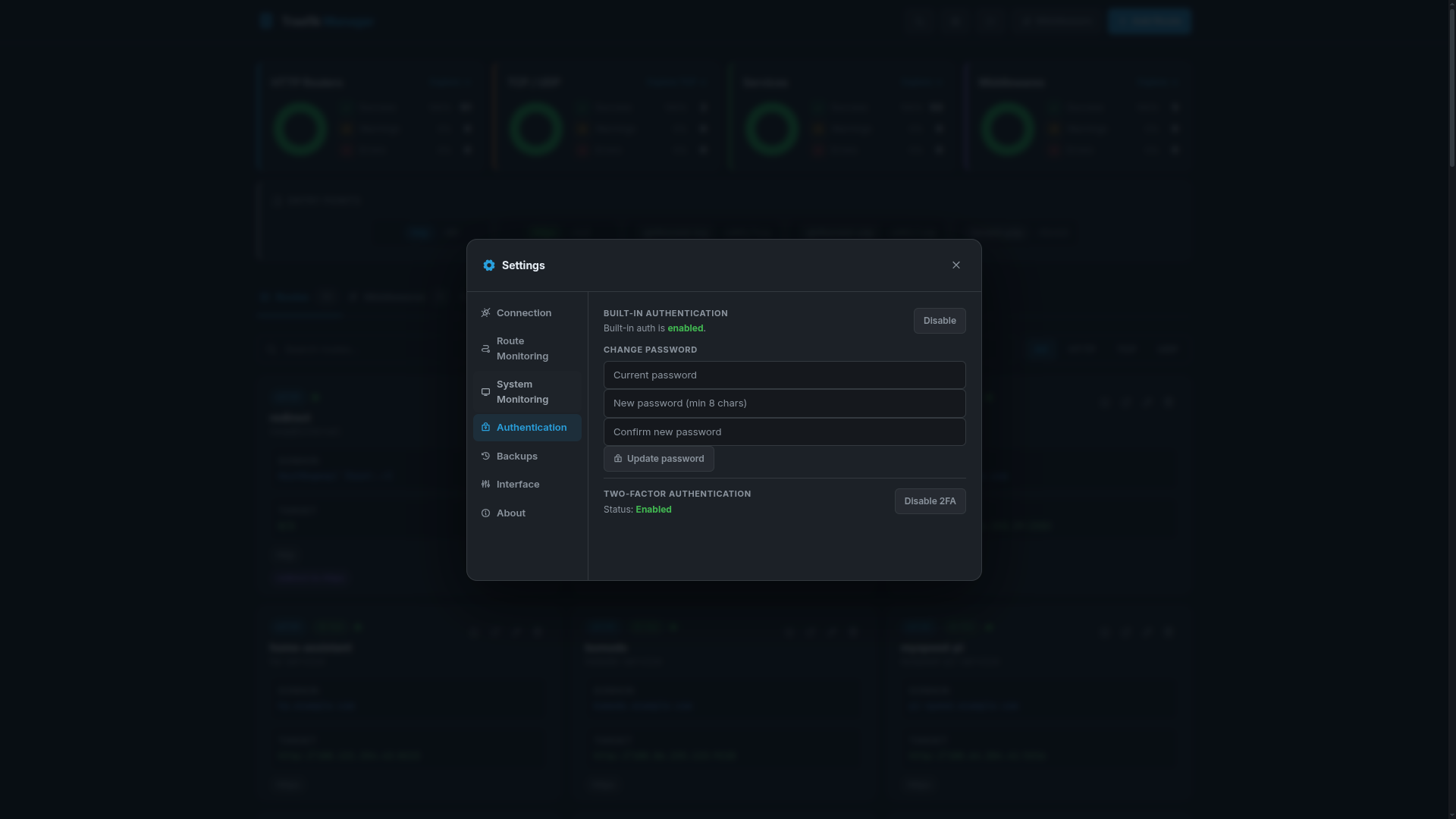
Authentication
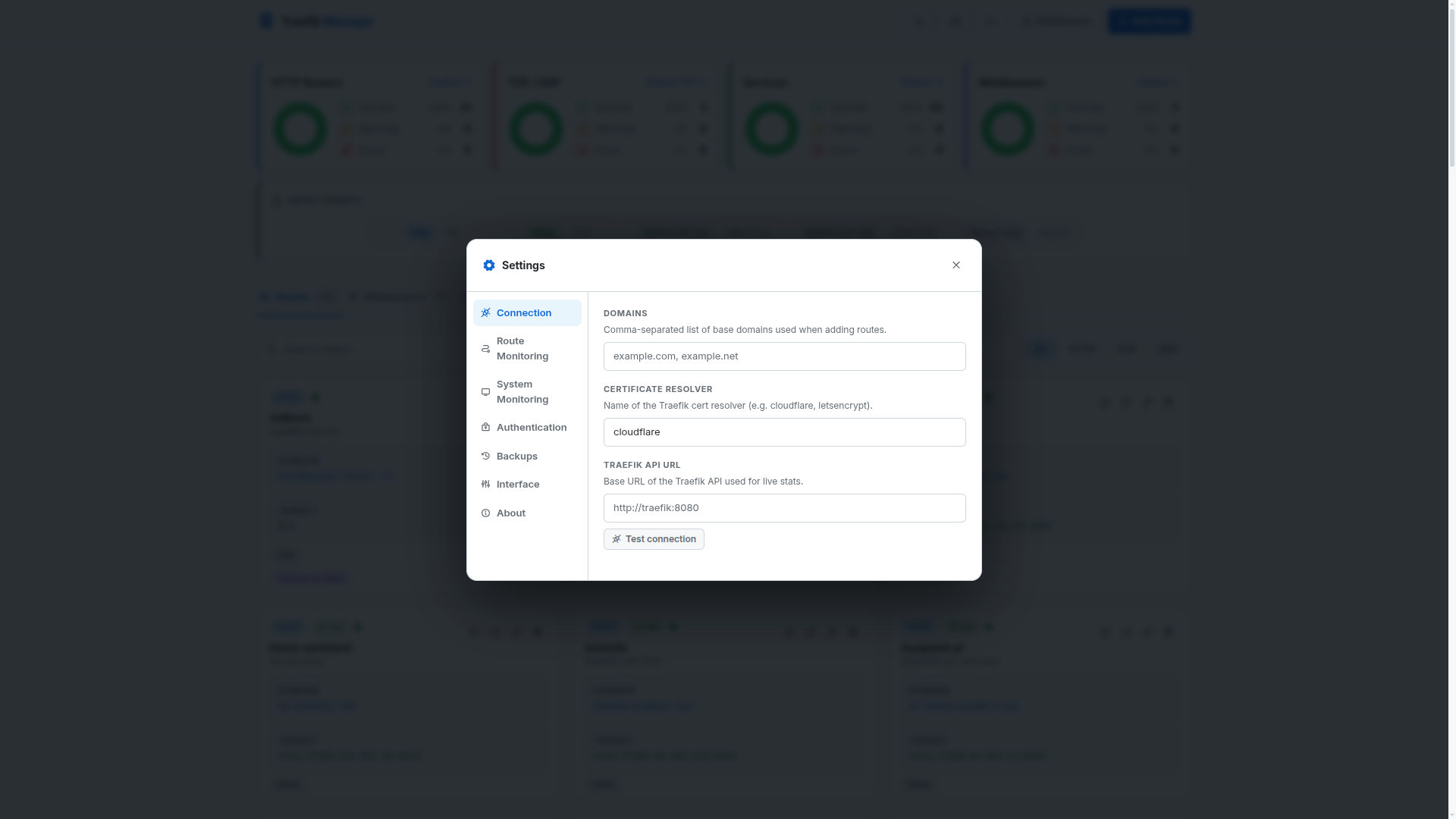
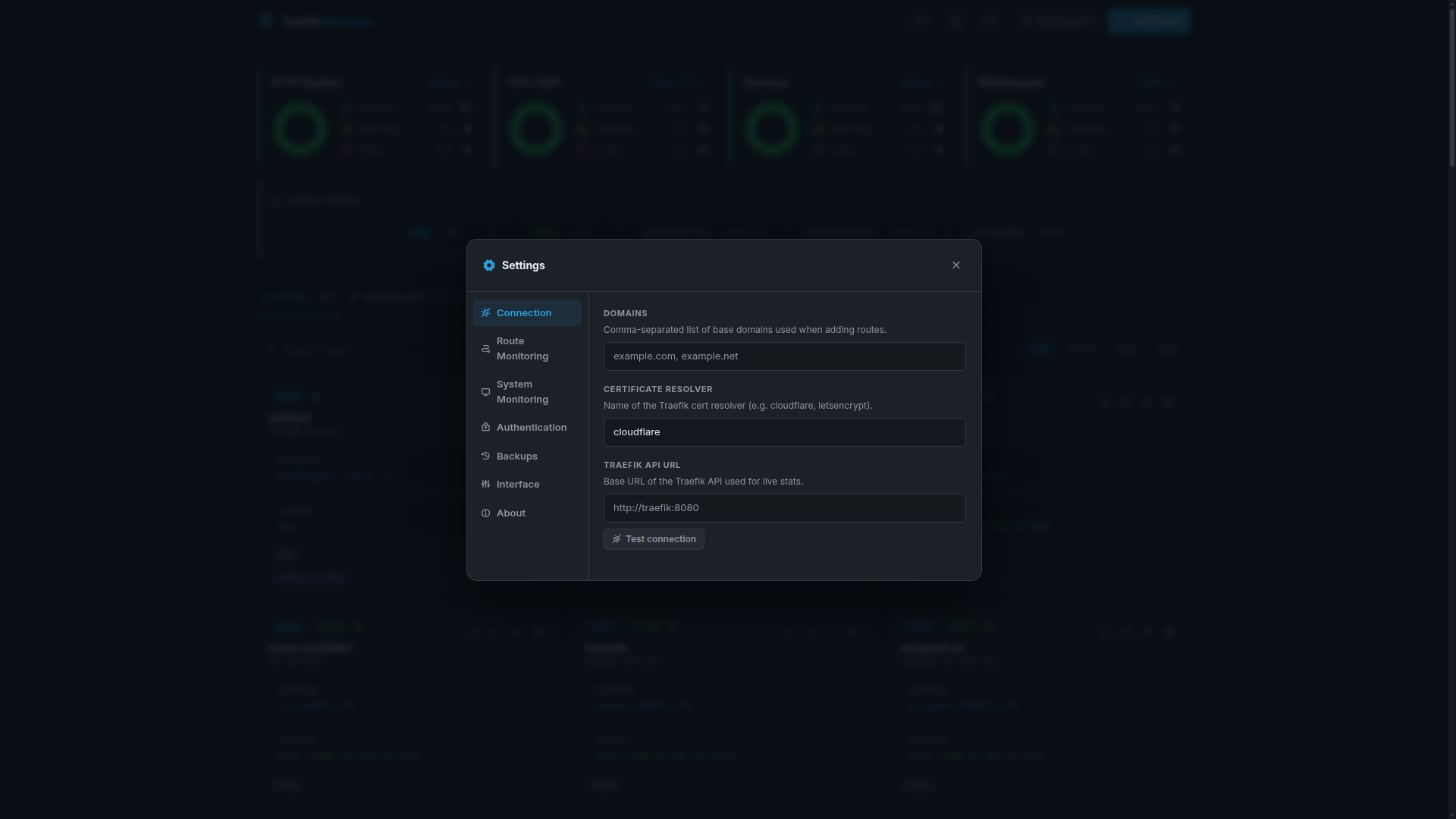
Connections
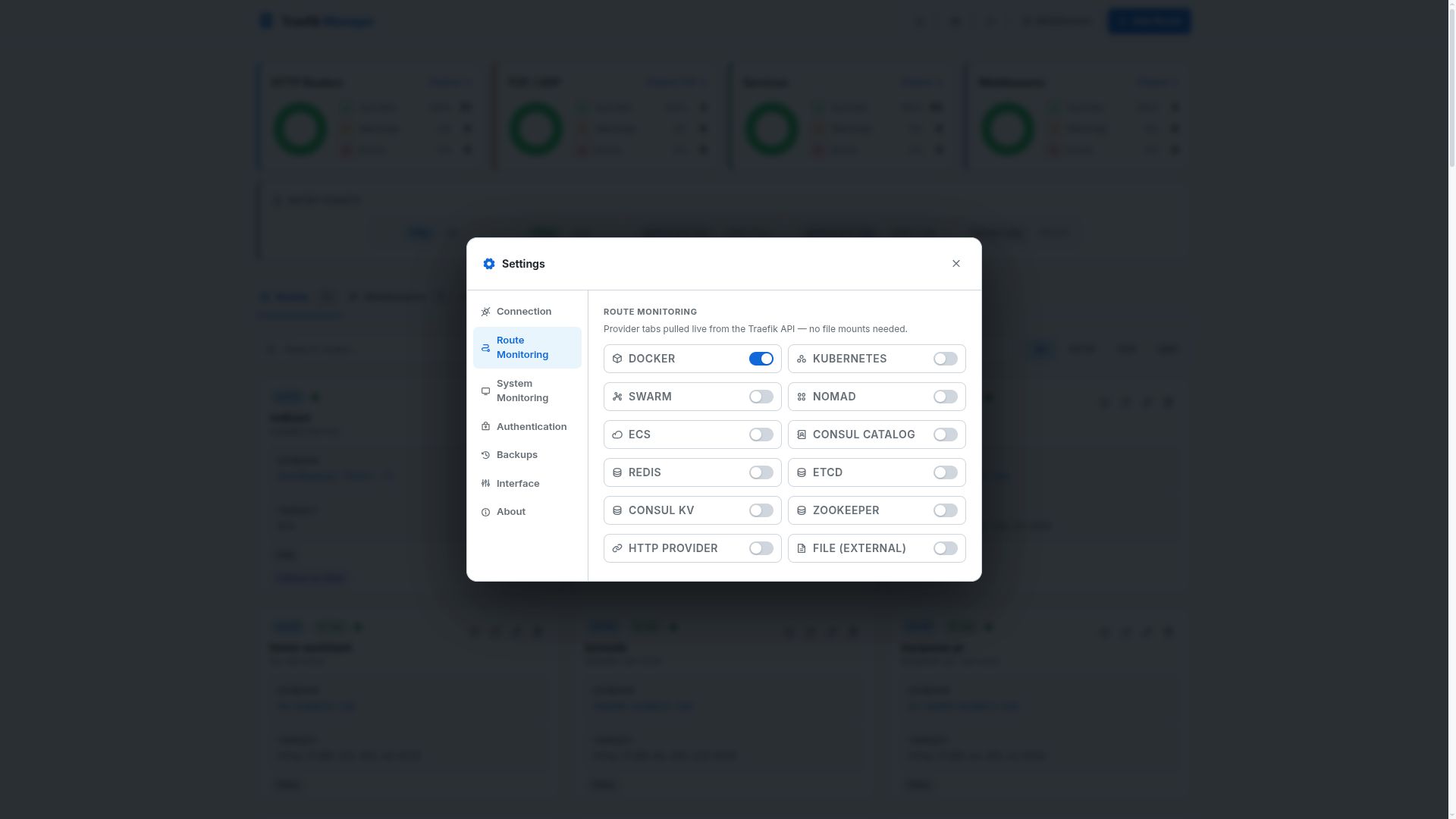
Routes Config
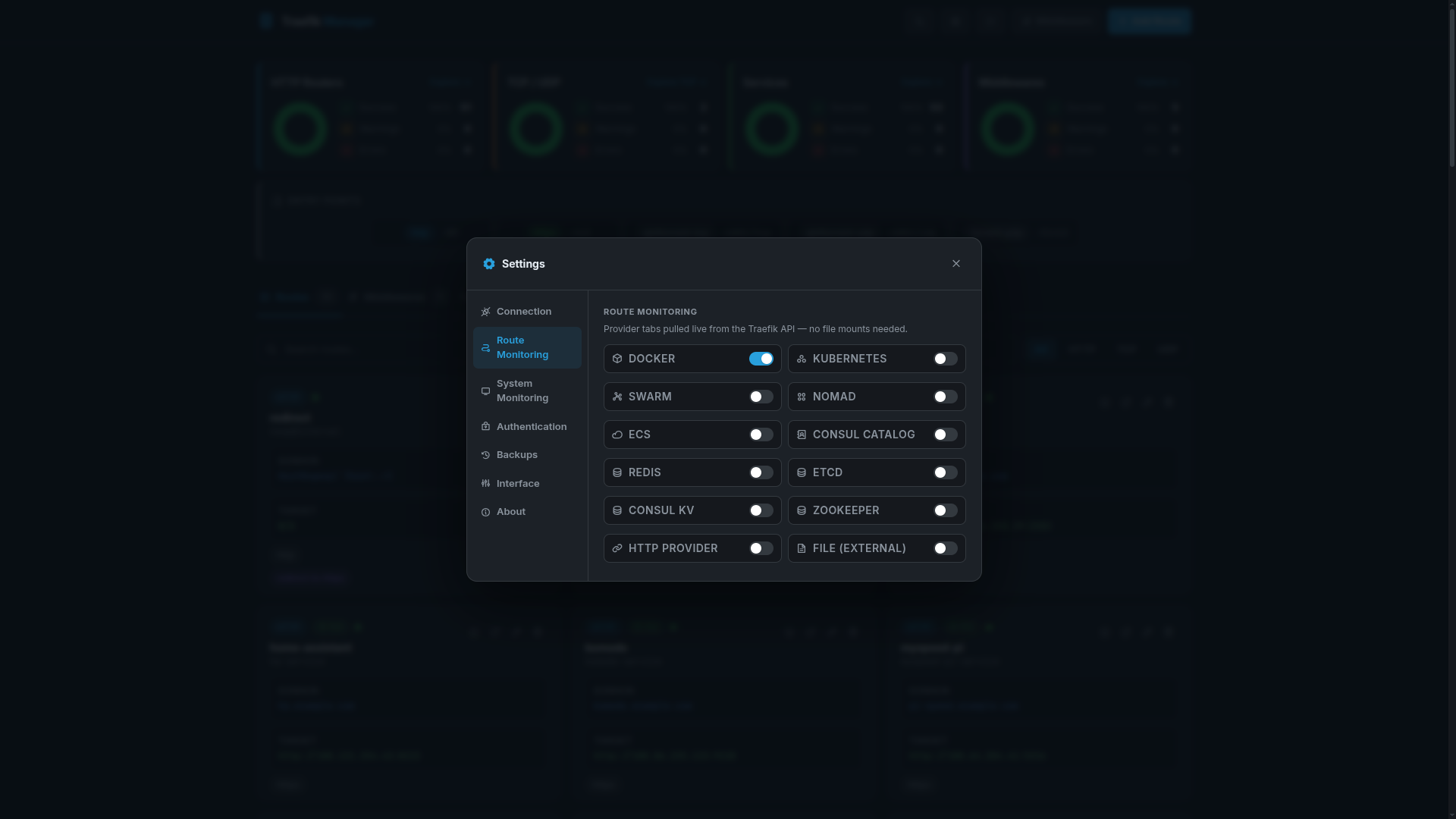
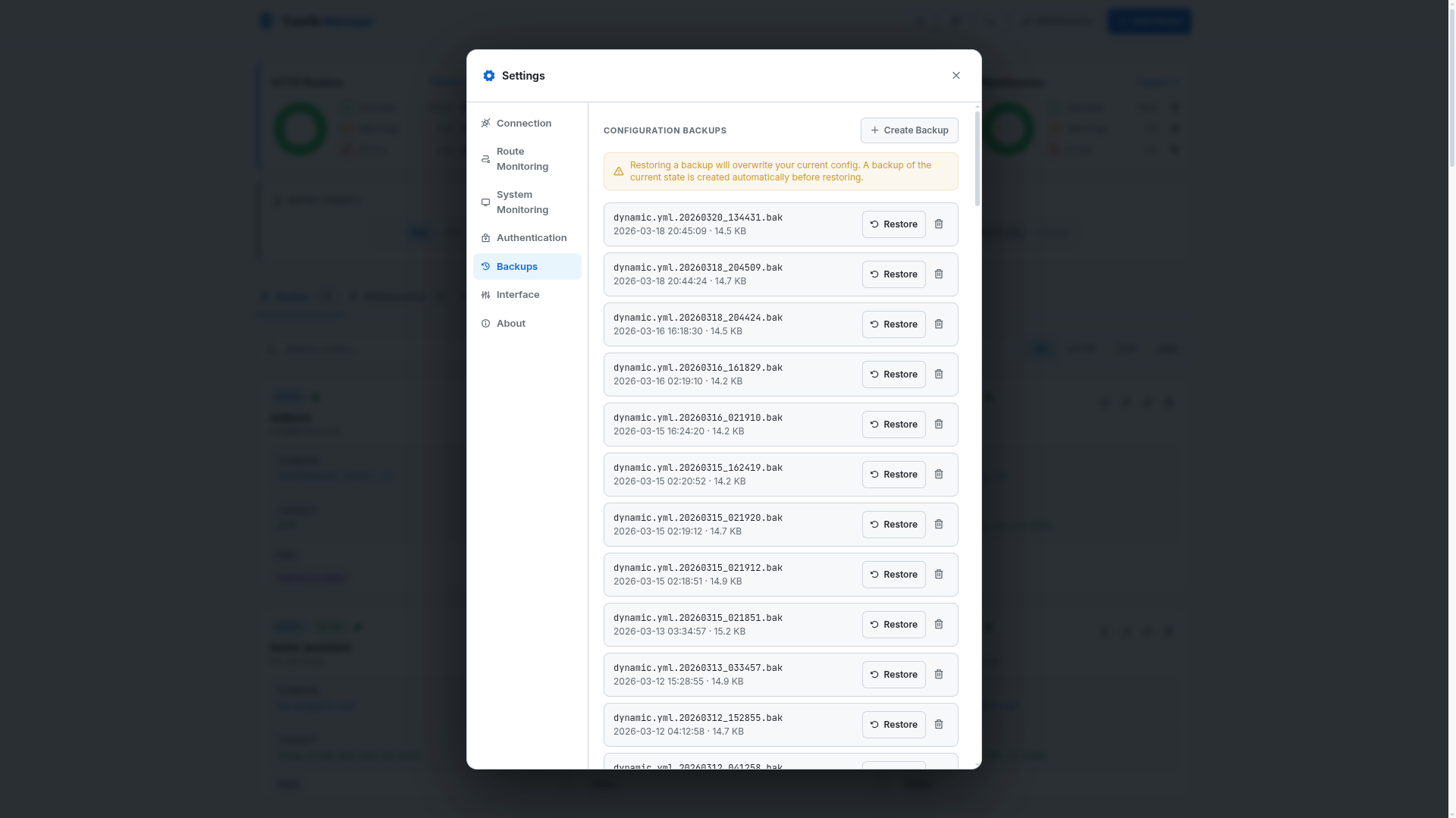
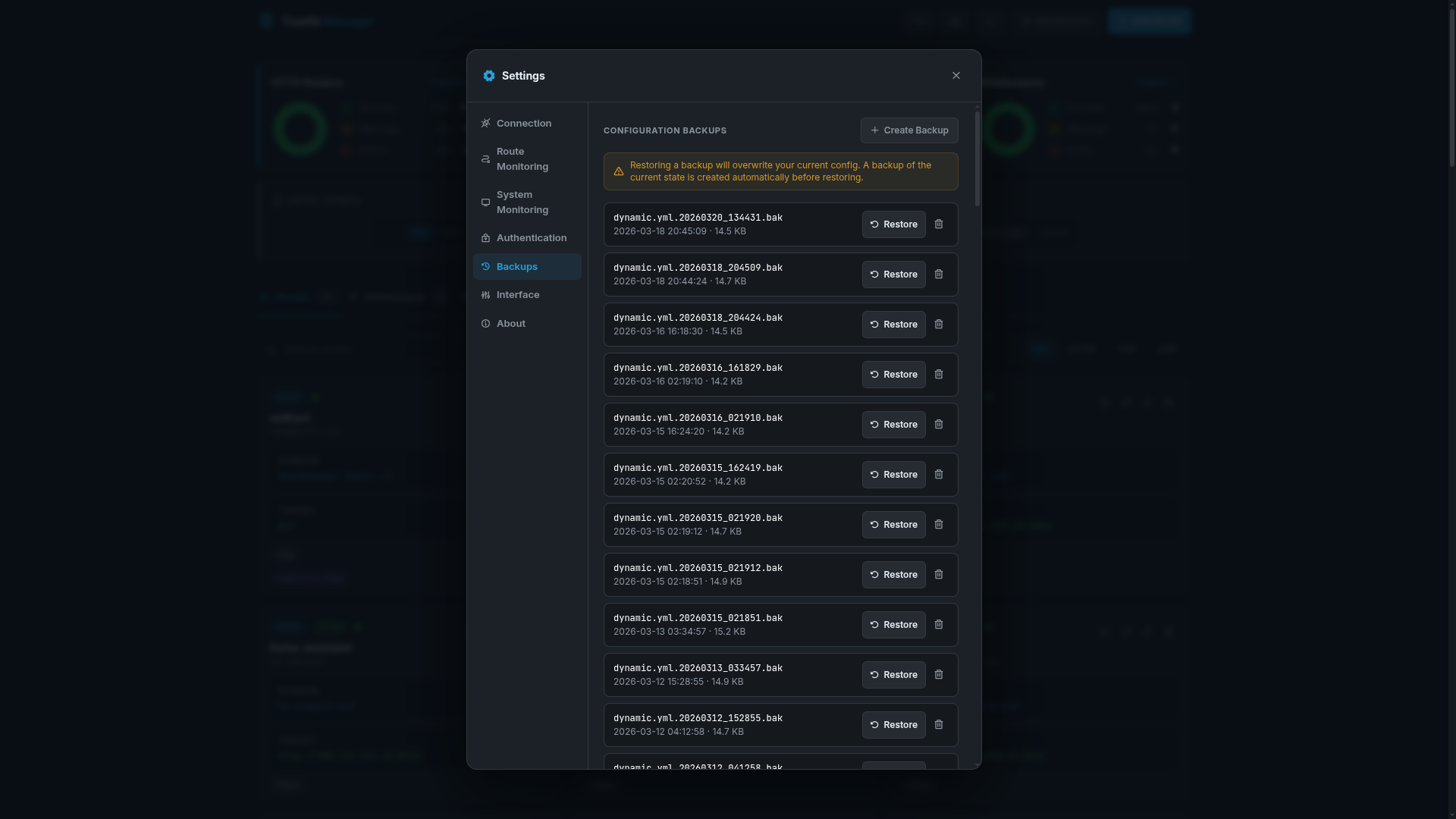
Backups
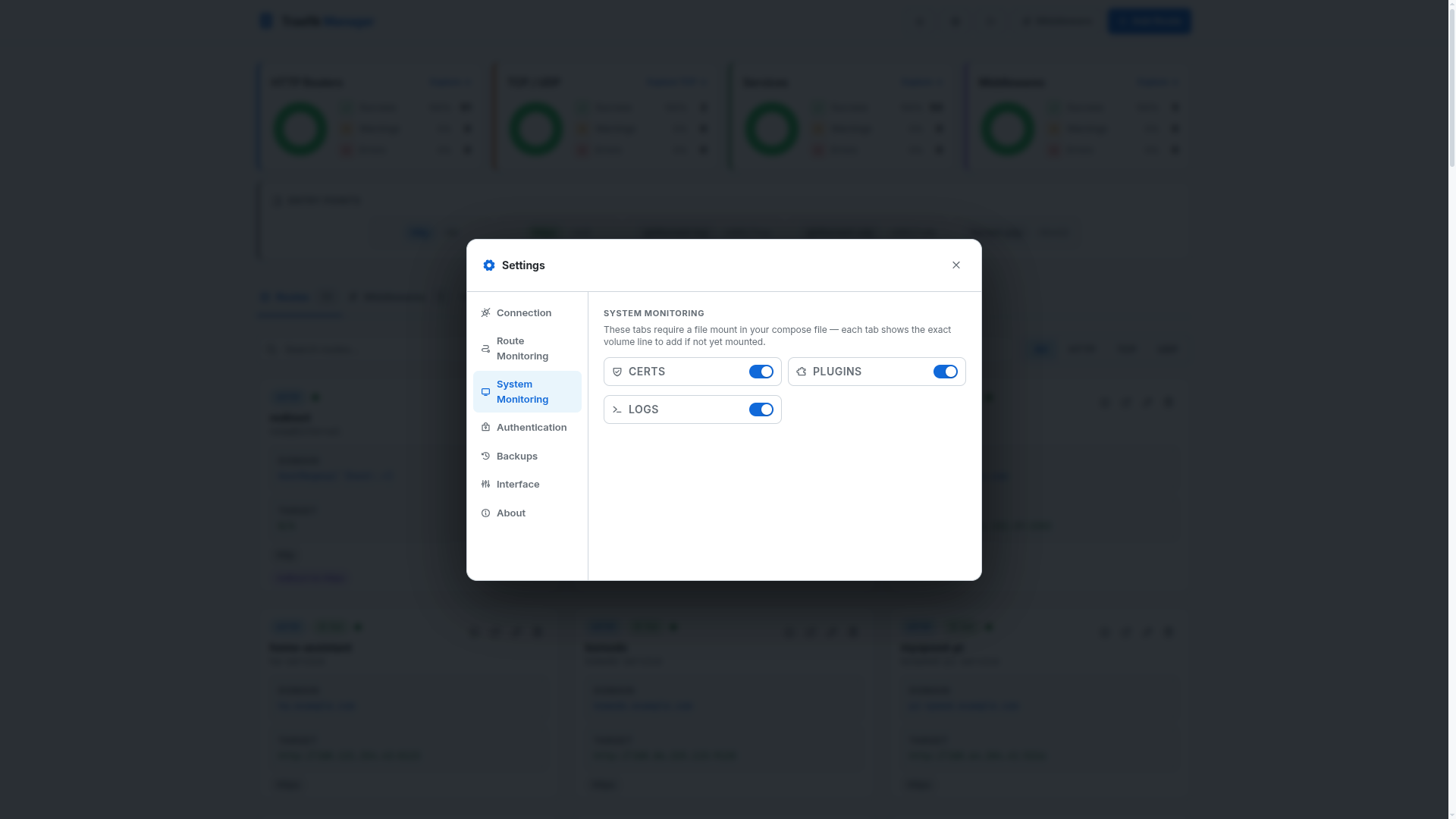
System
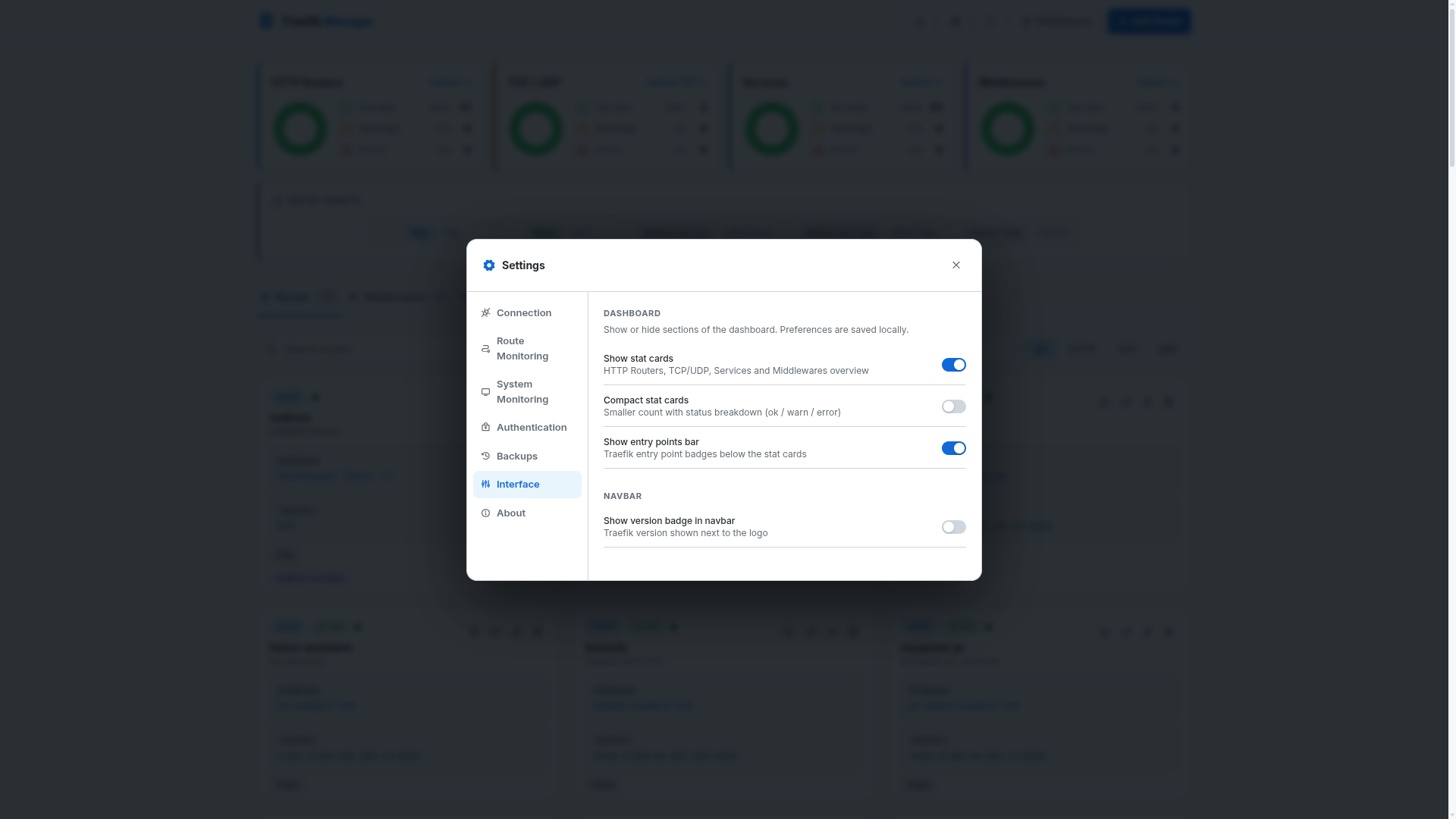
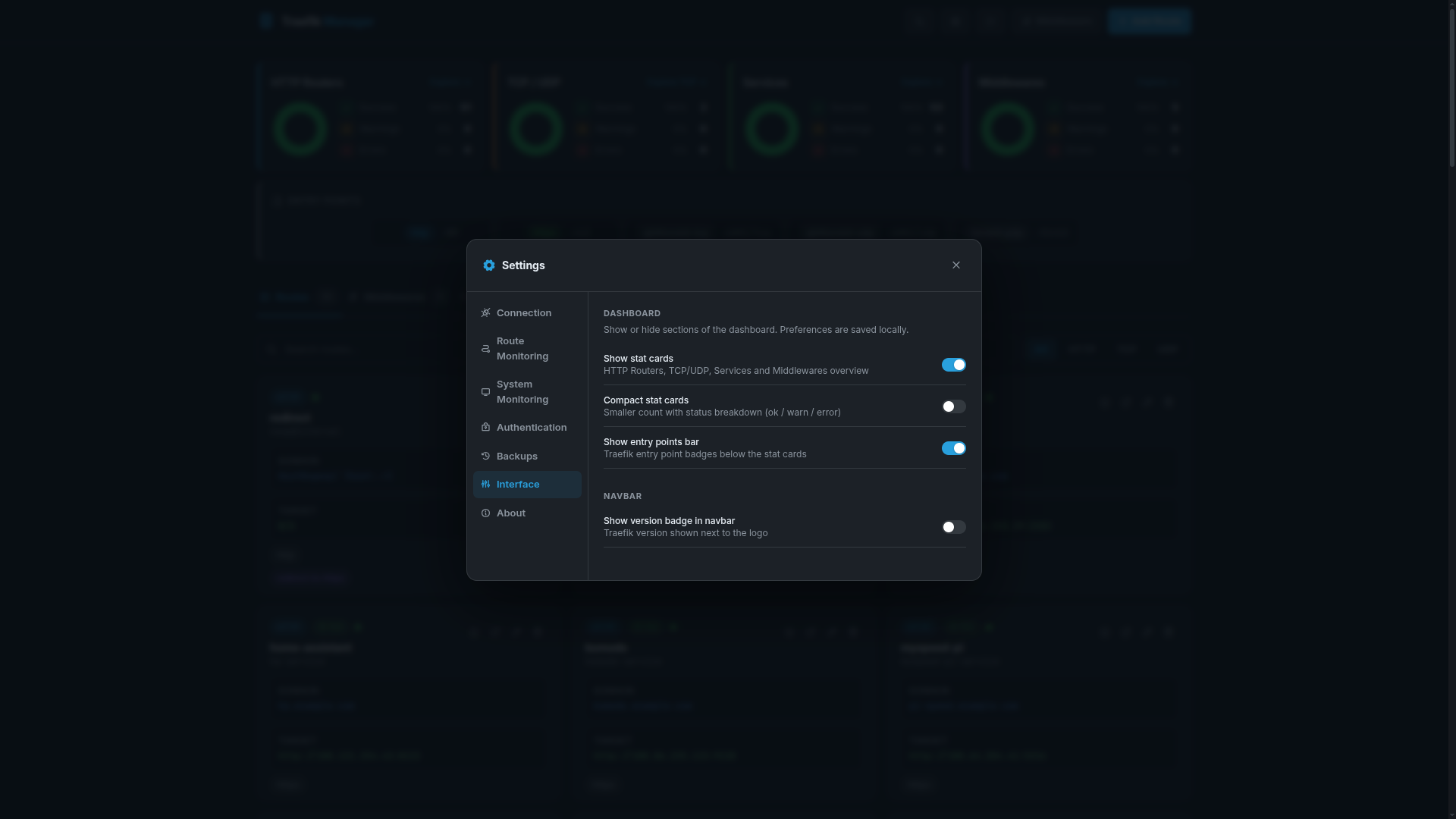
UI Preferences